
Plan a sprint
The teams that actually benefit from sprints share three small disciplines: they pick a cadence and don’t change it for at least six sprints; they estimate every task before it enters the sprint; and they treat the commitment as a promise the team made together, not a number a PM imposed. The mechanics of the sprints view below support all three, but only if the team treats sprint planning as the moment to make those calls deliberately rather than just moving cards.
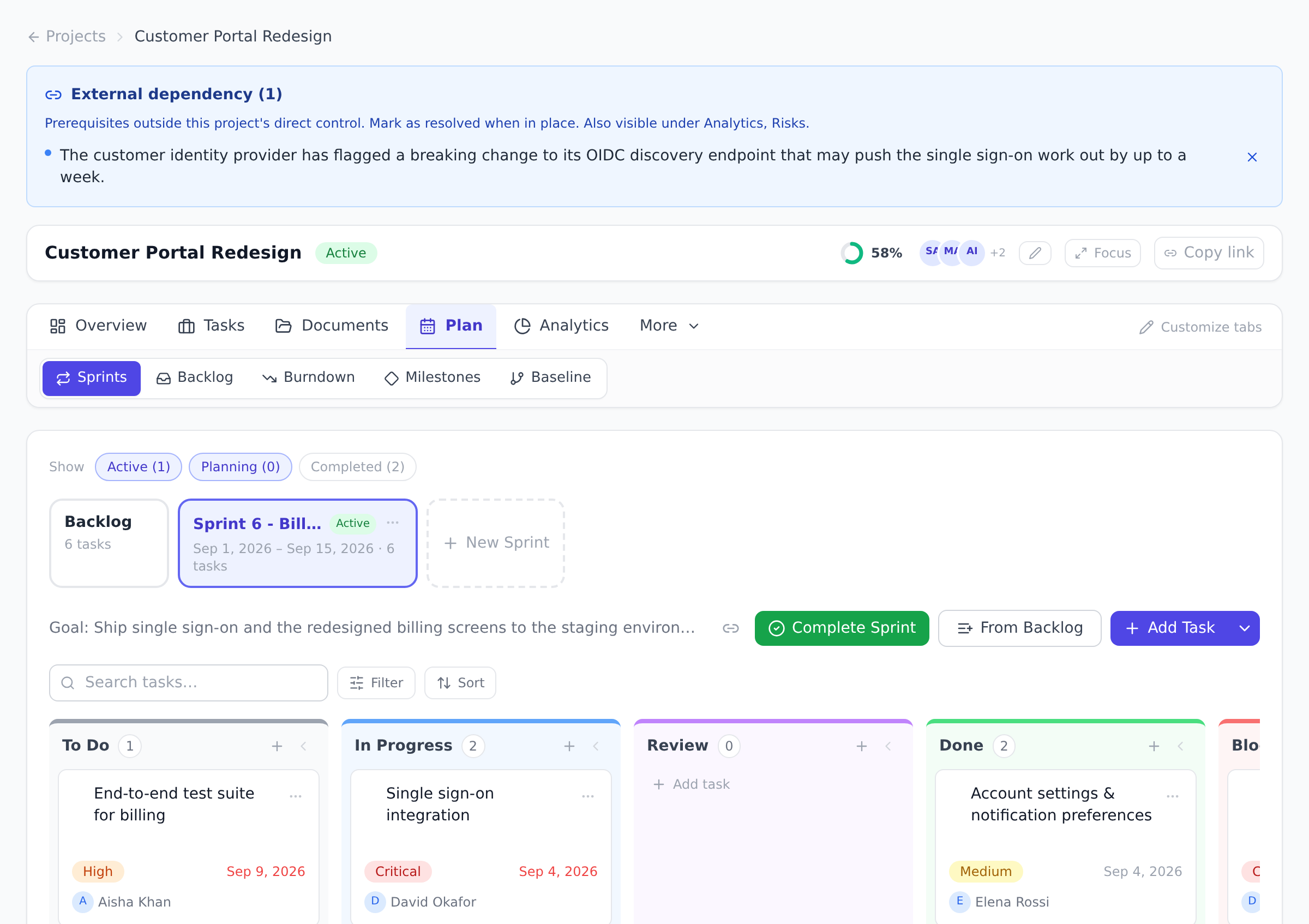
If you have not created a project yet, start with creating your first project.
The sprint lifecycle
Section titled “The sprint lifecycle”Every sprint moves through three stages:
- Planning: the sprint exists but has not started. You can add and remove tasks freely.
- Active: the sprint is running. Only one sprint per project can be active at a time; trying to start a second one shows an error naming the sprint that is already active.
- Completed: the sprint is closed. Tasks that reached Done stay on it as its permanent record. See running and completing a sprint for what happens to the rest.
Create the sprint
Section titled “Create the sprint”-
Open your project, open the Plan tab under the project header, and select Sprints.
-
Select New Sprint. The start and end dates are prefilled to continue right after your last sprint, with the same length, and the start date skips non-working days on the project’s working calendar. Adjust them if you want a different cadence.
-
Enter a name (for example “Sprint 5”) and select Create. The new sprint starts in Planning.
Pull tasks in from the backlog
Section titled “Pull tasks in from the backlog”With the sprint selected, use From Backlog to fill it:
-
Select From Backlog. The Add from Backlog picker lists every task that is not yet on a sprint, with subtasks indented under their parents.
-
Search if the list is long, then tick the tasks you want. Select all grabs everything that matches.
-
Select Add to Sprint. If you picked a subtask, its parent task comes along automatically so the work stays visible on the sprint board; if that parent currently sits on a different sprint, you are asked to confirm the move first.
You can also create work directly in the sprint with Add Task, or send a task back with the Move to Backlog action on its card. For heavier triage (bulk moves, grouping, filtering), use the Backlog view instead.
Start the sprint
Section titled “Start the sprint”When the scope is settled, select Start Sprint. The sprint becomes active and its board is where the team works day to day.
Best practices
Section titled “Best practices”- Pick a cadence and don’t change it for at least six sprints. Two-week and three-week sprints both work; the problem is changing between them mid-quarter. Velocity only becomes a useful number once the team has 4-6 same- cadence sprints to average. Switching the cadence restarts that clock.
- Estimate every task BEFORE it enters the sprint. The sprint commitment is “this team commits to roughly these hours of work in this window.” Unestimated tasks make the commitment a guess. Five minutes per task at planning is the price; the alternative is a sprint that runs 70% over capacity and burns out the team.
- Use the sprint date range as a hard boundary, not a soft target. The end date is the end date. Tasks not Done at sprint end go back to the backlog automatically, and the team plans the next sprint with that learning visible. Pushing the end date “just by a few days” hides the velocity signal.
- Plan with the whole team, not just the PM. A sprint the PM filled alone gets to the standup with surprises; a sprint the team filled together arrives with the team knowing what’s in it and why. Even 30 minutes of joint planning beats two hours of PM solo work.
- Leave 10-20% slack for unplanned work. Every team has support requests, urgent bugs, or stakeholder asks mid-sprint. A sprint planned to 100% capacity has no room for them; a sprint planned to 80% absorbs them without sliding committed work. Plan to your last 4-6 sprints’ actual velocity, not the team’s theoretical capacity.
Troubleshooting / common pitfalls
Section titled “Troubleshooting / common pitfalls”- My sprint dates overlap with another sprint. Sprint ranges cannot overlap within a project. The form names the sprint you’re colliding with; either pick later dates, or end the overlapping sprint first.
- I tried to start a second sprint while one is active. Only one sprint per project can be active. Complete the current sprint (or delete it if it shouldn’t have been created) before starting the next.
- The dates didn’t prefill the way I expected. Two causes: (a) it’s your first sprint, so there’s no previous one to follow; (b) the working calendar set on the organization skipped a non-working day. The defaults are helpful but not magic. Adjust as needed.
- I added a subtask to the sprint but its parent didn’t come along. Two causes: (a) the parent is already on the sprint (check); (b) the parent was on a DIFFERENT sprint (Onplana asks for confirmation in that case, and you may have dismissed it).
- My sprint has too much in it (velocity says so). Use the Move to Backlog action on the cards you’re least committed to. Better to plan small and pull more if you finish early than to overcommit and burn out.
How this combines with other features
Section titled “How this combines with other features”- Sprint + Backlog view. The backlog is where unscheduled tasks wait; the sprint is the time-boxed commitment to pull a slice of them forward. The two views are paired. Groom the backlog before sprint planning so the available work is well-shaped. See Groom the backlog.
- Sprint + Burndown. Each sprint gets its own burndown chart via the Burndown view. The per-sprint chart is the canonical retro tool. Slope, shape, and end-state tell the team what to change. See Use the calendar and burndown views.
- Sprint + Capacity planner. When tasks have estimated hours, the capacity planner shows whether the team has enough hours to absorb the sprint commitment. Plan against capacity rather than gut feel. See Plan team capacity.
- Sprint + Epics. Epics group related work across sprints. A “Q3 Migration” epic might span 4 sprints; the Epics view shows the whole picture, while the sprint view shows the slice currently in flight. See Group work with epics.
Coming from another tool
Section titled “Coming from another tool”| Tool | Mapping |
|---|---|
| Jira | Direct concept; sprints work nearly identically (Onplana doesn’t have story points as a first-class field, uses estimated hours instead) |
| Asana | Asana sections ≈ sprint scope; Asana doesn’t have first-class sprints |
| Linear | Cycle ≈ sprint; Linear cycles are time-boxed similarly |
| ClickUp | Sprint Folder ≈ sprint; same lifecycle |
| Azure DevOps Boards | Direct mapping; iterations = sprints |
Can two sprints run at the same time in one project? No. A project has at most one active sprint. Complete the current sprint before starting the next one.
What happens to tasks if I delete a sprint? They are not deleted. Every task on the sprint moves back to the backlog, and the confirmation dialog tells you how many tasks that affects.
Who can create and manage sprints? By default, project members and above. Project contributors and viewers cannot create, start, or complete sprints; admins can adjust this in the organization’s permission matrix.
How long should a sprint be? Most teams pick 2 weeks. 1 week sprints work for very small teams with very fast feedback loops; 3-4 weeks work for teams with longer in-progress work. The constant: pick once, hold it for at least 6 sprints before reconsidering.
Can I run sprints across multiple projects at once? Each project has its own sprint cycle, so a team working in 2 projects has 2 independent sprint streams. Cross-project sprint coordination is achieved by aligning the date ranges, not by sharing a sprint record.
Does Onplana support story points or t-shirt sizing? Not as first-class fields today. The closest is estimated hours which feeds capacity, velocity, and progress math the same way. Teams that need story points add them as a custom field.
What about scrum ceremonies (standup, retro, planning)? Onplana provides the artifact (the sprint board, the burndown, the backlog); the ceremonies happen wherever your team meets. The burndown chart is the retro tool; the sprint board is the standup tool.
Related
Section titled “Related”- Run and complete a sprint, the working phase after planning
- Groom the backlog, prepare the work that goes into sprints
- Group work with epics, sprints work better when their tasks belong to clear epics
Was this helpful?
Thanks for your feedback!