
Work with tasks
Tasks are the unit of work in Onplana. Every project view (list, board, Gantt, calendar) is a different lens on the same tasks, so the patterns you adopt here propagate everywhere. The teams that finish projects on time aren’t using exotic tools, they’re keeping titles short, assignees real, and statuses honest. This article covers the five statuses, four priorities, the field set, and the small habits that make the difference.
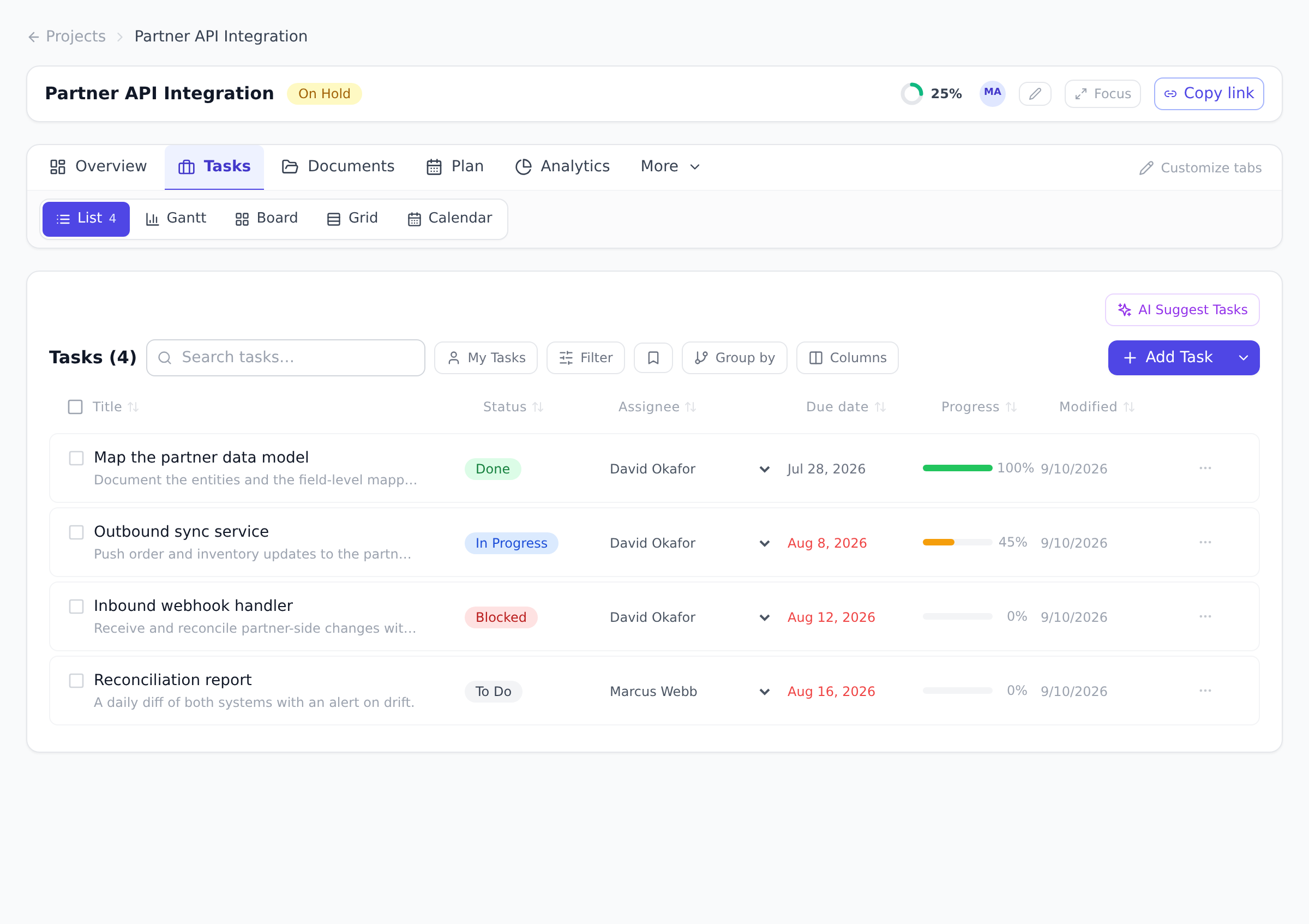
Two things there are easy to miss. Fill fields reads the sentence you typed, so “review the billing screens with Elena by Friday, high priority” becomes a title, an assignee, a due date and a priority without you touching four controls. And once someone is assigned, the panel underneath says how full their week already is, with the work that filled it, so you find out before you commit them rather than at the end of the sprint.
Statuses
Section titled “Statuses”A task is always in one of five statuses:
- To Do: not started. Every new task begins here.
- In Progress: actively being worked.
- Review: done but awaiting a check.
- Done: finished. Done tasks drive the project’s progress rollup.
- Blocked: cannot proceed until something is resolved.
Change status from the task’s edit view, by dragging the card on the Kanban board, or inline in the task list.
Priorities
Section titled “Priorities”Four levels: Low, Medium (the default), High, and Critical. Priority is a sorting and filtering signal across the list and board views; it does not change any scheduling math.
The fields on a task
Section titled “The fields on a task”- Assignee: one project member responsible for the task. Filter any view by assignee to see a person’s plate.
- Start date and Due date: drive the calendar, the Gantt timeline, and overdue indicators.
- Estimated hours: feeds capacity planning, and when every task in a project has an estimate, project progress becomes effort-weighted (see Manage project status and progress).
- Description: free text with room for context.
- Tags: shared, color-coded labels. See Tag work with shared labels.
- Custom fields: your organization’s own fields, if any are defined. See Create custom fields.
Subtasks
Section titled “Subtasks”Any task can be broken into subtasks: open the task and use the Add subtask and press Enter quick-add at the bottom. Subtasks carry their own status and progress and roll up into the parent. They are one level deep by design; if a subtask needs its own subtasks, it probably deserves to be a task.
Create a task
Section titled “Create a task”New Task opens on the title with the cursor already in it. Type the title and press Enter and the task exists. Everything else is optional.
-
Open a project, open the Tasks tab under the project header, and select List (or any other view in that tab).
-
Select the add-task button and type a title. Enter creates it.
-
Set what you already know from the chips under the title: Assignee, Due date, Priority, and a line of description. Anything else, including the start date, the estimate, the sprint, the epic, a repeat rule, attachments and comments, is behind More options.
Assignee already names you. Pick someone else, or clear it to leave the task unassigned.
-
Open the task afterwards to add subtasks, link dependencies, or fill in the rest.
Two things worth knowing about that form:
- A new task is yours by default. Whichever way you add one, the form, a board column, a row in the List, the Grid or the Gantt, or a subtask inside a task you have open, it is assigned to you, so it is in My Work and in the companion apps straight away. Only the form shows the assignee before you create; change it there, or reassign afterwards from any view. The one exception is someone acting on a project they are not a member of, such as an org admin or a Portfolio Manager: their tasks stay unassigned, because the work is not theirs.
- More options remembers. If you leave it open, it opens that way next time, so a team that always sets estimates does not reopen it on every task. It also opens by itself when a field inside it is required or already filled.
- Fill fields reads the title. Type “review the designs by Friday, high priority” and select Fill fields: the due date and priority are filled in from the sentence and the title is tidied. Check what it filled before you create.
- Create and add another is on the Create button’s menu, for when you are writing a list rather than one task.
The task detail saves as you go
Section titled “The task detail saves as you go”Opening an existing task gives you the full detail, and there is no Save button. Text fields save when you leave them, everything else saves as you change it, and closing the panel saves whatever is outstanding. The header says which state you are in: Saving, Saved just now, Unsaved changes, or Fix the highlighted field to save.
The layout is the task on the left and its properties on the right:
- Left: the title with its status pill, the description, the agent card if the task can be run by one, subtasks with a live done count, and Comments, Agent and History as tabs.
- Right: Assignee, Due date, Start date, Priority, Tags, Progress, Estimated hours and Attachments, with More holding sprint, epic, parent task, dependencies, custom fields, the schedule fields (milestone, duration and remaining, actual start, constraint, deadline, repeat) and goals.
Drag the divider between the two to make the properties column wider or narrower, or focus it and use the arrow keys; Enter or a double-click resets it. The width is remembered in your browser. On a phone the properties stack underneath instead and there is no divider.
The … menu in the header holds the rest: Run with Onplana Agent, Copy task link, File an issue from this task, Create GitHub / Jira issue where those are connected, Change parent task, History, and Delete task, which moves it to the recycle bin.
Reorder tasks
Section titled “Reorder tasks”Tasks keep a manual order that every view respects. In the List and on the Gantt chart, drag the grip handle at the left of a task’s row to move it up or down among its siblings. After every reorder a toast appears with an Undo button, so a mis-drop is one click to reverse.
Two rules to know:
- Reordering stays within a level. A root task reorders among root tasks, a subtask among its own parent’s subtasks. To move a task under a different parent, open the task and change its parent field.
- In the List, reordering needs the manual order active. With a sort or grouping applied, the order is computed from data, so the grip handles hide until you clear the sort. The Gantt always renders the manual order, so its handles are always available to people who can reorder.
Delete a task
Section titled “Delete a task”Deleting a task does not stop to ask. It goes, and a message offers Undo for about eight seconds. Its subtasks go with it and come back with it, so you are never left putting a tree back a piece at a time. Deleting a selection of rows in the Grid gives you one Undo for the whole selection rather than one per row.
Miss the message and nothing is lost. The task is in the Recycle Bin with its subtasks, comments, attachments, tags and dependency links intact, and restoring it puts all of that back where it was. See Restore from the Recycle Bin.
Best practices
Section titled “Best practices”- Write the title as the outcome, not the action. “Implement webhook signature verification” reads as “this is what’s needed”; “Sign webhooks” is ambiguous (sign with what? for whom?). The clearer title saves a Slack DM at standup the next morning.
- Estimate every task you intend to finish this sprint. When even half the tasks have estimates, the project progress rollup gets dramatically more accurate. The Onplana progress math is effort-weighted only when estimates are present; without them, every task counts equally regardless of size.
- Use Blocked as a flag, not a parking lot. A Blocked task should have a comment explaining what’s blocking it and who owns the unblock. The status turns the card red precisely so it stands out and gets addressed at standup; leaving tasks Blocked silently for two weeks defeats the purpose.
- Promote subtasks to tasks when they outgrow one level. Subtasks are deliberately one level deep. If a subtask is developing its own subtasks, that’s a signal it should be a task with its own subtasks instead. Don’t fight the depth limit; refactor.
Troubleshooting / common pitfalls
Section titled “Troubleshooting / common pitfalls”- The task I just created isn’t on the Gantt. A task only appears on the Gantt timeline when it has a start date. Open the task, set both start and due dates, and it shows up immediately. The List, Board, Calendar, and Burndown views all work without dates; only Gantt requires them.
- The progress percentage doesn’t change when I mark a task Done. The project progress is auto-calculated from all tasks; a single Done task on a 50-task project moves the number by ~2%. If you expected a bigger jump, check whether you’re looking at project progress (rollup) versus the individual task progress (single task).
- My assignee dropdown is empty. The dropdown only shows members of the project, not the whole organization. Open the project’s Members tab and add the person there first. Members + project membership is intentional, it prevents “drive-by assignments” to people not on the project.
- I lost a task and it’s not in the recycle bin filter. Two causes: (a) someone changed the task’s parent so it’s now a subtask of another task (open the original parent and look inside); (b) the task was archived as part of a sprint closure, in which case it lives on the completed sprint. Search by exact title in the global search bar to locate it.
How this combines with other features
Section titled “How this combines with other features”- Tasks + Sprints. When tasks have estimated hours, dragging them into a sprint lets the team see capacity vs commitment immediately. The sprint board shows the sprint’s burndown chart, and undone tasks at sprint end can be pulled back to the backlog in one click.
- Tasks + Custom fields. Org-wide custom fields appear on every task in every project; project-scoped fields appear only inside the project they belong to. Both kinds are filterable in the list view and exportable to Reports. See Create custom fields.
- Tasks + AI assistant. Ask the in-app AI assistant “what
tasks are overdue on
<project>?” or “summarize tasks taggedbugacross my projects”. It uses the same task data you see; the answers cite the tasks back. See Chat with Onplana AI. - Tasks + Agents. When an AI agent is connected over MCP, it can be assigned to tasks the same way a human is. The agent picks up the task on its next poll (or immediately if the agent has a registered webhook). See Assign work to an agent.
Coming from another tool
Section titled “Coming from another tool”| Tool | Mapping |
|---|---|
| Asana | Tasks ≈ tasks; sections ≈ epics (Pro+); subtasks one-deep here vs Asana’s unlimited |
| Jira | Issue types map to tags; status ≈ status; subtasks ≈ subtasks (Jira allows deeper hierarchies, refactor) |
| Trello | Card ≈ task; checklist items ≈ subtasks; labels ≈ tags |
| Microsoft Project | Task ≈ task; duration ≈ start+due dates; %Complete ≈ progress (auto-calc); Resource ≈ Assignee (one only) |
| Linear | Issue ≈ task; cycle ≈ sprint; priority levels map directly |
Can a task have more than one assignee? A task has a single assignee, which keeps ownership unambiguous. When several people share a piece of work, split it into subtasks and assign each one.
What does Blocked actually do? Blocked is a visibility signal: the card turns red on the board and the task stands out in every view. It does not freeze the task or stop edits; it tells the team where to look.
Who can edit a task? That depends on your role in the project. By default, project members edit the tasks assigned to them, project managers and owners edit any task, and viewers are read-only. Your admin can tune these defaults in the organization’s permission settings.
Can subtasks have their own subtasks? No, subtasks are one level deep by design. If a subtask develops its own structure, promote it to a top-level task with its own subtasks underneath.
Do tasks have a hard limit on size or count? Practical limits are very high (10,000+ tasks per project is fine). The Gantt chart starts to feel slow above a few thousand tasks; if your project is that big, breaking it into multiple projects under a single portfolio is usually a better mental model anyway.
Can I bulk-edit tasks? Yes. In the list view, select multiple rows (Shift+click for ranges, Ctrl/Cmd+click for individuals) and use the bulk-action toolbar that appears at the bottom. Bulk changes for status, priority, assignee, and tags are supported.
What happens to a task when its assignee leaves the organization? The task stays; the assignee field keeps showing the departed member’s name, it doesn’t clear automatically. Reassign the task to a current member from the task edit view when you notice.
Related
Section titled “Related”- Duration, remaining work and actual start, what a task was planned to take, what is left, and when it really began
- Use the Kanban board, drag-and-drop status changes for the same tasks
- Plan on the Gantt chart, timeline view with dependencies
- Link task dependencies, connect tasks with finish-to-start and the three other link types
Was this helpful?
Thanks for your feedback!