
Use Onplana in Microsoft Teams
If your team lives in Microsoft Teams, you do not have to leave it to check project work. The Onplana app for Teams puts your Dashboard, Projects, and Governance views inside Teams as tabs, signs you in silently with your Microsoft account, and lets you pin a specific project to a channel or group chat so the whole team sees the same board.
What you get inside Teams
Section titled “What you get inside Teams”- Personal tabs. Three tabs travel with you: Dashboard (your portfolio or My Work view), Projects (the full project grid and every project view: tasks, Kanban, Gantt, calendar), and Governance (the proposal pipeline).
- Single sign-on. The tab signs you in with the Microsoft account you are already using in Teams. When that account’s email matches your Onplana account, there is nothing to type; the tab opens straight into your data.
- Pin a project to a channel. A configurable tab lets any channel or group chat carry a specific project view, so standups and status conversations happen next to the live board instead of a stale screenshot.
Everything you see respects your normal Onplana permissions: the same projects, the same role, the same plan features as in the browser.
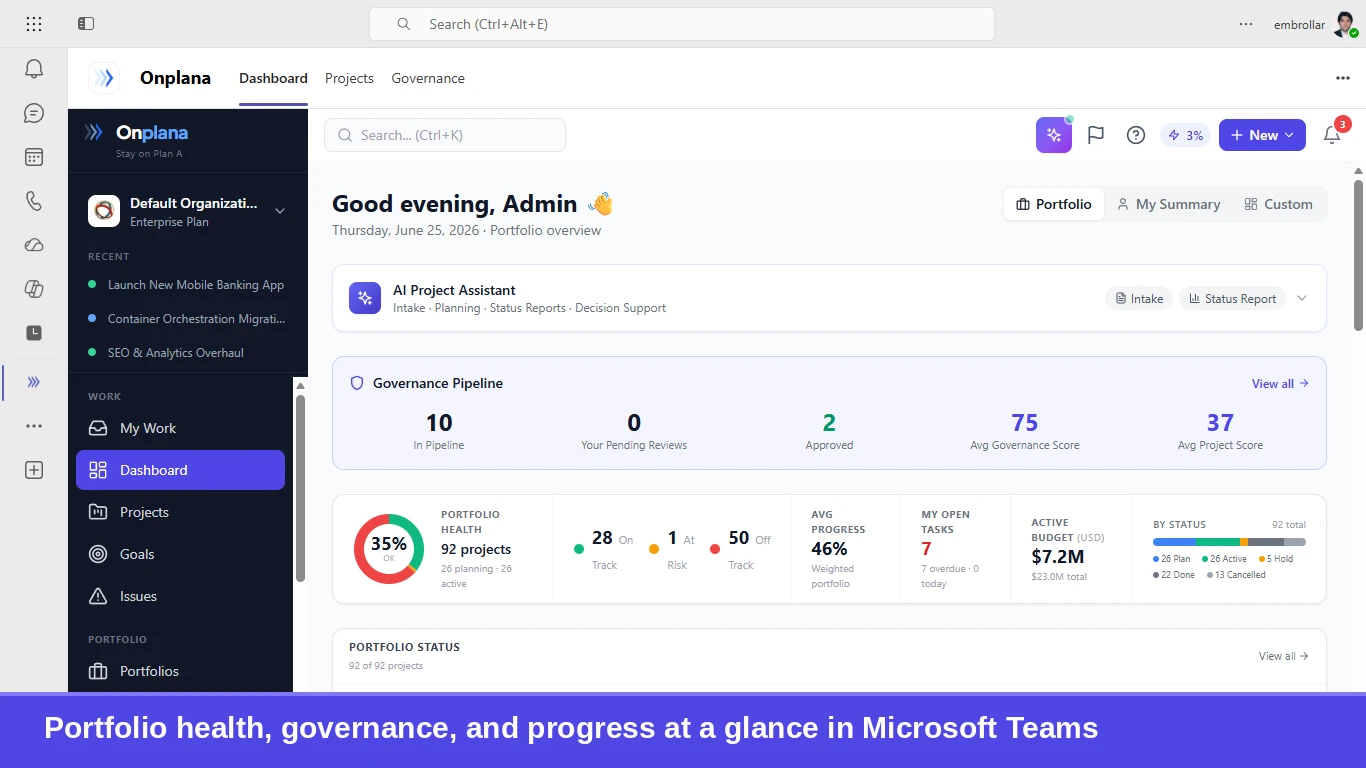
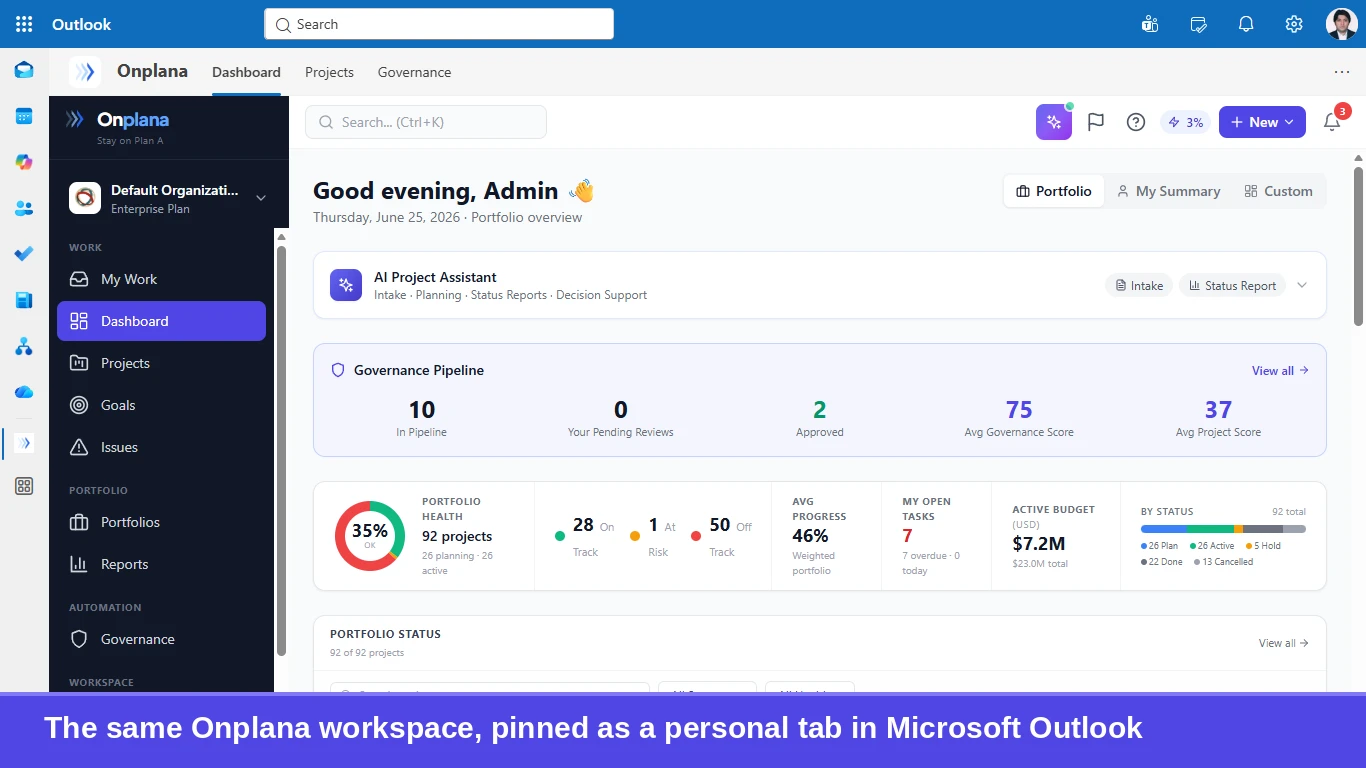
Because Onplana uses Microsoft’s unified app model, the same personal tabs also open in Outlook and the Microsoft 365 app, and on your phone in the Teams mobile app. There is nothing extra to install.
Add the app and sign in
Section titled “Add the app and sign in”-
In Teams, select Apps in the left rail and search for Onplana. Select Add to install it for yourself, or get it from Microsoft AppSource.
-
Open the app. The Dashboard, Projects, and Governance tabs appear across the top. The first launch signs you in with your Microsoft account automatically.
-
If your Microsoft email does not match an Onplana account yet, the tab walks you through connecting one. After that, sign-in is silent.
Pin a project to a channel or chat
Section titled “Pin a project to a channel or chat”-
In the channel (or group chat), select + on the tab strip.
-
Choose Onplana, then pick what the tab opens on: a specific project and view (Board, Overview, Task list, Timeline, or Calendar), or your Dashboard.
-
Save. Everyone in the channel now lands on that pinned view, scoped to what each person is allowed to see.
Ask the Copilot agent about your work
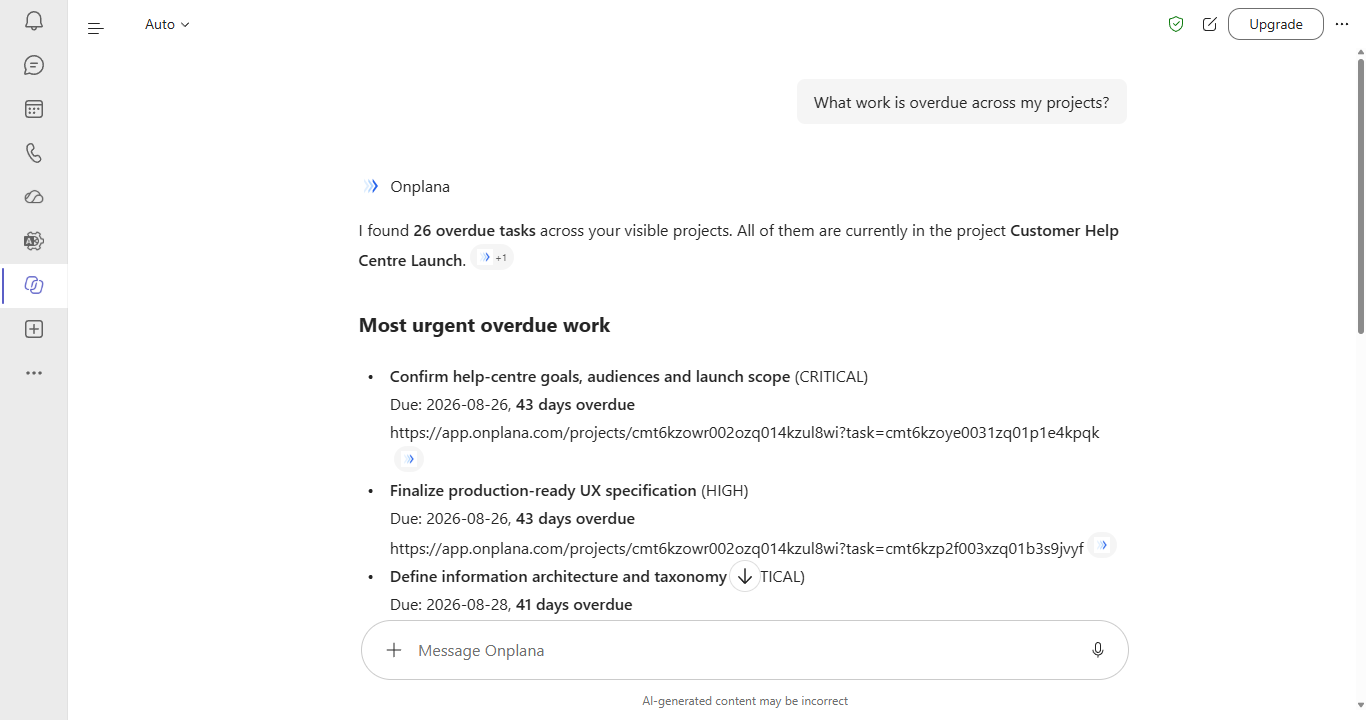
Section titled “Ask the Copilot agent about your work”The same app package includes an agent for Microsoft 365 Copilot. In the Copilot chat you can ask, in plain language, what is assigned to you, what is overdue, or for a status summary of any project, and you can search your workspace and create or update tasks. Every answer is grounded in your live Onplana data and scoped to your access.
When to switch to the browser
Section titled “When to switch to the browser”The Teams tabs focus on planning, tracking, and visibility, the things a team checks many times a day. Deeper administration (organization settings, billing, integrations, imports) is best done in Onplana on the web at app.onplana.com; every tab has an Open in browser affordance that takes you to the same place with your session intact.
Does the Teams app cost extra? No. It is part of every Onplana plan, including Free. Your plan determines which features you see, exactly as in the browser.
Do my teammates need Onplana accounts? Yes. The tab shows each person their own permitted view, so each viewer signs in with their own account. Inviting someone to your organization is the same flow as on the web.
We use enterprise SSO (SAML/OIDC). Does that work? Yes. The Teams sign-in hands off to the same authentication your organization already uses; Enterprise SSO organizations land in their normal identity flow.
Can I use Onplana in Teams on my phone? Yes. The tabs render in the Teams mobile app; complex views like the Gantt chart are more comfortable on desktop.
Related
Section titled “Related”- Deploy Onplana for Microsoft Teams, for IT admins allowing and rolling out the app across an organization
- Chat with Onplana AI, the in-app assistant with the same grounded answers
- Attach documents from SharePoint, keep files in Microsoft 365 and link them to work
- Connect Google and Microsoft accounts, the account connections behind file pickers and calendars
Was this helpful?
Thanks for your feedback!