
Organize project files in document folders
Every project has a Documents group with a Document Folders view where your team keeps files: charters, contracts, specs, screenshots, exports. Folders keep related files together, and most common file types open right in the browser without a download.
Upload without creating a folder first
Section titled “Upload without creating a folder first”The first time you open Document Folders in a project there is nothing to put files in yet, and you do not have to fix that before you start. Select Upload files on the empty panel, or drag files onto it, and Onplana puts them in the project’s automatic Project Documents folder, creating that folder if it is not there yet.
Create a folder and upload files
Section titled “Create a folder and upload files”Named folders are how you keep related files together once there is more than a handful, and you can make one at any point.
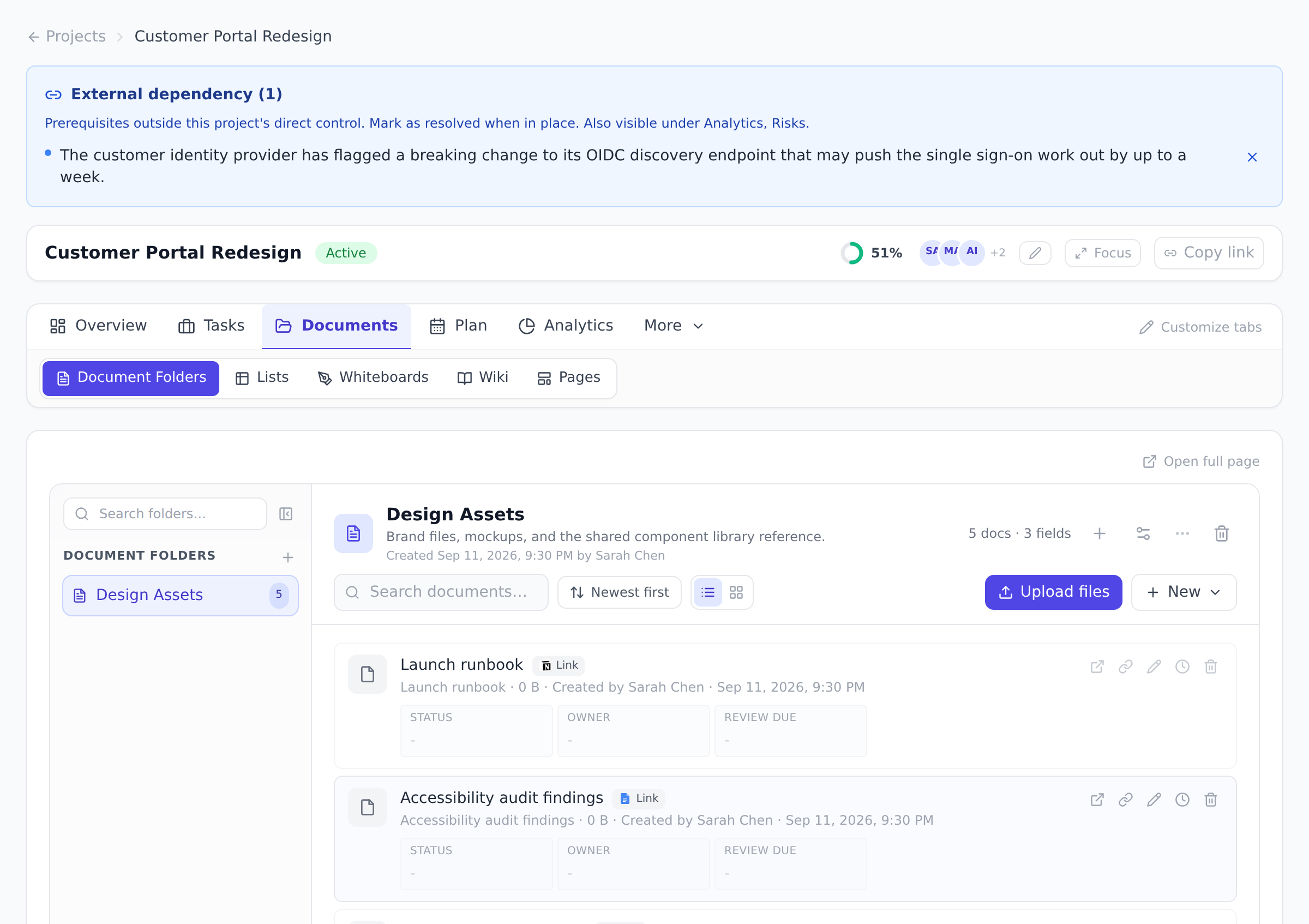
-
Open the project, open the Documents tab under the project header, and select Document Folders.
-
Create a new folder. The New Document Folder dialog suggests starting points (for example “Project Charters”) or you can name your own.
-
Select Upload files, or simply drag files from your computer onto the folder. Each file can be up to 100 MB.
The automatic Project Documents folder
Section titled “The automatic Project Documents folder”Each project gets a folder named Project Documents with an AUTO badge. You do not manage it directly: Onplana fills it for you. Files attached to tasks land here automatically, as do files uploaded while creating a task, project, or proposal, and anything you upload from the empty Document Folders view before any folder exists. It is the one place to look when you remember “someone attached that file to a task somewhere.”
Fold the folder list away
Section titled “Fold the folder list away”Your folders sit in a list down the left of the view. Fold it away with the button at the top of that list when you want the extra width for the files themselves.
Folded, the list becomes a narrow strip carrying one square per folder, labelled with the first letters of its name. Select a square to switch folder without unfolding, and hover one for the full name. The button at the top of the strip brings the list back.
Onplana remembers whether you folded it, separately for each project and for the organization workspace, so it opens the way you left it. On a phone it starts folded, because the screen has no width to spare.
Preview files in the browser
Section titled “Preview files in the browser”Click a file to open its preview. What you see depends on the file type:
- PDF files display as-is.
- Word and PowerPoint files (including older formats, OpenDocument, and RTF) are converted and displayed as a PDF-style preview.
- Excel and other spreadsheets open in a tabbed viewer with one tab per sheet. Very large sheets show the first rows and columns with a note telling you to download for the full data.
- Images display directly.
- Text, Markdown, and CSV files render as text. Markdown documents are formatted, and can be edited in place.
Anything that cannot be previewed (or anything you want a local copy of) has a Download action.
Best practices
Section titled “Best practices”- Organize by purpose, not by date. “Charters”, “Contracts”, “Specs” beat “January 2026” / “February 2026”. Purpose- based folders age better.
- Let the auto Project Documents folder collect attachments. Don’t move files out of it manually; let auto-routing land them there, and create purpose-folders for files that should be discovered directly.
- Use cloud-storage attach for files over 100 MB. Don’t break large files into parts. Use the cloud-storage integration. See Attach files from cloud storage.
- Preview before downloading. Most files preview in-browser; downloading for review is unnecessary. Saves roundtrips.
- Restrict sensitive libraries. A library with confidential contracts shouldn’t be viewable by every project member. See Share libraries and lists for the grant + restrict pattern.
Troubleshooting / common pitfalls
Section titled “Troubleshooting / common pitfalls”- Upload rejected (100 MB cap). Use a cloud-storage attach instead. Onplana links to the cloud-stored file rather than uploading.
- Preview shows “Conversion unavailable”. Specific file types (legacy Office .xls) need LibreOffice; if the server lacks it, preview falls back to download.
- PDF preview shows blank pages. Some corrupted PDFs render empty. Download to verify file integrity.
- Auto Project Documents folder shows duplicates. Task attachments are mirrored into the library automatically. If duplicates appear, file a bug.
- A file disappeared. Check the recycle bin first. Soft-deleted files restore intact.
How this combines with other features
Section titled “How this combines with other features”- Libraries + Task attachments. Task attachments mirror into the Project Documents library automatically. See Work with tasks.
- Libraries + Edit Office documents. Word/Excel/PowerPoint files can be edited in-browser via the built-in Office editor on every plan, wherever the Workspace is available. See Edit Office documents in browser.
- Libraries + External-link attach. Mix files + Miro/Figma/Notion links in one folder. See Link external boards and docs.
- Libraries + Sharing. Per-library restrict + grant lets sensitive libraries stay confidential. See Share libraries and lists.
Coming from another tool
Section titled “Coming from another tool”| Tool | Mapping |
|---|---|
| SharePoint | Direct concept; project-scoped document library |
| Google Drive folders | Direct |
| Dropbox shared folders | Direct |
| OneDrive for Business | Direct |
| Box | Direct |
Is there a file size limit? Yes, 100 MB per uploaded file. For larger files, keep them in your cloud storage and attach them instead (see Attach files from cloud storage).
Who can see the files in a project? The project’s members. Files live inside the project, so someone who is not on the project cannot browse its folders.
I deleted a file by mistake. Can I get it back? Yes. Deleted workspace files go to the Recycle Bin, where they can be restored.
Can I link things that are not files? Yes. Use Link Onplana item in a folder to link a task, wiki page, or whiteboard from the same project, and see Link external boards and docs for Miro, Figma, Notion, and similar references.
Are file uploads scanned for malware? Yes, uploads pass through MIME-type sniffing. Mismatched files (claimed type vs actual bytes) are rejected.
Can I version-control files? Yes. Re-uploading a file with the same name offers to save it as a new version instead of replacing it outright, and every document keeps a version history you can restore from (the same history the built-in Office editor writes into). For code, link a GitHub repository via External Boards.
Can I bulk-upload via API?
Yes, /api/workspace/libraries/:id/documents accepts file
uploads via the MCP API.
Related
Section titled “Related”- Share libraries and lists, restrict + grant sensitive libraries
- Edit Office documents in browser, in-place editing
- Attach files from cloud storage, files over 100 MB
Was this helpful?
Thanks for your feedback!