
Track issues in the issue log
The issue log is where you record problems that are happening right now: a blocked integration, a supplier delay, a quality defect. It sits alongside the other work artifacts with a clear division of labor: tasks are planned work you intend to do, risks are things that might happen, issues are things that are happening, and change requests (Enterprise) formally change the plan itself. Filing problems as issues instead of tasks keeps your task list about delivery and gives problems their own triage flow.
Log an issue
Section titled “Log an issue”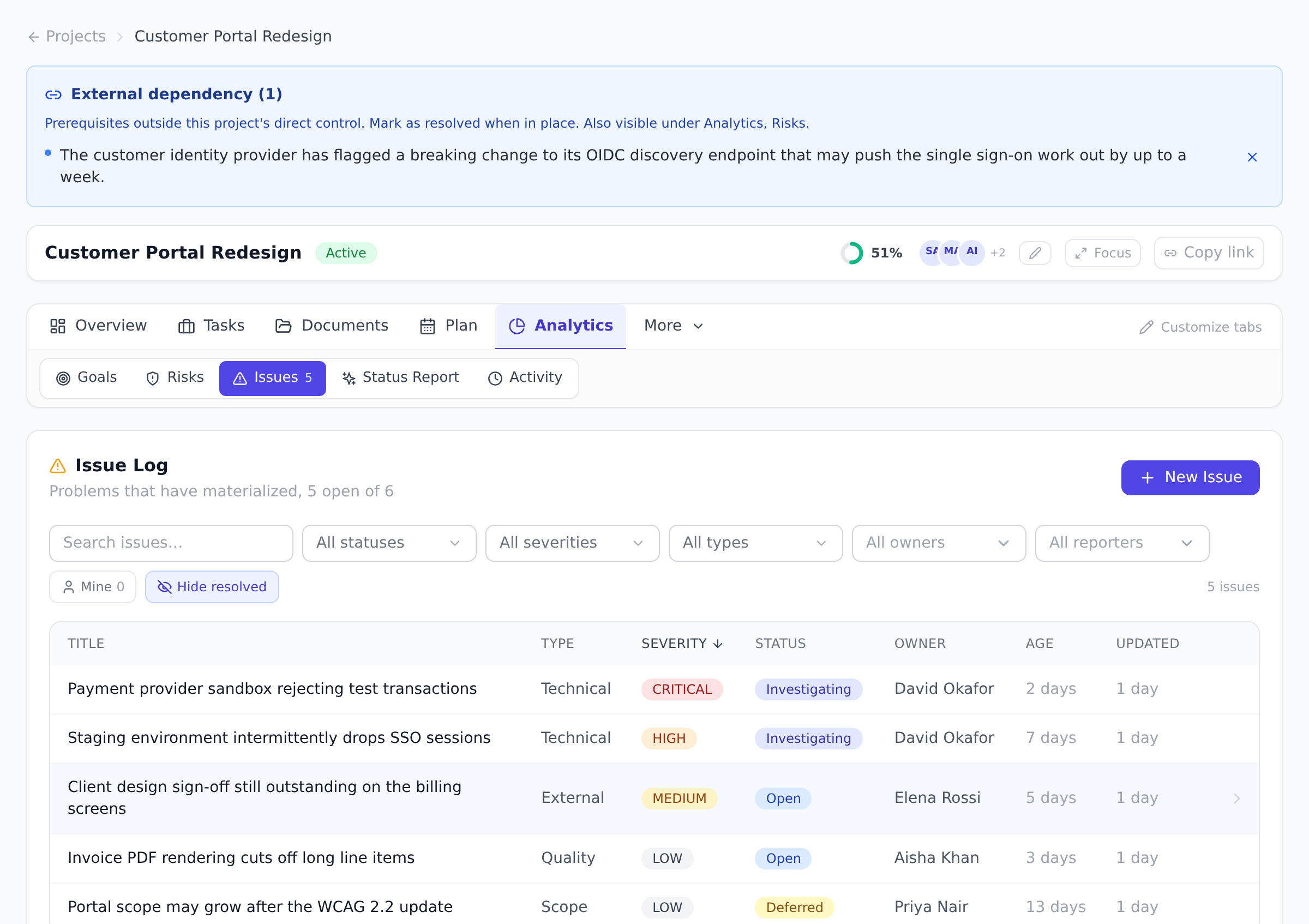
-
Open the project, open the Analytics tab under the project header, and select Issues, then New Issue.
-
Give it a title and pick a type: Operational, Technical, Schedule, Resource, Budget, Scope, Quality, External, or Other.
-
Set a severity (Low, Medium, High, or Critical), describe what is happening, and optionally assign an owner and a target resolution date.
-
Select Create. The new issue opens straight away, so you can assign it, attach a screenshot or link the related work without hunting for it in the list.
Attach a screenshot. Both the New Issue form and the issue panel have an Attachments section. The fastest way is to paste: copy a screenshot (for example with the Windows Snipping Tool or Cmd+Shift+4 on a Mac) and press Ctrl/Cmd+V, it attaches straight away. Images, PDFs, and other common file types are supported.
Files added on the New Issue form are held until you select Create, then uploaded to the new issue. Files added from the issue panel upload immediately and show a thumbnail you can open full size.
File a General issue when you don’t know the project
Section titled “File a General issue when you don’t know the project”Sometimes a problem isn’t tied to one project, “the VPN is down”, “the office printer is jammed”. File it without picking a project: on the Issues page in the sidebar, select New issue. It lands in the org-level General bucket so it still gets triaged, owned, and tracked.
Every organization member except Guests can file a General issue. Guests still see and file issues on the projects they’re on; the org-wide General bucket is members-and-above.
The status flow
Section titled “The status flow”Issues move through a controlled set of statuses, and only meaningful moves are allowed:
- Open, the starting point. From here: Investigating, Deferred, or Won’t fix.
- Investigating, someone is on it. From here: Blocked, Resolved, Deferred, or Won’t fix.
- Blocked, work on the issue is stuck. Back to Investigating, or to Deferred or Won’t fix.
- Resolved, a fix is in place. From here: Closed to confirm, or back to Investigating if the fix did not hold.
- Deferred, parked deliberately. Back to Open or Investigating when it is picked up again.
- Closed and Won’t fix are terminal. A closed issue stays closed; if the problem returns, log a new issue and link it back.
Resolving asks for a short resolution note, and gently suggests linking the task that fixed it so the trail is complete.
Link the related work
Section titled “Link the related work”An issue can link to a task (the fix), a risk (what predicted it), and a change request. Links show in the issue’s detail panel so anyone triaging can jump straight to the context.
When a risk on the Risks tab materializes, use Promote to Issue on the risk: it creates an issue carrying the risk’s description and severity, linked back to the source risk.
See issues across the organization
Section titled “See issues across the organization”The Issues page in the sidebar aggregates every project you can see, plus any org-level General issues, with All Issues and My Issues tabs, summary counts, and filters by status, severity, type, and project (including a “General” option). By default the page hides resolved work, toggle Hide resolved to show RESOLVED, CLOSED, and WON’T FIX issues (deferred issues always stay visible). A project row opens the issue inside its project; a General row opens it right there on the page.
To point a teammate at a specific issue, open it and use the copy-link button in the panel header. The link opens that exact issue for anyone signed in with access, a project issue opens in its project, a General issue opens on the Issues page.
Sort the list
Section titled “Sort the list”Select any column header to sort by it: Title, Type, Severity, Status, Owner, Age (when it was raised) or Updated (when it last changed). Select the same header again to reverse the direction. This works the same way on the organization Issues page and on a project’s Issues view.
Empty values always sort to the bottom, in both directions: an issue with no owner, or a General issue with no project, stays out of the way rather than filling the top of the list when you sort by that column.
Filter by who is involved
Section titled “Filter by who is involved”Alongside status, severity, type and project, you can filter by who reported an issue and who owns it. Use them to answer “what is on my plate” or “what did this person raise” without reading the whole list.
These two filters only appear when there is more than one distinct person to choose between, so a small project shows a simpler filter bar than a busy one. If you expect them and do not see them, it is because everything in view was raised by, or belongs to, the same person.
Save a view
Section titled “Save a view”Once you have a filter set you keep coming back to, “my critical issues”, “everything in General”, “open schedule issues”, save it. Select the view button at the left of the filter bar, name the current filters, and choose Save. Saved views are personal to you.
A view remembers the sort as well as the filters, so “newest first, open only” comes back exactly as you left it.
-
Set the filters you want: tab, status, severity, type, project, reporter, owner, search, and whether resolved issues are hidden. Sort the columns the way you want them too.
-
Open the view menu and save them under a name. A dot on the view button means your current filters differ from the saved view.
-
Star a view to make it load automatically when you open the Issues page. Onplana also remembers the last view you were using.
Opening a shared issue link always wins over a saved view, so a link a teammate sends you lands on that issue rather than on your filters.
For how Onplana’s issue tracking compares to dedicated trackers, see issue tracking on the main site.
Best practices
Section titled “Best practices”- File problems as issues, not blocked tasks. Tasks describe planned work; issues describe problems. Mixing them clutters the task list. Use the right artifact for the right thing.
- Set severity honestly. Critical = “the business stops”. High = “team blocked”. Don’t inflate severity to get attention; it desensitizes the team to real critical issues.
- Promote risks to issues when they materialize, not when they look likely. Promote-to-Issue creates the linked artifact with provenance. Use it the moment the risk becomes real, not before.
- Link the fix task on resolve. The
linkedTaskIdfield makes the trail complete: who fixed it, when, in what context. Leaving it empty loses the resolution story. - Use comments on issues for the triage discussion. The resolution note writes itself when the discussion is captured. See Comment on tasks and mention teammates.
Troubleshooting / common pitfalls
Section titled “Troubleshooting / common pitfalls”- Status transition rejected. The flow is constrained. Closed → Investigating is not allowed; you must log a new issue instead. The error message names the valid next states.
- Resolve confirmation asked for a fix task. It’s optional but recommended. Skip if no fix task exists; link if it does.
- Issues view is missing on a project. The Issues view is universal, visible on every project. If missing, check project permissions (member-level required).
- Risk to Issue promotion failed. The risk may already be promoted (one risk → one issue). Check the source risk’s linked-issues panel.
- Cross-project issue list is slow. The org-wide Issues page aggregates; performance scales with organization size. Use filters to narrow.
How this combines with other features
Section titled “How this combines with other features”- Issues + Risks. Risks predict; issues record. Promote-to-Issue is the bridge. See Track project risks.
- Issues + Tasks. Issues link to the task that fixes them. Closing the loop documents the resolution path.
- Issues + Change Requests. When an issue triggers a CR (scope/budget/schedule change), link the CR. See Run a Change Control Board.
- Issues + Comments. Each issue has a comment thread for triage. See Comment on tasks and mention teammates.
Coming from another tool
Section titled “Coming from another tool”| Tool | Mapping |
|---|---|
| Jira issue tracking | Onplana issues + tasks split the use case |
| Bugzilla | Direct concept |
| ServiceNow Incident | Direct |
| Microsoft Project Online | Lacks first-class issue log |
| Spreadsheet issue list | Onplana adds workflow + linkage |
Can I reopen a closed issue? No, Closed and Won’t fix are final. Log a new issue and link it to the old one’s fix task or source risk; this keeps the history honest.
When should something be a Blocked task instead of an issue? Mark the task Blocked, and log an issue when the blocker itself needs managing: an owner, a severity, a resolution trail. The issue can link to the blocked task.
Who can log issues? Project members with content-creation rights, which is the normal member posture. For org-level (General) issues, every organization member except Guests can file. AI agents working through a connected session can also file issues, including General ones, for problems they hit.
Do I have to pick a project? No. If you know the project, file the issue there. If you don’t, file a General issue from the Issues page in the sidebar, it’s org-level and still gets triaged and owned. Onplana’s AI will suggest a project you can accept later, and you can always move it by accepting that suggestion.
Is the issue log plan-gated? No. Issues are available on every plan, in every project.
Can I bulk-promote risks to issues? Not today, promote-to-Issue is per-risk in the app, and agent tools also file issues one at a time (an agent can loop over several risks for you).
Is there an issue-to-task auto-conversion? No, issues and tasks are distinct artifacts. Linking is the relationship; conversion would conflate them.
Can external users (clients) file issues? Not directly today. External-facing intake should use public intake forms; internal triage can then convert to issues.
Related
Section titled “Related”- Track project risks, risks promote to issues
- Comment on tasks and mention teammates, issue comment threads
- Run a Change Control Board, when an issue drives a CR
Was this helpful?
Thanks for your feedback!