
Configure working calendars
A working calendar tells Onplana which days count as working days and how many hours a working day holds. Schedule math then respects reality: a five-day task that starts Thursday finishes the following Wednesday, not on Monday, and a public holiday in the middle pushes it one more day.
Create a calendar
Section titled “Create a calendar”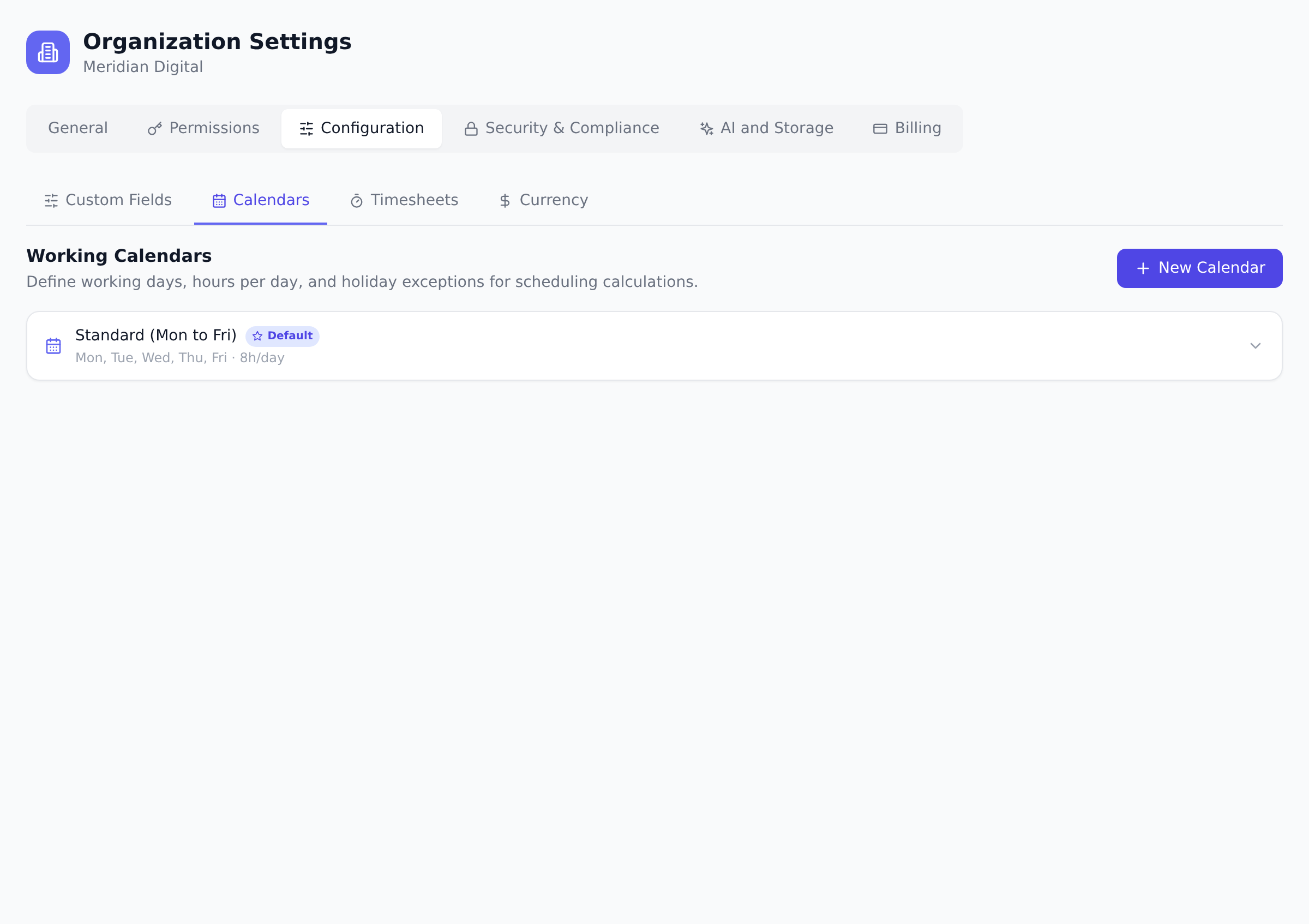
-
Open Organization Settings, go to the Configuration tab, then the Calendars section.
-
Select New Calendar, or start from one of the one-click templates on the empty state: Standard Mon–Fri (8 hours, 5 days), Mon–Sat, or 7-Day Week.
-
Name the calendar, toggle the Working Days chips, and set Hours / day (the default is 8).
-
Optionally tick Set as default calendar. An organization has exactly one default; setting a new default clears the old one.
-
Select Create Calendar.
You can keep several calendars side by side, for example a Monday-Friday calendar for one region and a Sunday-Thursday calendar for another.
Import public holidays
Section titled “Import public holidays”Expand a calendar and choose the holiday import:
-
Pick a country and year. Presets are built in for the United States, United Kingdom, Canada, Australia, Germany, France, Ireland, India, Japan, Netherlands, New Zealand, and Singapore.
-
Review the generated list. Dates already on the calendar are detected and skipped, so re-importing a year is safe.
-
Confirm the import. Each holiday lands as a non-working exception with its name.
Add one-off exceptions
Section titled “Add one-off exceptions”Add Exception handles dates the presets cannot know: a company offsite, a regional holiday, or the inverse, a normally non-working day that becomes a working one. An exception is a date, a working or non-working flag, an optional name, and optionally a reduced hours value for half days.
Where calendars take effect
Section titled “Where calendars take effect”- Project scheduling. Each project can pick its calendar in the Edit Project form (the Working Calendar field); projects without one use the organization default. Gantt scheduling and resource leveling then count durations in working days, skipping weekends and holidays.
- Timesheets. The weekly timesheet grid shades non-working days and labels holidays by name, and a calendar picker appears on the Timesheet page when more than one calendar exists.
- Capacity views, which sit alongside the timesheet, honor the selected calendar when rendering the week; see Plan team capacity.
Best practices
Section titled “Best practices”- Set up the default calendar before creating any projects. Projects without an explicit calendar pick the organization default. Setting the default first means new projects schedule correctly from day one.
- Use distinct calendars for regions with different working weeks. A US-Sun-Mon-week calendar and a Sun-Thu Middle East calendar serve different teams better than one compromise calendar.
- Import holidays for the upcoming year early. Importing in November for the following year means schedules drawn in December honor the real holidays. Late imports re-shuffle dates.
- Use exceptions for company-specific dates. Offsites, summer Fridays, regional one-offs: add them as exceptions on top of the standard calendar. Cleaner than maintaining a custom working-day pattern for each.
- Document calendar choices. Why was this project assigned the EU calendar? A short note in the project description helps the next admin understand intent.
Troubleshooting / common pitfalls
Section titled “Troubleshooting / common pitfalls”- Gantt scheduling didn’t skip a holiday I imported. Two causes: (a) the project isn’t using the calendar (check Edit Project → Working Calendar); (b) the dates were typed manually (Gantt only recalculates derived dates, not manual ones).
- Holiday import duplicated entries. Re-import is safe; existing dates are detected and skipped. If duplicates appear, the matching may have failed for typos. Manually deduplicate.
- Timesheet doesn’t shade non-working days. Check that the timesheet picker is set to the right calendar. With multiple calendars, the picker controls which one applies to the week view.
- Reduced-hours exception is treating the day as zero. Reduced hours must be non- zero positive. A 4-hour half-day = 4. A 0 in reduced hours marks it as fully non- working (with name).
- Calendar can’t be deleted. Deletion is blocked while projects are assigned. Reassign projects first; the calendar card shows the count.
How this combines with other features
Section titled “How this combines with other features”- Calendars + Gantt scheduling. Calendars drive duration math. A 5-day task in a Mon-Fri calendar takes 7 calendar days; in a 7-day calendar, 5. See Plan on the Gantt chart.
- Calendars + Resource leveling. Leveling honors calendar working days; non-working days don’t accumulate load. See Plan team capacity.
- Calendars + Timesheet compliance. Compliance worker respects the timesheet deadline in calendar working days. See Monitor timesheet compliance.
- Calendars + Capacity Planner. Available hours default reflects the calendar’s daily hours. Reduced-hours days lower available hours accordingly.
Coming from another tool
Section titled “Coming from another tool”| Tool | Mapping |
|---|---|
| Microsoft Project Online Calendars | Direct concept; same pattern |
| Smartsheet Resource Calendars | Direct |
| Float | Working days are global; less flexible than Onplana |
| ServiceNow PPM | Direct concept |
| Custom spreadsheet | Onplana adds first-class scheduling integration |
Can I delete a calendar that projects are using? No. Deletion is blocked while any project is assigned to the calendar; reassign those projects first. The card shows how many projects use each calendar.
Do calendars change existing task dates by themselves? No. Calendars are consulted when schedules are calculated, for example by Gantt scheduling and resource leveling. Dates you typed by hand stay where you put them.
Who can manage calendars? Owners, Admins, and Portfolio Managers. Everyone benefits from them read-only through scheduling and the timesheet views.
Can a single project use multiple calendars (one per phase)? Today the calendar is project-scoped, one per project. For phase-specific working patterns, split into multiple linked projects.
Do calendars affect EVM math? Yes, indirectly. Earned and planned values use date-based math; the calendar shapes the date math.
Can I export a calendar to share with another organization? Today the calendar is org-scoped only. To replicate across organizations, recreate manually.
Related
Section titled “Related”- Plan on the Gantt chart, calendar-aware scheduling
- Plan team capacity, calendar-aware capacity
- Monitor timesheet compliance, calendar-aware deadlines
Was this helpful?
Thanks for your feedback!