
Build a custom dashboard
The built-in Dashboard is a good starting point, but most people end up wanting a different mix of widgets than the defaults: a sprint overview here, two analytics charts there, the milestones for one specific portfolio above the fold. The Custom Dashboard at /custom-dashboard lets you build that layout from a catalog of widgets and save it.
Custom dashboards are available on Pro and above. Anyone in your organization can build their own; the layout is personal to your account.
Open the builder
Section titled “Open the builder”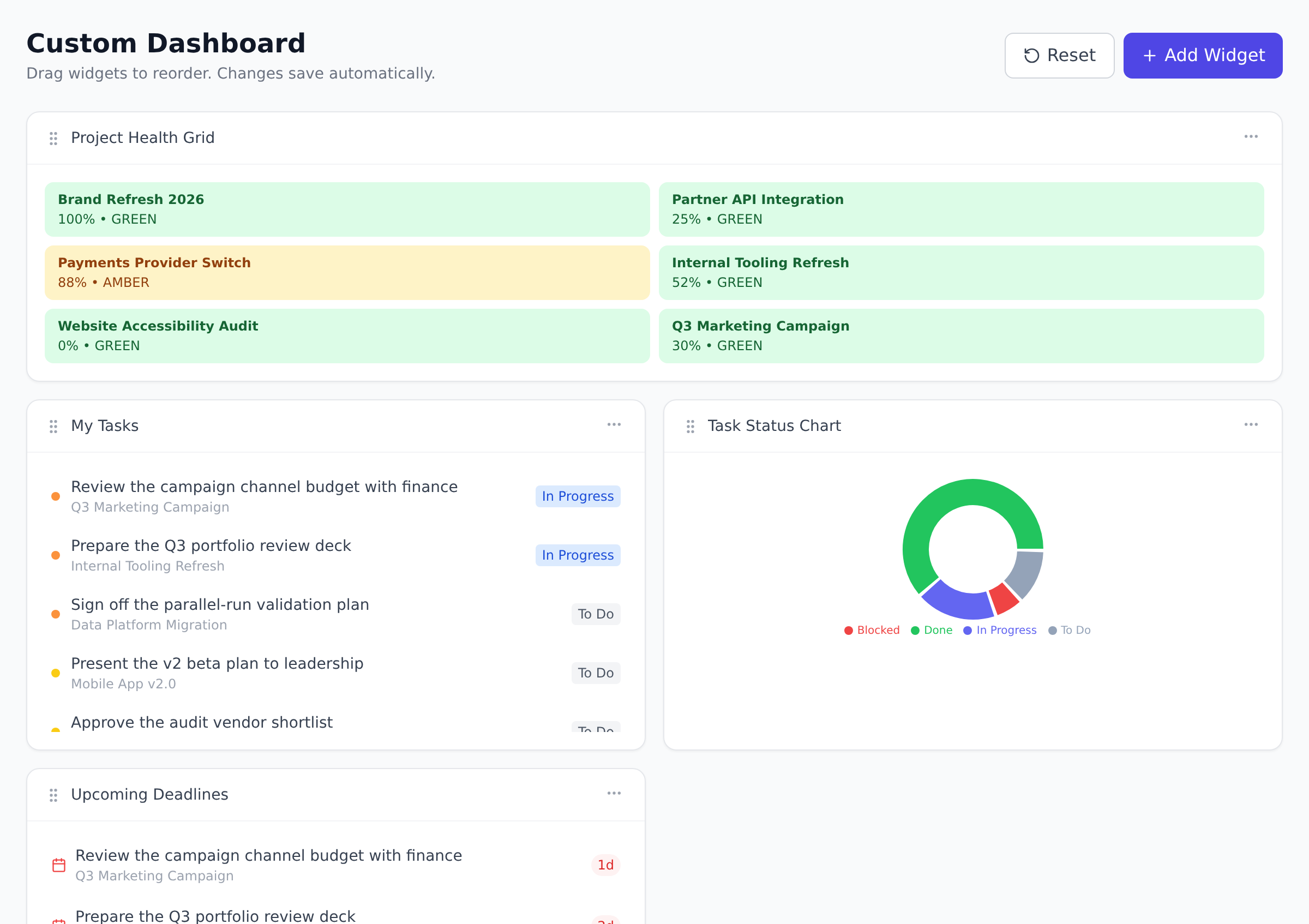
-
From the sidebar, choose Custom Dashboard.
-
Select Add widget to open the catalog drawer.
-
Pick a widget. It lands at the bottom of the grid.
-
Drag widgets to reorder, drag a corner to resize, and select Save to keep the layout.
You can add up to 20 widgets to a dashboard; the page scrolls vertically as the layout grows.
The widget catalog
Section titled “The widget catalog”Widgets are grouped by purpose:
- Personal: My tasks, overdue tasks, upcoming deadlines, activity feed. The “what is in my queue today” set.
- Projects & Sprints: stat cards, project health grid, milestone timeline, sprint progress. The “what is happening across the work” set.
- Analytics: task status chart, team utilization bar, budget burn bar, goals progress, cross-project table. Charts and tables you would otherwise build by hand in Reports.
- Reports: a saved-report widget that embeds any report you have saved on the Reports page.
- Governance (Enterprise): the proposal pipeline, score breakdown, evaluation criteria, and a single-project scorecard.
- Compliance: project compliance, billable utilization, billable mix, and revenue at risk (Enterprise).
Saving and re-arranging
Section titled “Saving and re-arranging”The dashboard auto-saves your widget choices when you select Save. Each widget lets you:
- Drag its title bar to move it
- Drag a corner to resize it
- Select the widget menu to edit its config (project filter, time range, etc.) or remove it
Your dashboard is keyed to your user account, so it follows you across devices the moment you sign in.
Organization templates (Enterprise)
Section titled “Organization templates (Enterprise)”On Enterprise and Enterprise+, Onplana ships an extra layer: dashboard templates, role-matched starting points instead of a blank canvas. When a new manager joins, they land on a curated Portfolio Health template; when a member joins, they land on a curated My Work template. Members can still override their assigned template by editing widgets, but the template defines the starting point.
There is no self-serve authoring screen for these templates yet. If you are on Enterprise and want a custom starter template for your organization, contact support and we will set it up for you.
Can my custom dashboard be shared with my team? Not as a shared canvas. The layout is personal. On Enterprise your organization can have a template that defines the starting point for others; contact support to set one up, and everyone then customizes from there.
Why are some widgets missing from the catalog for me? Two reasons. Plan-locked widgets (Governance, Revenue at Risk) need an Enterprise plan. Manager-only widgets (utilization, budget burn, revenue) are hidden from Members and Guests by design.
Does adding a widget cost AI tokens? No. Widgets pull their data from the same APIs as the rest of the app. Only the AI-powered surfaces (status report writing, the in-app assistant) draw from your organization’s AI token budget.
Can I have more than one custom dashboard? Today the page supports a single saved layout per account. If you need two distinct views (say, “my work” and “portfolio overview”), keep one as your Custom Dashboard and use a Saved Report on the Reports page for the other.
Related
Section titled “Related”- Read the data freshness score, what the Data Freshness widget is measuring
- Run cross-project reports, the saved-report widget pulls from here
- Track goals and OKRs, strategic widgets for managers
- Take the product tour, find your way around the default Dashboard before customizing
Was this helpful?
Thanks for your feedback!