
Migrate from Microsoft Project Online
Microsoft is retiring Project Online on 30 September 2026. Every PWA tenant goes read-only that day, and the OData feed Onplana reads stops responding shortly after. If you have meaningful work in Project Online today (even just a few projects), this is the right quarter to plan the move, because the file-by-file fallback that remains after the retirement is dramatically slower than the live-feed import described here.
Assess before you migrate
Section titled “Assess before you migrate”If your first question is “what is actually in our estate and what shape is it in”, start there rather than here. The Estate Assessment connects to the same reporting feed and analyzes your whole portfolio without importing anything: task and milestone counts, dependency shape, custom fields in use, cost coverage, resource email coverage, a per-project compatibility score, the honest gaps, and an effort estimate. Nothing is written to Project Online and nothing is created in Onplana. It runs on every plan including Free.
Assess first, then use the rest of this guide to run the move.
Before you start
Section titled “Before you start”- You need the URL of your Project Web App, usually
https://<your-tenant>.sharepoint.com/sites/pwa. - You need an account with reporting access to Project Online (membership of the Portfolio Viewers group is enough; full edit rights are not required).
- You need an access token issued to your account through a Microsoft Entra ID app registration. The next section shows what your administrator sets up once. Tokens expire after about an hour, which comfortably covers a connect-and-import session; if yours expires mid-migration, get a fresh one and reconnect.
- Each wizard run imports one project. For a large portfolio, plan a series of runs in batches (see best practices below); batching also makes verification easier.
Get an access token
Section titled “Get an access token”Onplana reads Project Online with a Microsoft Entra ID access token issued to a signed-in user. It is your own delegated access, so the import sees exactly the projects your account can see, and nothing in Project Online is modified. Project Online does not accept app-only tokens, so a person has to sign in.
What your administrator sets up once
Section titled “What your administrator sets up once”- In the Microsoft Entra admin center, open App registrations and create a registration for the migration.
- Under API permissions, add two SharePoint delegated
permissions:
ProjectWebAppReporting.Read, which covers the reporting feed the import reads, andProject.Read, which covers task dependencies. - Grant admin consent for your organization.
- Under Authentication, set up the sign-in method your team will use to request tokens, for example a redirect URI for the authorization code flow or public client flows for the device code flow.
Get a token and paste it
Section titled “Get a token and paste it”Sign in through that app registration with the account that will run the migration, and request a token for this scope:
https://<your-tenant>.sharepoint.com/.default
Copy the access_token value from the response into the wizard’s
Access Token field. If you copied a whole
Authorization: Bearer eyJ... header, that works too; Onplana removes
the prefix. Tokens last about an hour, so get one just before you
connect.
Connect and import
Section titled “Connect and import”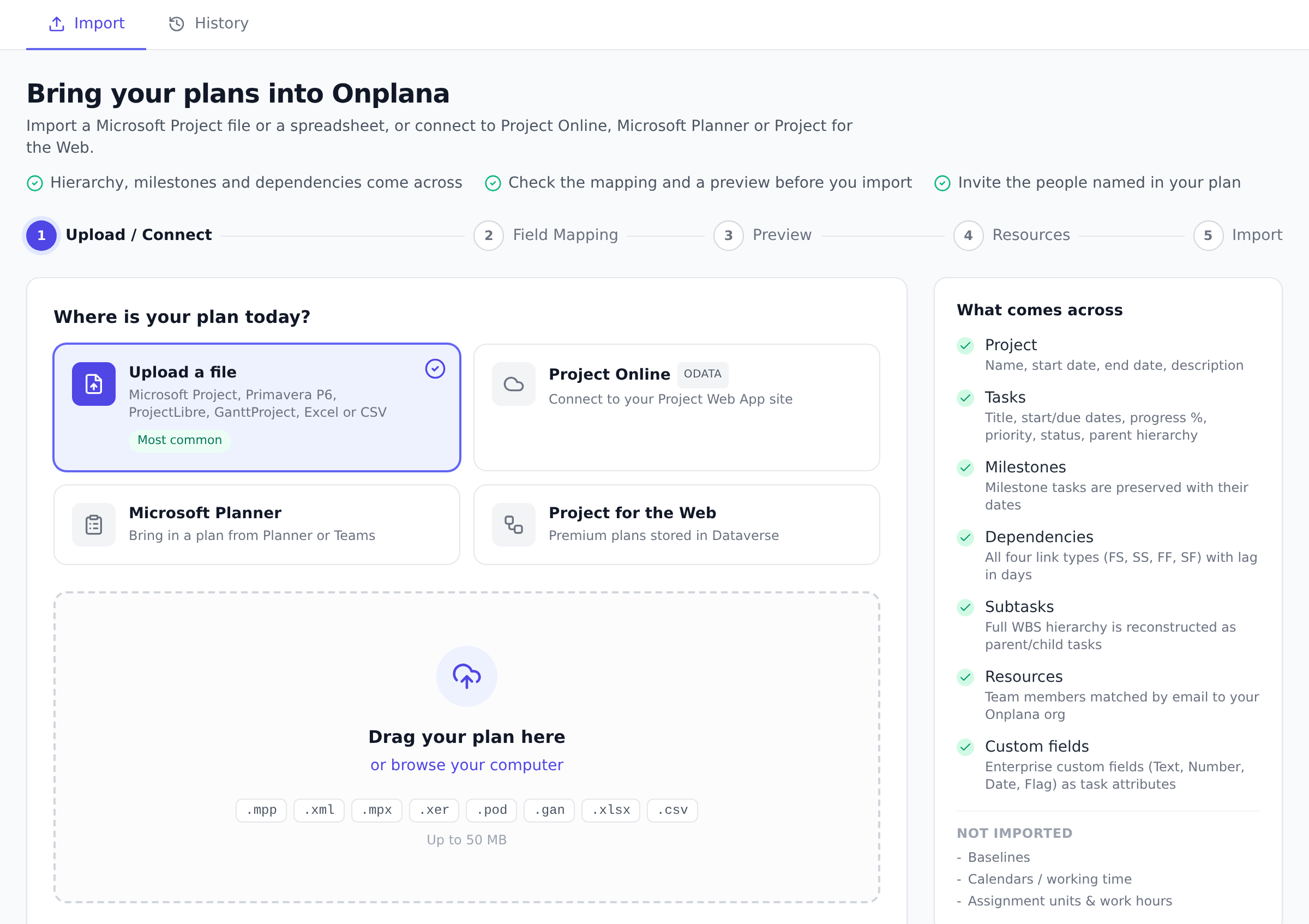
- Open Import from the navigation and choose Project Online OData as the source.
- Enter your Project Web App URL as the Tenant URL, paste your access token, and click Connect.
- Onplana lists every published project your account can read. Pick one and click Fetch & Continue.
- Review the field mapping, including any custom enterprise fields the feed exposed, then the preview, then resource matching, the same steps as a file import.
- Create the project, and repeat from step 3 for the next one.
Every imported project gains an Import Cleanup tab with bulk-fix suggestions for anything the importer could not resolve, such as an unmatched resource or a field that didn’t map with AI-suggested fixes; see the Import Cleanup tab for how it works.
What comes across
Section titled “What comes across”The OData import produces the same result as a file import, from live data instead of an exported file:
| Data | Notes |
|---|---|
| Project name, dates, rolled-up budget | Budget derives from the imported task costs |
| Tasks: names, dates, progress, priorities, notes | Progress maps to task status (0 = To Do, in-between = In Progress, 100 = Done) |
| Work breakdown structure | Outline levels become parent/subtask hierarchy |
| Milestones | Flagged and rendered as milestones |
| Estimated work | From task work, or duration when work is absent |
| Costs | Planned, fixed, and baseline cost per task |
| Task dependencies | All four types (FS/SS/FF/SF) with lead/lag, from the Project Server API; see the token note above |
| Date constraints and deadlines | All eight of Project Online’s constraint types come across with their dates, along with task deadlines |
| Custom enterprise fields (task-scoped) | Definitions and per-task values, on every plan |
| Resources and assignments | Matched to your organization by email. Anyone unmatched can be invited from the wizard’s Resources step, including people the feed names without an address, by typing one on their row; their tasks are assigned when they accept |
Everything that cannot come across is called out as a warning before you commit, and again on the imported project’s banner:
- Currency is not exposed by the reporting feed. Cost figures arrive as numbers; set the project currency after import.
- Resource-scoped custom fields are not migrated (task-scoped ones are).
- Timesheet history stays in Project Online; export it to Excel for archive before the retirement if you need it.
- Project site content (document libraries and the Risks/Issues lists on each project’s SharePoint site) is not part of the schedule import. Those sites are ordinary SharePoint content and survive the Project Online retirement, so they can be linked into the matching Onplana project’s workspace afterwards at your own pace; nothing there is at deadline risk.
Review the Import → History record after each batch to confirm what was imported and clear any warnings.
If you cannot use the live feed
Section titled “If you cannot use the live feed”If your tenant blocks the OData connection, or you have already started
decommissioning, export each project from Microsoft Project as a .mpp or
XML file and import the files instead. See
Import a Microsoft Project file
for that path.
For the full picture of Microsoft’s 2026 retirements and what they mean for your timeline, see the Project Online migration guide and Microsoft retirements 2026 on the main site.
Best practices
Section titled “Best practices”- Migrate in batches of ten projects per sitting. Each wizard run brings one project across, which keeps failures isolated. A portfolio of fifty projects feels overwhelming as one marathon; ten runs at a time gives you a feedback loop where you spot resource-matching issues and field-mapping decisions before they propagate. Allow about half a day per batch of ten.
- Use a “validation project” first. Pick one mid-sized project from the portfolio (twenty to fifty tasks, a handful of resources, dependencies that matter). Import it, verify the Gantt against the Project Online view, then capture a baseline. This dry-run tells you whether the OData feed has any tenant-specific quirks that need addressing before the batches.
- Bring resources into Onplana first. OData imports match resources by email. Inviting the team to Onplana via Invite your team before the first batch turns every matched resource into a real assignment; otherwise you end up with a warnings list that has to be cleared by hand for every project.
- Plan the cutover, not just the import. The move happens in two phases: (a) get the data into Onplana while Project Online is still live, and (b) flip your team’s system of record on a chosen date. Treat (b) as a project of its own: communicate the cutover date, retire the Project Online links, and make sure end-users know where to file new requests after the flip.
Troubleshooting / common pitfalls
Section titled “Troubleshooting / common pitfalls”- Connect says the value is not an access token. The field holds something other than an Entra ID access token, most often a value copied from a SharePoint page such as the form digest. Get a token through the app registration described in Get an access token.
- Connect says Project Online refused the access token. Three
causes: (a) the token has expired (they last about an hour), so get
a fresh one and reconnect; (b) the account behind the token doesn’t
have reporting access on Project Online, which an administrator can
fix by adding it to the Portfolio Viewers group without granting
edit access; or (c) the app registration is missing
ProjectWebAppReporting.Reador admin consent. - “Task dependencies were NOT migrated” warning. The token
authorized the reporting feed but not the Project Server API that
holds dependency links. Everything else imported fine. Add the
SharePoint
Project.Readdelegated permission to the app registration, get a fresh token, and re-import the project. - My project list is empty even though I connected. The feed shows published projects the token’s account can read, not all projects on the tenant. Check the account’s Project Online permissions, or connect with a token from someone with full portfolio read. Also note only published projects appear; drafts saved but never published are not in the reporting feed.
- Some tasks look one day off after import. Onplana treats task dates as calendar days and pins them to UTC precisely so they render the same for every viewer. If a date still looks shifted relative to Project Online, check the source task for an odd finish time (for example 00:00 rather than end of business) and adjust after import; the wizard’s preview step shows the exact dates before anything is created.
- Where did my custom enterprise fields go? Task-scoped custom fields import on every plan, definitions and values. Managing and editing custom fields afterwards is a Pro+ feature, but nothing is dropped at import time. Resource-scoped custom fields are the one exception; they are skipped with a warning.
- One project failed. Is my batch gone? No. Each wizard run is a single project, so a failure affects only that project; check its import-history warning and retry it individually.
How this combines with other features
Section titled “How this combines with other features”- OData migration + Baselines. Capture baselines per project the moment its import completes. Because Project Online itself was your prior system of record, the Project Online baseline is effectively your historical truth; the Onplana baseline becomes your forward-looking line in the sand.
- OData migration + Rate cards. If you used Project Online’s resource cost rates, configure Rate cards before the cutover so earned-value calculations on the imported plans use the same numbers your old reports relied on.
- OData migration + the AI assistant. After import, ask the in-app AI assistant to “summarize the imported portfolio and flag projects with missing milestones or resource conflicts.” It’s a fast quality-check pass that catches the issues humans miss when the list runs to dozens of projects.
Coming from other Microsoft formats
Section titled “Coming from other Microsoft formats”| Source | Path |
|---|---|
| Project Online (live tenant, OData feed) | Direct OData import here |
| Project Online (decommissioned) | Export each project to .mpp and use Import from Microsoft Project |
| Project Server on-prem | OData feed if exposed; otherwise per-project .mpp export |
| Project for the Web (the newer cloud product) | Direct import from the wizard, connect your Microsoft account and choose Project for the Web (Premium) as the source; export to .mpp per project is the fallback |
| MS Planner | Direct import from the wizard, connect your Microsoft account and choose Microsoft Planner as the source, with an optional live sync to keep it updated; Planner schedules are typically small enough for AI Kickstart to scaffold them in minutes too |
What is the OData feed? Project Online exposes your portfolio as a read only reporting feed. Onplana reads from it to pull your projects across; nothing in Project Online is modified.
Can I re-run the import to pick up changes? Each import creates new projects in Onplana. Import once you are ready to switch over, rather than syncing repeatedly, so you do not create duplicates. Move your team into Onplana as the system of record once the data is verified.
Will my custom enterprise fields come across? Yes, task-scoped custom fields import as Onplana custom fields, definitions and per-task values, on every plan. Each one appears as its own row in the field mapping step so you can confirm how it lands, or switch off columns you don’t want.
A field backed by a lookup table keeps its list: it arrives as a Dropdown whose options are the table’s values, or a Multi-select where the field allowed more than one pick, rather than collapsing to free text. A value found on a task that the table did not carry is added to the options rather than dropped, so an out-of-date lookup table costs you nothing. The field mapping step shows the type it will land as, so you can check before committing.
What happens to my resource assignments? Assignments are preserved and people are matched to Onplana members by email. Unmatched names are flagged so you can reconcile them rather than creating duplicates.
Do I need an Onplana paid plan to migrate? No, OData import works on every plan including Free, and so does the Gantt that renders the result. Some of what comes across (custom fields, for example) is only visible on the plans that include those features, but the underlying data is always imported.
How long does a full portfolio migration take? Roughly half a day per ten projects, plus a day for cutover planning and team communication. Allow more for portfolios with complex resource pools or extensive custom-field usage.
Should I keep Project Online live after the migration? Yes, until after the cutover date you publicly announced. Most teams keep Project Online read-only for 30 days after Onplana goes live as a historical reference. Decommissioning Project Online before users have fully transitioned creates panic; phasing it out works better.
Related
Section titled “Related”- Import a Microsoft Project file, the per-file fallback if the OData feed isn’t usable
- Migrating from Microsoft Project, the wider migration hub with baselines + rate cards + dependencies
- Capture and compare baselines, the right next step after each batch
Was this helpful?
Thanks for your feedback!