
Connect an external AI agent (MCP)
Onplana exposes a Model Context Protocol (MCP) endpoint, so AI coding agents and assistants, Claude Code, Claude Desktop, Cursor, Codex, Windsurf, and any other MCP client, can connect to your organization and work with your projects directly. A connected agent becomes a real member of your organization (an agent persona) that can be assigned tasks like any teammate.
The end result: you can be writing code in Cursor, ask “what is blocking the Payments project”, and your agent finds the answer in Onplana without you switching tabs. Or you assign a task to your agent, walk away, and come back to a posted comment with a draft you can review.
Quick reference
| Endpoint | URL | Authentication |
|---|---|---|
| Authenticated (your organization) | https://mcp.onplana.com/mcp | Browser sign-in (OAuth) or a personal access token (Bearer) |
| Public docs | https://mcp.onplana.com/docs | None, read-only |
How it works
Section titled “How it works”The Model Context Protocol is a small open standard (built by Anthropic and adopted by Claude, Cursor, Codex, Windsurf, and others) for letting an AI agent call a set of tools on a remote server. Onplana publishes each of its core operations (find a project, list tasks, post a comment, update a status, create a sprint) as one of those tools. Your agent discovers them on connect and decides which ones to call as you chat.
You get a credential in one of two ways, then paste a small config snippet into your agent. The default is Browser sign-in: you approve in a popup with your Onplana account and the credential is minted for you, no token handling. The alternative is minting a personal access token yourself, which is the right shape for CI, scripts, and servers. Either way, from then on the agent talks to Onplana’s MCP endpoint with that credential and can list, create, and update work, all within the permissions you grant.
- MCP endpoint:
https://mcp.onplana.com/mcp - Authentication: a browser sign-in (OAuth, the default) or a personal access token; both are sent as a Bearer credential and both last 90 days.
- Transport: Streamable HTTP (the modern MCP transport, supported by every current MCP client).
Tested clients
Section titled “Tested clients”Onplana is regularly tested with:
- Claude Code (CLI) and Claude Desktop
- Claude.ai (web), listed in Anthropic’s Connectors Directory with a one-click OAuth path, see Connect Onplana from the Claude Connectors Directory.
- Cursor
- Codex (OpenAI)
- Windsurf
- ChatGPT, listed in OpenAI’s official plugin directory. ChatGPT has a one-click path that skips the token + JSON config below, see Connect Onplana to ChatGPT (from the directory).
Any other MCP client that speaks Streamable HTTP should work too; see 2d. Other MCP clients on the main MCP overview page for the smoke-test command.
Connect an agent
Section titled “Connect an agent”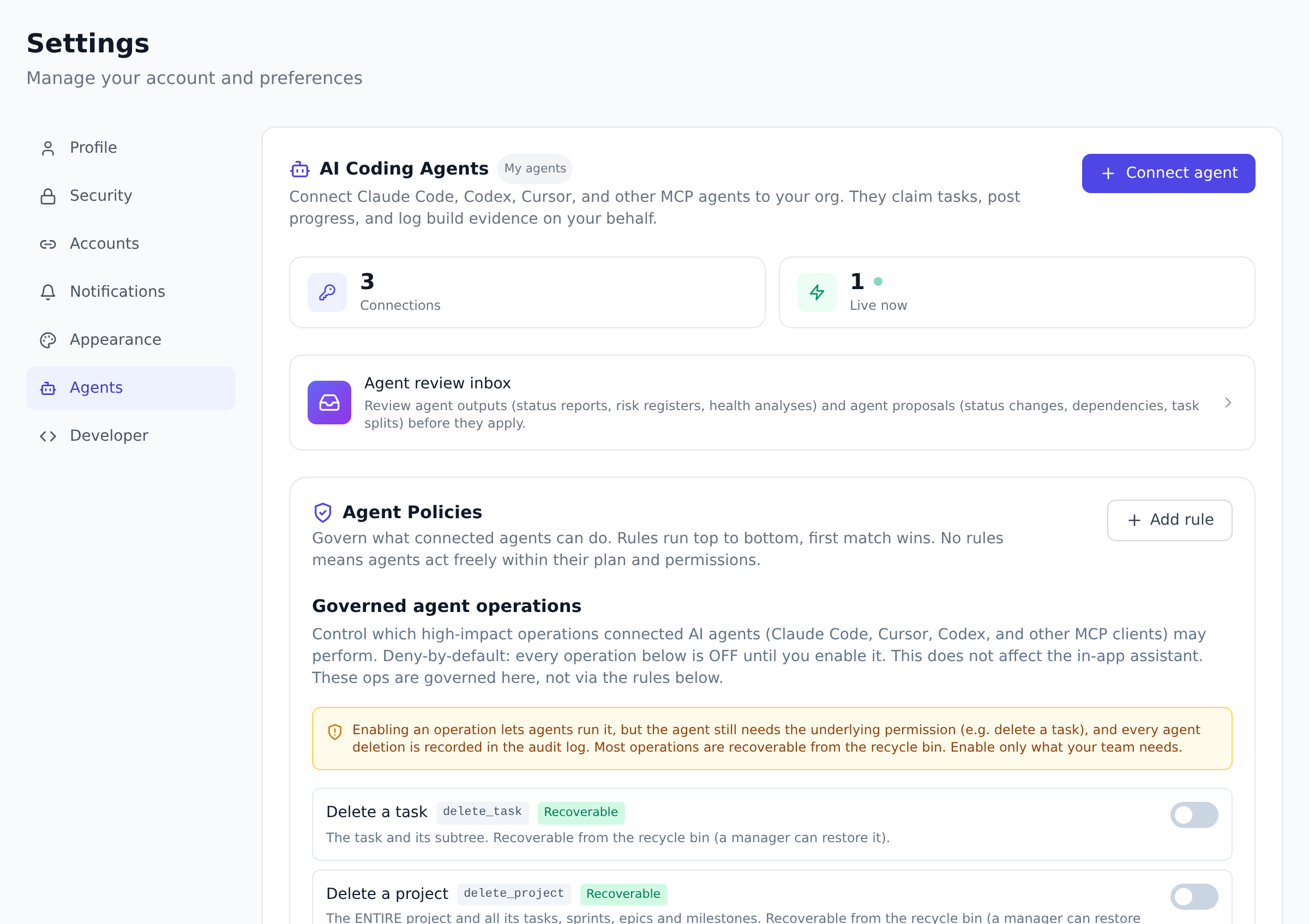
- Open People and select Connect Agent (also available from Settings → Agents).
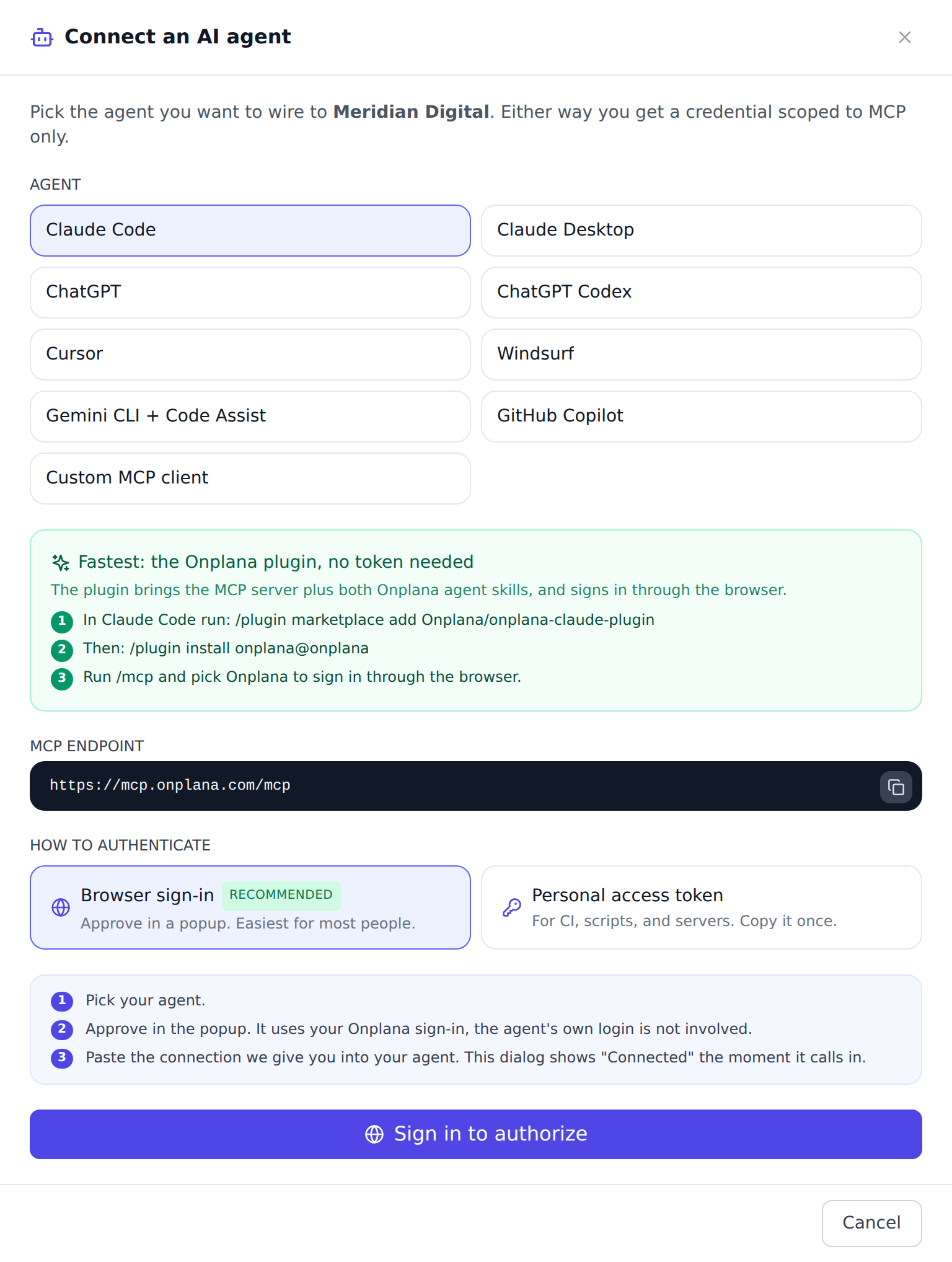
- Pick your agent, Claude Code, ChatGPT, Cursor, Codex, Windsurf, and others. Browser sign-in is already selected; the dialog walks you through the three steps of the flow right there.
- Select Sign in to authorize. A popup opens naming the agent you picked and asking you to approve with your Onplana account, the same one you are signed in with. The agent’s own login plays no part in this step.
- Copy the credential and the provided config snippet into your agent.
The dialog gives you copy buttons for the credential, the MCP
endpoint, and the full snippet, plus a one-line
claude mcp addcommand for Claude. The dialog flips to Connected the moment the agent makes its first call. - Save the credential now. For security it is shown only once; if you lose it, revoke the connection and create a new one.
Example: Claude Code in one line
Section titled “Example: Claude Code in one line”If you use Claude Code (or any client that supports the claude mcp add
form), the entire setup after step 3 is:
claude mcp add onplana --transport http https://mcp.onplana.com/mcp \ --header "Authorization: Bearer pat_paste-your-token-here"Claude Code will discover the available tools on the next conversation and surface them as it works.
Example: Cursor and Claude Desktop (JSON)
Section titled “Example: Cursor and Claude Desktop (JSON)”Open your client’s MCP settings and add an entry like this. The Connect Agent modal in Onplana provides a copy-paste snippet that already has your token interpolated, so you usually do not type this by hand:
{ "mcpServers": { "onplana": { "transport": { "type": "http", "url": "https://mcp.onplana.com/mcp" }, "headers": { "Authorization": "Bearer pat_paste-your-token-here" } } }}Restart your client so it picks up the new server. The Onplana tools appear in the tool picker, prefixed with the connection label.
Verify the connection
Section titled “Verify the connection”After connecting, ask your agent something concrete that only Onplana
can answer, for example “List my open tasks across all projects.” You
should see the agent invoke a list_tasks tool, then summarize the
result. If the response is generic (“I cannot access your projects”),
the token is missing or the server entry is not loaded; restart the
client and re-check the config.
What the agent can do
Section titled “What the agent can do”A connected agent acts within the permissions of the token you created. Concretely it can:
- Find projects, tasks, sprints, milestones, issues, proposals, and people across the projects it has access to.
- Read task descriptions, comments, attachments, recent activity, AI-generated risk reports, and how a project is tracking against a captured baseline.
- Write by creating and updating tasks (status, priority, assignee, dates, custom fields), posting comments, capturing baselines, and attaching files.
- Coordinate by moving work between sprints or epics, linking dependencies, and proposing schedule changes for human review.
Everything it does is recorded in the activity log and attributed to its agent persona, so you always know what was done by an agent versus a person. If a particular operation would exceed the agent’s permissions (for example, deleting a project the token cannot reach), the tool returns a clean error and the agent reports it back to you.
Try the docs without an account
Section titled “Try the docs without an account”Alongside the authenticated server, Onplana publishes a public, no-account MCP server that exposes the documentation you are reading right now. It is read-only, has no access to any Onplana organization, and is useful for letting an agent look up “how do I do X in Onplana” without you having to create a token first.
Add it to a desktop or IDE agent in one line:
claude mcp add onplana-docs https://mcp.onplana.com/docsThe public server provides two tools: search_docs (keyword search over every published article) and read_docs_page (fetch one full article as markdown). It is rate limited per IP and serves only documentation content, so it is safe to share or to point a new teammate at while they evaluate Onplana. To act inside your organization (create tasks, run workflows, post comments), use the authenticated server above.
Managing connections
Section titled “Managing connections”- See and revoke connected agents in Settings → Agents. Every active connection lists its label, the agent it belongs to, when it last called the server, and a revoke button.
- Scope the token so an agent only touches the work you intend. The Connect Agent modal lets you pick which projects the token can reach; the agent cannot see anything outside that set.
- Expiry: tokens expire automatically. The default is 90 days, which an Owner or Admin can shorten for the whole organization under the session policy (see Manage sessions and devices). Logout All Devices also disconnects a connected agent; it reconnects with one browser sign-in.
- Rotate by minting a fresh connection, updating your client’s config, and revoking the old one. Use a new label so you can tell them apart in the audit log.
- Audit: every tool call is recorded in Logs → Activity, with the connection label, the tool called, and the result. If you need a paper trail for a security or compliance review, that is the place.
Security model in one minute
Section titled “Security model in one minute”- A token only gives the agent permissions you already have. An agent cannot do anything in Onplana that you could not do as a member.
- Organization admins can disable agent connections org-wide at any time from Organization Settings → AI and Storage (a kill switch for incident response).
- The MCP transport is HTTPS-only and rate-limited per token, so a runaway agent cannot accidentally flood the API.
Want the agent to behave like an experienced PM out of the box? See Install the Onplana agent skills, two short, portable instruction files that teach a connected agent how to plan and run Onplana projects.
Curious what the MCP server can do beyond this setup? The MCP overview on the main site covers supported clients and example workflows.
Troubleshooting
Section titled “Troubleshooting”“401 Unauthorized” or the agent says it cannot reach Onplana
The token is missing, mistyped, or revoked. Re-check the
Authorization: Bearer <token> header in your client’s config, and
confirm the connection still appears as active in Settings → Agents.
No Onplana tools appear in my client
The client did not load the server entry. Restart the client after
saving the config. In Claude Code, run claude mcp list to confirm
onplana is present; in Cursor and Claude Desktop, check the MCP
settings panel for a green status indicator next to onplana.
The agent only sees some of my projects The agent works through a shared agent persona that defaults to Member, so it sees only the projects that persona belongs to. Add the persona to a project from that project’s Add Members dialog, on the By Agent tab, or ask an org admin to raise the persona’s role so it sees every project. Membership is live, so no reconnect is needed. Separately, if you connected with a personal access token that you scoped to specific projects, that scope is fixed at creation: mint a new connection scoped the way you want, update your agent’s config, and revoke the old one in Settings → Agents.
“Tool dispatch failed” or a 5xx response Try the same request again; this is usually transient. If it persists, copy the correlation id from the error message and open a support ticket; that id pivots straight to the structured logs.
My agent’s actions are not showing under its name Activity is attributed by token, so confirm the agent is calling tools with its own connection (not yours). The agent persona shows in the sidebar under People → Agents.
Whose sign-in does the consent popup use? Your Onplana sign-in, and only that. The approval page states who it is connecting as and to which organization, and approving there works even if you are signed out of the agent itself, because the agent’s own login is a completely separate session with a different company. Nothing is granted to the agent until the credential actually reaches it: either the agent completes the handshake it started, or you paste the credential into its settings yourself. Until then the authorization just sits in your connections list under Settings → Agents, where you can revoke it.
Is this the same as the in-app AI assistant? No. The in-app assistant runs inside Onplana and uses the same data, but it is bound to the browser. The MCP connection lets an external agent (running in your editor, terminal, or a hosted runner) reach the same data through standard tool calls. You can use both, and many teams do: the in-app assistant for one-off questions while you work in the app, the external agent for longer-running work while you stay in your editor.
What is an agent persona?
When an agent first connects, Onplana provisions it as a member of your
organization so it can be assigned tasks and show up in activity. It is
clearly marked as an agent, not a person, with a small badge next to its
name. The persona is what makes attribution possible across views; you
can mention it (@your-agent) on tasks and comments.
Do I need to keep my computer running for the agent to work? Not necessarily. An agent you run yourself (your editor, terminal, or a CI runner) stops when you close the laptop and picks up where it left off when you reopen it. If you want work to continue without you, Onplana can also run the agent for you on your own provider key, including on a daily or weekly schedule; see Run an agent on your own key.
Can multiple people share one agent connection? You can, but it is not recommended. Tokens audit per connection, not per person, so shared tokens make it hard to tell who did what. Each teammate using an agent should mint their own connection, even for the same agent (different labels).
Can I run more than one agent at once? Yes, within your plan’s caps: each plan limits both how many connections can exist (Free 3, Starter 5, Pro 10, Business 25, Enterprise 100, Enterprise+ unlimited) and how many can be active at the same moment (the concurrent numbers under “Which plan is required?” below). Many teams run a Claude Code connection on their laptop and a Cursor connection on their desktop under separate labels. When two agents work the same project, tasks take an execution lease so they divide the work instead of duplicating it; see Run multiple agents on one project.
What about service accounts and CI runners?
Mint a separate connection labeled for the runner (for example
build-bot-ci), scope it to the project the runner needs, and rotate
it on the same cadence as your other CI secrets. Treat it like any
service account.
Which plan is required? None. Agent connections are available on every plan, including Free. The number of agent connections scales with your plan (Free 2 concurrent, Starter 2, Pro 3, Business 5, Enterprise 10, Enterprise+ unlimited), and the AI token balance (your one-time bonus plus any purchased credit) is what bounds actual AI usage. The public docs server (above) has no plan requirement.
Best practices
Section titled “Best practices”- Mint per-user connections, not shared tokens. Audit attribution per person.
- Label connections by purpose. “Cursor on laptop”, “Build-bot CI”. Names that future-you can use.
- Project-scope when possible. Even for write tokens, scope to the project the integration needs. Project-scoped connections still receive Run with Onplana Agent webhooks for their tasks.
- Set the Notify webhook URL when you create the connection. It cannot be added afterwards, and it is what enables the Run with Onplana Agent button.
- Rotate annually for permanent connections. A browser sign-in lasts 90 days by default (an admin can shorten that for the whole organization); a token’s lifetime is up to you. Annual rotation is sane.
Troubleshooting / common pitfalls
Section titled “Troubleshooting / common pitfalls”- Connection rejected. Three causes: (a) plan cap reached; (b) expired token; (c) scope insufficient.
- Run with Onplana Agent button missing. The connection has no Notify webhook URL, which is set only at creation.
- Agent actions attributed to me, not the agent. Agent calling tools with my token, not its own. Mint separate agent connection.
- Multiple agent connections same user. Plan cap counts concurrent. Disconnect unused.
- Token leaked. Revoke immediately. See Create API tokens.
How this combines with other features
Section titled “How this combines with other features”- External agents + Skills. Skills drive agent behavior. See Install the Onplana agent skills.
- External agents + Run with Onplana Agent. Push trigger for hosted agents. See Request an external agent run.
- External agents + Task assignment. Agents work on assigned tasks. See Assign work to an agent.
- External agents + Agent governance. Destructive ops require Owner/Admin approval. See Control what agents can delete.
Related
Section titled “Related”- Create a project from ChatGPT or Claude, the first useful thing to do once the connector is added
- Wake your agent instantly with the relay, react in seconds instead of on the next poll
- Open artifacts with deep links, share a clickable link to any artifact
- Install the Onplana agent skills, playbook side
- Assign work to an agent, delegate tasks
- Control what agents can delete, governance gate
Was this helpful?
Thanks for your feedback!