
Configure rate cards
Rate cards tell Onplana what an hour of someone’s time costs. They power the Finance view’s earned value math, timesheet cost reporting, and compliance cost-at-risk figures. Without at least one rate card (or a default hourly rate), cost figures stay empty rather than being invented.
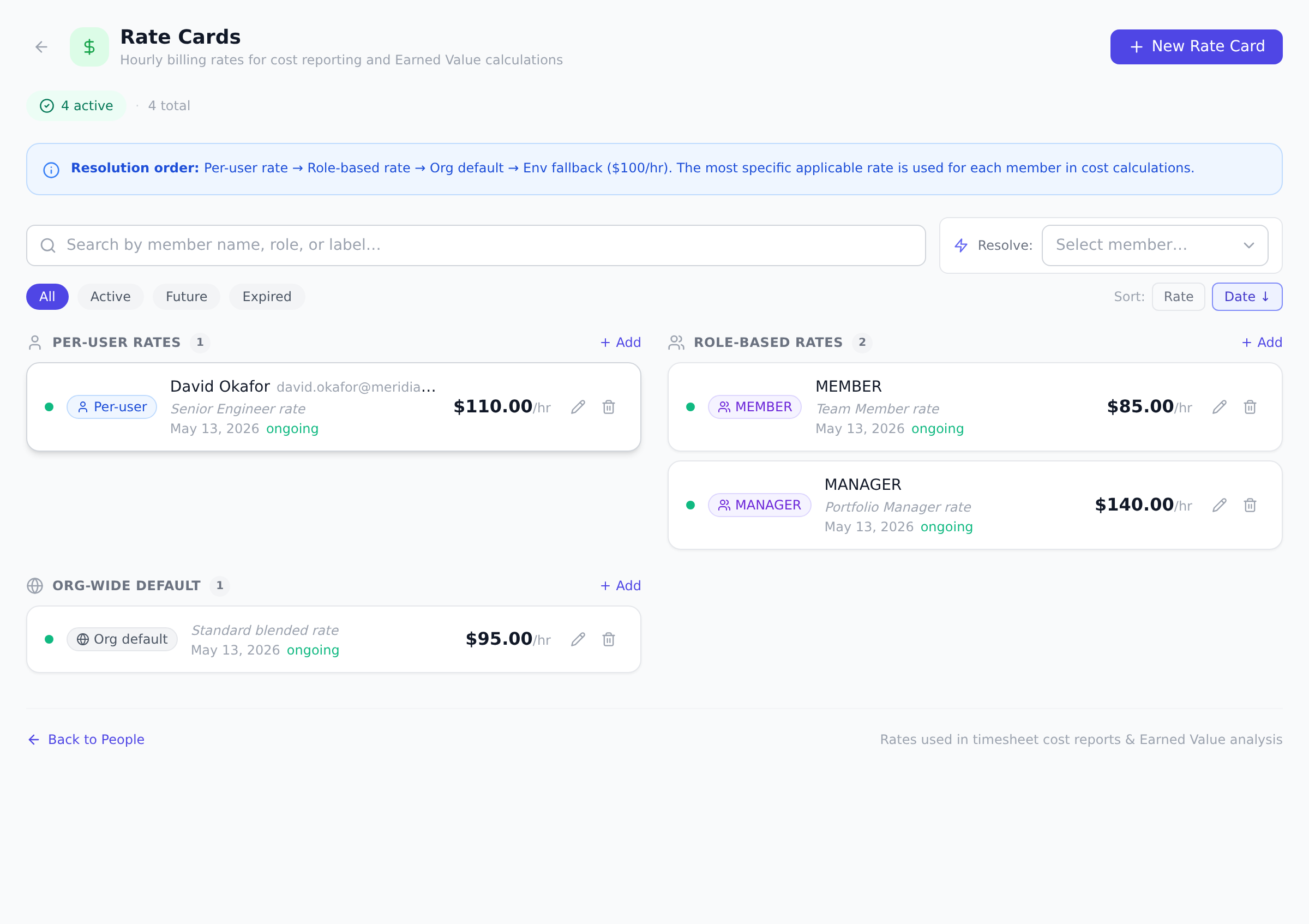
The three scopes
Section titled “The three scopes”A rate card applies at one of three scopes, from most to least specific:
- Per-user: a rate for one named person. Wins over everything else.
- Role-based: a rate for everyone with a given organization role, for example all Members.
- Organization default: the fallback rate for anyone without a more specific card.
When Onplana needs a rate for someone, it resolves in that order: per-user rate, then role-based rate, then organization default. If no card matches at all, a built-in fallback applies, and the page flags it so you know the figure is not one you configured.
Create a rate card
Section titled “Create a rate card”-
Open Rate Cards (from the People page, or via Manage Rate Cards on any project’s Finance view).
-
Select New Rate Card and pick the scope. For per-user and role-based cards you can select several people or roles at once; Onplana creates one card each.
-
Enter the Cost rate (hourly) and pick the Currency. The cost rate is what the hour costs you (salary plus overhead), not what you charge clients.
-
Set Effective from, and optionally Effective to for rates that expire, like a contractor engagement or an annual rate review.
-
Add a Label if you want the card to be easy to find later, then save.
Overlap protection
Section titled “Overlap protection”Onplana refuses to save two cards for the same person (or the same role) whose date ranges overlap, because the resolver would not know which one applies. When you hit a conflict, the error tells you exactly which card overlaps and offers a one-click fix: End previous on the day before your new card starts, so the two ranges meet cleanly without overlapping.
The rate resolver
Section titled “The rate resolver”The Resolve picker at the top of the Rate Cards page answers “what rate actually applies to this person right now?” Pick a member and it shows the effective hourly rate plus where it came from: a per-user card, a role-based card, the organization default, or the built-in fallback. The matching card is highlighted in the list below.
Notice the middle case. David and Aisha are both Members, and they resolve to different rates, because David has a card of his own and she does not. That is the whole of “most specific wins” in one pair.
Who can see and manage rates
Section titled “Who can see and manage rates”Managing rate cards, and viewing the full organization rate list, defaults to portfolio managers and above, since the list is effectively a compensation table. Owners can change this tier in the permission matrix. Individual members can always look up their own effective rate.
Best practices
Section titled “Best practices”- Start with an organization default + role-based cards, then per-user. Setting one rate per role covers 80% of the team in three cards. Per-user cards are for the 20% who genuinely differ (senior contractors, specialized roles).
- Use date ranges to handle annual reviews. When salaries change, end the previous card and create a new one with the new Effective-from. The overlap protection enforces clean handover.
- Don’t put billable rate in the cost field. Cost rate = what an hour costs you. Billable rate = what you charge. They’re different fields. See Split cost and billable rates.
- Run the resolver after every change. The resolver shows which card actually wins. After updating a role rate, resolve a member of that role to confirm the new rate applied.
- Treat the rate card list as confidential. It’s a compensation table. The default restricts it to Portfolio Manager+, but double-check the permission matrix in your organization if rates have leaked.
Troubleshooting / common pitfalls
Section titled “Troubleshooting / common pitfalls”- Cost figures empty on Finance view. No rate card applies. Set an organization default or per-user/role card. The resolver shows whether a fallback fired.
- Save rejected with overlap error. Two cards for the same person/role with overlapping dates. Use the one-click “End previous on” suggestion to fix.
- A user’s rate changed but Finance figures haven’t updated. Finance reads the rate at calculation time. Refresh the project’s Finance view; future logged hours use the new rate automatically.
- Historical EVM jumped after a rate change. The historical FX snapshot protects timesheet entries from this, but EVM may recompute with current rates; logged time keeps the rate it was captured with.
- Member can see rates they shouldn’t. Check that PRO+ default (Portfolio Manager+) hasn’t been widened. See the Permission Matrix.
How this combines with other features
Section titled “How this combines with other features”- Rate cards + Timesheets. Logged hours × rate card = labor cost. The combination feeds Finance, Capacity, and Compliance. See Log and submit timesheets.
- Rate cards + EVM. Earned Value math uses rate cards to price effort. See Read the EVM dashboard.
- Rate cards + Compliance. Cost-at-risk prices the gap at rate card rate. Rate card prereq for compliance enforcement. See Monitor timesheet compliance.
- Rate cards + Currency. Each card has its own currency; cross-currency project math uses organization exchange rates. See Set budgets and currency.
Coming from another tool
Section titled “Coming from another tool”| Tool | Mapping |
|---|---|
| Microsoft Project Online Resource Pool | Per-resource rates ≈ rate cards |
| ServiceNow PSA | Direct concept |
| Smartsheet Resource Management | Direct |
| Harvest | Per-user billable rates ≈ rate cards |
| QuickBooks payroll | Rate card replicates the cost-per-hour value |
Can two cards for the same person ever overlap? No. The save is refused with details of the conflicting card and a suggested end date that makes the ranges meet without overlapping.
What happens if nobody has a rate card? Cost figures on the Finance view stay empty rather than being fabricated. Set up an organization default card (or a default hourly rate in Organization Settings) and the figures populate on the next refresh.
Do rate cards handle multiple currencies? Yes. Each card has its own currency, and project finance figures convert into the project’s currency using your organization exchange rates.
Does deleting an old rate card affect historical reports? Historical timesheet entries use the FX snapshot at the time of logging, so prior reports stay stable. Deleting cards is safe; the historical math is durable.
Can rate cards include benefits/overhead in a single rate? That’s exactly the cost rate’s intent, fully loaded cost (salary + benefits + overhead). Don’t double-add overhead on top.
Can I bulk-import rate cards from a spreadsheet? Not directly. There’s no rate-card import today, MCP included. The fastest path in the UI is the multi-select in New Rate Card, several people or roles at once with one shared rate. For a real spreadsheet import, script against the REST API with a personal access token.
Related
Section titled “Related”- Split cost and billable rates, separate billable from cost
- Read the EVM dashboard, what rate cards feed
- Monitor timesheet compliance, uses rate cards for cost-at-risk
Was this helpful?
Thanks for your feedback!