
Approve timesheets
When timesheet approval is enabled, submitted entries are locked until an approver accepts or returns them. Approvers get a dedicated inbox that groups everything waiting for review by person and week.
Choose who approves
Section titled “Choose who approves”-
Open Organization Settings, go to the Configuration tab, then the Timesheets section.
-
Turn on Timesheet Approval if it is not already on (it is enabled by default).
-
Under Who can approve timesheets?, pick a mode:
- Organization admins: Owners, Admins, and Portfolio Managers can approve timesheets for anyone in the org.
- Custom approvers: only designated timesheet approvers can approve. Useful for a dedicated finance or ops team.
-
If you chose Custom approvers, use Add approver to designate members in the Timesheet Approvers panel below.
Work the approvals inbox
Section titled “Work the approvals inbox”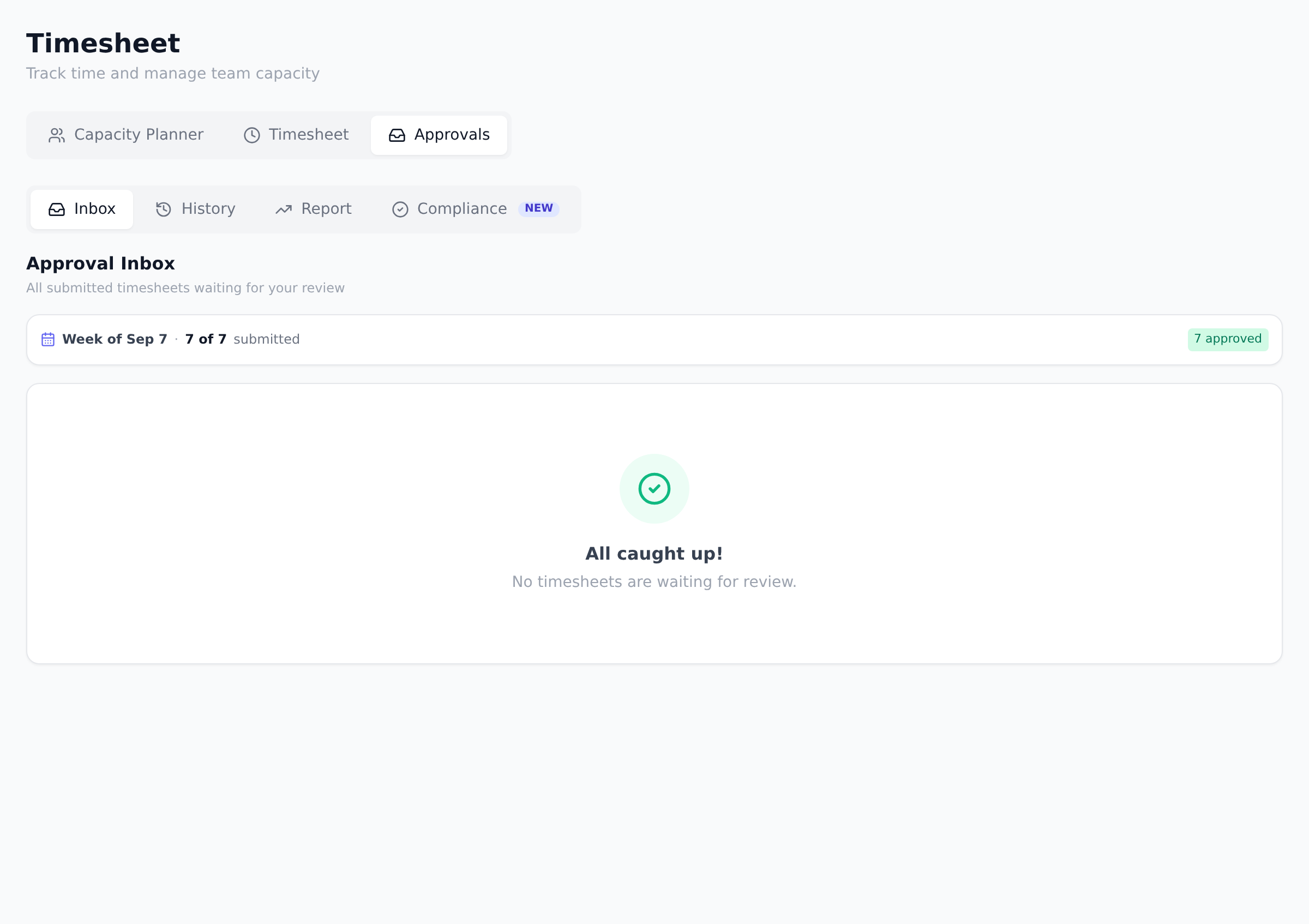
Approvers see an Approvals tab on the Timesheet page, with a badge showing how many entries are waiting. The tab has four sections: Inbox, History, Report, and Compliance.
The Inbox groups pending entries by person, then by week. A strip at the top summarizes the visible week (“X of Y submitted”) with counts for approved, pending review, draft, not started, and rejected.
For each week you can:
- Approve week to accept every entry in it at once.
- Return to send the whole week back, with an optional reason the submitter will see.
- Approve or return individual entries using the icons on each row, when only part of a week needs rework.
Returned entries show up for the submitter as Returned; editing one resets it to Draft so they can fix and resubmit. The History section keeps the trail of approved and returned entries, and Report aggregates approved hours for export.
Best practices
Section titled “Best practices”- Approve weekly on a predictable day. A Tuesday morning approval cadence (after submitters’ Monday cutoff) keeps the inbox moving. Ad-hoc approval drives back-pressure on submitters who don’t know when they’ll be approved.
- Approve at the week level, not per-entry, when possible. Per-entry approval is for genuine edge cases. Per-week approval is faster and signals trust. Reserve granular review for weeks with anomalies.
- Return with a reason every time. Reasons prevent the submitter from guessing and re-submitting the same broken entry. A one-sentence reason saves a Slack thread.
- Don’t auto-approve to clear the inbox. Approving without review defeats the purpose and produces financial reports that misrepresent real cost. If you don’t have time to review, delegate via custom approvers instead.
- Designate two approvers minimum. With one approver, vacation = backed-up inbox. Two approvers split the load; either can cover for the other.
Troubleshooting / common pitfalls
Section titled “Troubleshooting / common pitfalls”- The Approvals tab is missing. Three causes: (a) approval workflow isn’t enabled in organization settings; (b) you’re not designated as an approver (or not in the admin tier for “admins can approve” mode); (c) the organization isn’t on Pro+.
- My team’s entries say submitted but I can’t see them. You’re in Custom approver mode but not designated for the submitter. Designate yourself or pick “Organization admins” mode.
- I can’t approve my own entries. Approvers can’t self-approve unless they’re Owner or Admin. Have a peer approve, or escalate to an admin.
- Returning a week reset all the approved entries too. No, Return only resets unapproved entries. Already-approved entries stay approved and only the still-Pending ones go back to Draft.
- Approval changes on the audit log seem delayed. Approvals are written to the audit log immediately but the log UI may show a short delay. Refresh after a minute.
How this combines with other features
Section titled “How this combines with other features”- Approval + Rate cards. Approved hours multiplied by configured rate cards = actual cost on the project Finance view. Approval is what triggers the cost-update. See Configure rate cards.
- Approval + Compliance. The Compliance tab shows per-person submission rates, cost-at-risk, and overdue weeks. Approval workflow is the mechanism; compliance is the monitoring. See Monitor timesheet compliance.
- Approval + Notifications. Submitters receive a notification when their week is approved or returned. Approvers receive notification when a week is submitted.
- Approval + EVM. Earned-value’s actual cost (AC) reads from approved entries when approval is on, or from all submitted entries when it’s off. See Read the EVM dashboard.
Coming from another tool
Section titled “Coming from another tool”| Tool | Mapping |
|---|---|
| Microsoft Project Online Time Approval | Direct concept |
| ServiceNow Time Card Approval | Direct |
| Harvest Approvals | Similar weekly-approval pattern |
| Custom spreadsheet flow | Onplana adds first-class workflow + audit log |
| Jira Tempo timesheets | Direct |
What does approval change financially? When approval is enabled, only approved entries count toward project actual cost on Finance dashboards. The settings page warns about this when you toggle approval on or off, and offers to auto-approve already submitted entries so historical costs do not jump.
Do approvers get notified? Yes. Submitting a week notifies every approver in-app, and the inbox updates in real time.
Is a reason required when returning entries? No, the reason is optional, but it is shown to the submitter and saved on the entry, so a short note saves a conversation.
What is the Compliance section? A per-person view of who has filed enough hours this week, with a cost-at-risk estimate. See Monitor timesheet compliance.
Can I bulk-approve from the Report or Compliance views? The bulk approve actions live on the Inbox tab. Report and Compliance are read-only summaries. Use Inbox for the actual approve/return actions.
What happens when a designated approver leaves? Nothing is reassigned, because the inbox is not per-approver: pending entries stay visible to every remaining designated approver. Onplana will not let the roster run dry either. Removing the last approver while Custom approver mode is on is refused, and if the last approver leaves the organization entirely, the organization is switched back to Organization admins mode automatically so approvals keep flowing.
Related
Section titled “Related”- Log and submit timesheets, the submitter side
- Configure rate cards, what approved hours multiply by
- Monitor timesheet compliance, the org-level view
Was this helpful?
Thanks for your feedback!