
Import a Microsoft Project file
A Microsoft Project schedule represents days or weeks of someone’s
planning work. Re-keying it by hand into a new tool is the surest
way to lose detail (the half-day dependency lag, the resource you
forgot to add, the baseline you set in week one). Onplana’s
importer reads the .mpp file directly so the plan, the costs,
and the dependency graph land intact, and the few things that
do not import cleanly (resources matched by email, zero-cost
lines, calendar exceptions) are surfaced as warnings rather than
silently dropped.
Supported formats
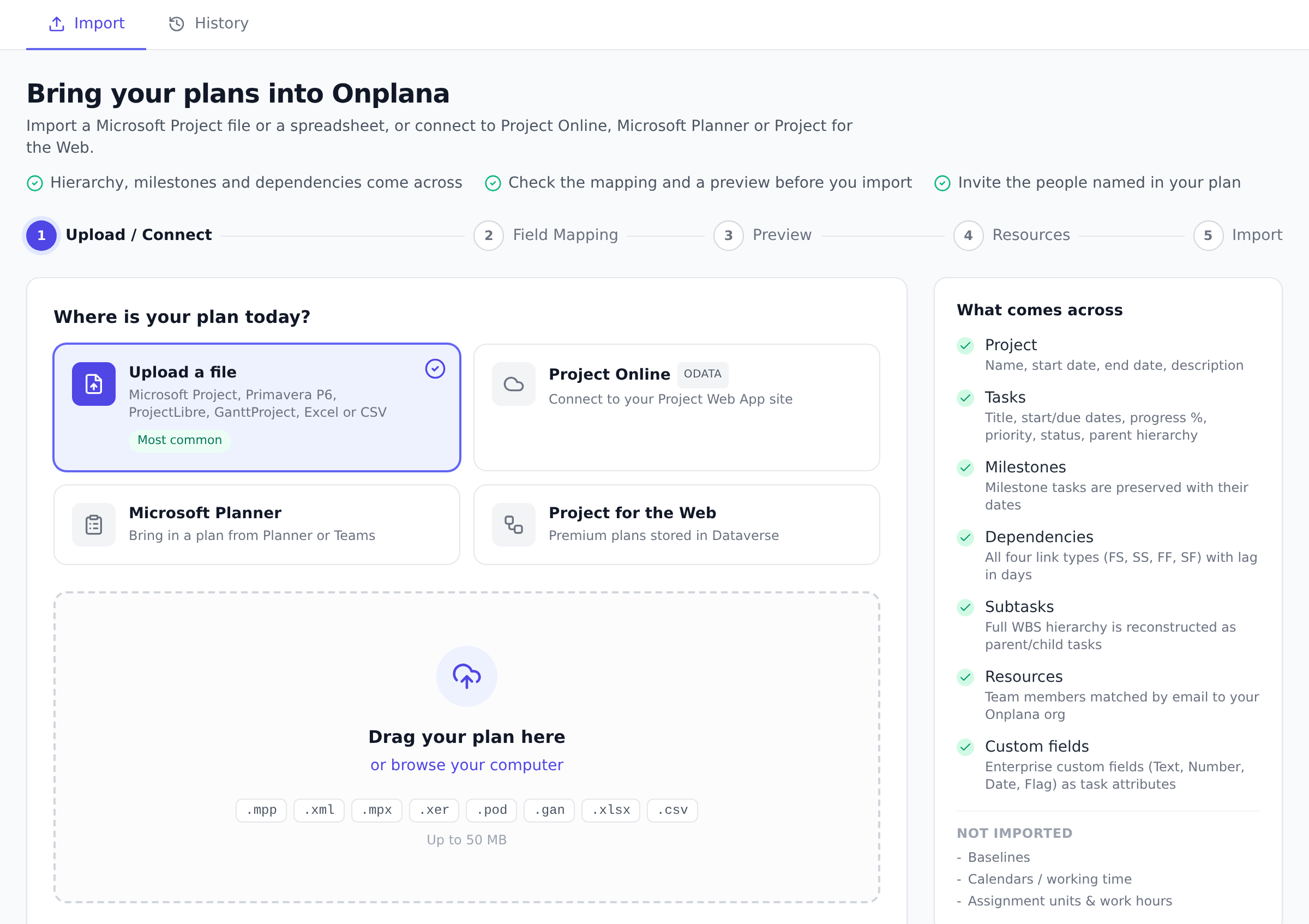
Section titled “Supported formats”.mpp(recommended). The native Microsoft Project binary. Just upload the file you already have, no export step. Microsoft Project 2003 and earlier are not supported..xml(MSPDI). Project’s “Save as XML” format, useful when you only have an XML export..mpxand.xer. Older interchange and Primavera formats..podand.gan. Plans saved in ProjectLibre or GanttProject..xlsxand.csv. If your plan lives in a spreadsheet rather than Microsoft Project, upload it directly, see Import a WBS from Excel or CSV.
The upload size limit is 50 MB for the main importer, which covers every real-world project we have seen. If your file is larger, the size is usually a sign of embedded images or notes that are not part of the schedule; trimming those in Microsoft Project first is faster than chunking the import.
What comes across
Section titled “What comes across”- Project: name, start and end dates, description.
- Tasks: titles, start and due dates, percent complete (mapped to status and progress), and priority.
- The work breakdown structure: the full parent and child hierarchy is rebuilt as subtasks.
- Milestones: preserved with their dates and shown as diamond markers on the Gantt chart.
- Dependencies: all four link types (finish-to-start, start-to-start, finish-to-finish, start-to-finish) with their lag in days.
- Resources: team members are matched to your organization by email. Anyone who does not match is listed on the wizard’s Resources step, with how many tasks they hold, so you can invite them before the import commits. Microsoft Project often stores a resource as a name with no address at all, so that step lets you type one in; their tasks are assigned automatically when they accept. Nobody is created as a user without being invited.
- Costs and custom fields: planned, fixed, and baseline costs, plus Project’s custom columns, come across where present.
Run the import
Section titled “Run the import”- Open Migrate from the navigation (or go to
/migrate). - Upload your file. Onplana detects the format automatically, you do not pick the type.
- On Field Mapping, check the fields Onplana found in your file. Each one shows an example from the file and how many tasks carry it. Switch off anything you would rather leave behind; the project name and dates always come across.
- On Preview, check the plan as it will land: the task tree, milestones, dates, and who each task is assigned to. Anything worth a second look, such as tasks with no dates, is listed at the top, and Needs a look narrows the table to those tasks. Nothing is saved until you start the import.
- Confirm the resource matching step: matched people join the project, unmatched names are flagged.
- Review the summary and create the project.
Planning a wider move off Microsoft Project? The migration overview on the main site covers timelines, what carries over, and how Onplana pricing compares.
After the import: the Import Cleanup tab
Section titled “After the import: the Import Cleanup tab”Every imported project gains an Import Cleanup tab (in the project’s Settings section, marked with a sparkle icon) with AI-suggested fixes for the things the importer could not resolve on its own, such as resources it couldn’t match or fields that didn’t map. Work through the suggestions at your own pace. On a clean import there is simply nothing listed. The tab stays on the project after the import rather than disappearing, so you can come back to the suggestions later. The warnings banner shown right after import also links straight to this tab, so you don’t have to go looking for it.
Best practices
Section titled “Best practices”-
Bring your team in from the Resources step, not beforehand. Onplana matches MS Project resources to Onplana users by email, and the wizard’s Resources step lists everyone it could not match, busiest first. Tick the ones you want invited. Where Project stored only a name, which is the common case for a file that was never attached to an enterprise resource pool, type their address on that row. Their tasks are assigned the moment they accept, so there is no re-matching by hand afterwards and no need to invite the whole team first.
If you would rather not decide during the import, skip the step: the imported project’s banner reopens the same list, and you can invite from there whenever you are ready. See Bring your team into an imported plan.
-
Pre-save the file in modern MS Project format. Project 2003 and earlier binaries are not supported. If you’re not sure, open the file in any modern Microsoft Project (2007+) and Save As to bump the version. The same trick fixes files exported from ancient Project Server installations.
-
Capture a baseline immediately after import. As soon as the plan looks right, take a baseline. This pins the imported schedule as your line in the sand; every future change is visible against it. The earlier you do this, the more useful the variance reports get.
-
Plan a portfolio migration as half a day per ten projects. Single-project imports take five minutes once you’re warmed up. Portfolio migrations slow down on three things: resource re-matching across projects, custom-field naming consistency, and cross-project dependencies. Each file’s links import within its own project; links between two files have to be recreated after the import. Onplana schedules those, but the dependency picker offers the current project only, so they are made through an AI agent or the API, or by moving a task that already carries them.
Troubleshooting / common pitfalls
Section titled “Troubleshooting / common pitfalls”- “Hanger” tasks in the imported Gantt (no predecessor, no successor, in the middle of the schedule). Usually means MS Project carried an implicit dependency that didn’t make it into the file. Add the link in Onplana; the Gantt is the fastest surface for spotting these because the bar sits at an unexpected date.
- Negative-lag dependencies look wrong. MS Project sometimes
stores lead time as a negative lag value. Onplana imports the
number as-is. If a successor seems to start “too early,” check the
dependency lag in days; a 2-day lead is
-2, not the duration of the predecessor. - My costs did not import. MS Project treats a zero cost as “no cost configured” rather than “$0 confirmed”, so zero-cost lines come across as empty. If you genuinely want $0 to mean $0, set the cost in MS Project to a small marker value (e.g. $0.01) before importing, or set it post-import.
- Resources show as duplicates. Two causes: (a) the email in MS Project doesn’t match the Onplana email (case-sensitive matching on the local part); (b) the resource is a generic role name (“Engineer 1”) rather than a person. The matching screen lets you either link to an existing Onplana member or skip the resource entirely; pick skip for generic roles.
- The import says “size exceeded”. Strip embedded images, large
task notes, and old Project history before retrying. Most “huge”
.mppfiles shrink dramatically after a Project clean-up.
How this combines with other features
Section titled “How this combines with other features”- Import + Baselines. Capture a baseline the moment the import completes. Every later change shows on the Gantt against the original imported plan, which is the cleanest way to see scope drift after the migration.
- Import + Rate cards. Configure Rate cards before the team starts logging time against the imported project, so the cost side of earned-value math reconciles with MS Project’s planned cost from day one.
- Import + custom fields. MS Project’s ExtendedAttributes import as per-project custom fields, not org-wide. If a field matters across every project, promote it to org-wide after the first import (see Scope custom fields to one project).
- Lookup lists survive an XML export, not yet a binary one. A field backed by a value list arrives as a Dropdown carrying that list as its options when you import MSPDI XML, and as plain text when you import the .mpp binary, because the binary parser does not read value lists yet. If keeping your pick lists matters, export the plan as XML from MS Project rather than uploading the .mpp. Everything else imports the same either way.
Coming from another tool
Section titled “Coming from another tool”| Tool | Path into Onplana |
|---|---|
| Microsoft Project (.mpp, .mpx, .xml MSPDI) | Direct import here |
| Project Online / Project Server | Use Migrate from Project Online (read the OData feed directly) |
| Primavera P6 (.xer) | Direct import here |
| ProjectLibre (.pod) and GanttProject (.gan) | Direct import here |
| MS Planner | Connect your Microsoft account from the import wizard and choose Microsoft Planner as the source. It pulls the plan directly, with an optional live sync to keep it updated; AI Kickstart is still a fast option for tiny boards |
| Smartsheet | Export to Excel or CSV and upload it directly, see Import a WBS from Excel or CSV |
Will importing change my original Microsoft Project file?
No. The upload is read only; your .mpp file is untouched. Onplana
creates a brand new project from a copy of the data.
Why are some of my team listed as warnings instead of added? Resources are matched by email address. If someone’s email in Microsoft Project does not match their Onplana account, they are flagged so you can add them by hand rather than creating a duplicate person.
My costs did not import. Why? Microsoft Project treats a zero cost as “no cost configured”, so blank and zero-cost lines come across as empty. Lines with a real cost value import into the project’s planned cost.
Do I need a paid plan to import? No, import works on every plan, and the Gantt chart that renders the result is on every plan too. Some of what comes across (custom fields, for example) is only visible on the plans that include those features, but the underlying data is always imported.
Can I import the same file twice (e.g. after I fix something in MS Project)? Re-importing does not update the tasks you already have, it adds a fresh copy. The cleanest pattern is: import, adjust, baseline. If you re-import to pick up upstream changes, either delete the previous attempt first or treat the new import as the canonical one and archive the earlier one.
Can I import a file into a project I already have? Yes. On the last step of the wizard, choose An existing project and pick it. The tasks are added to that project instead of creating a second one, and each task is tagged with the file it came from. This is how you combine several contractor files into one plan, so the dependencies between them actually schedule, see Combine several schedule files into one project.
What if my MS Project file is on SharePoint or Project Server? Download it to your machine first, then upload. Onplana’s importer needs the file on your device; it does not read from SharePoint or Project Server directly. For Project Online specifically, the Project Online migration path is faster because it reads the OData feed.
Related
Section titled “Related”- Migrating from Microsoft Project, the full hub: import, baselines, dependencies, rate cards
- Combine several schedule files into one project, when the plan arrives as one file per contractor
- Capture and compare baselines, the right next step after import
- Migrate from Project Online, the read-the-OData alternative for cloud-hosted plans
Was this helpful?
Thanks for your feedback!