
Create custom fields
Custom fields are how Onplana adapts to your organization’s vocabulary without forcing the rest of the product to know about it. The team that tracks “cost center”, “deployment region”, or “regulatory class” gets those fields exactly where they need them, and the dashboards, reports, and filters work on them as first-class data. The cost of doing this well is small; the cost of doing it badly is a year of cleaning up mis-spelled department names and unfilterable free-text fields. This article covers the field types, where they appear, and the conventions that keep custom data clean.
Field types
Section titled “Field types”Twelve types are available:
- Text and Multi-line for free-form entries
- Number and Currency for numeric values
- Date for calendar dates
- Dropdown (one choice) and Multi-select (several choices), each with a list of options you define
- Checkbox for yes/no flags
- URL / Link, Email, and Phone for typed contact and reference values
- Rating for a 1-to-5 star score
Where a field appears
Section titled “Where a field appears”Every field is scoped to one entity type when you create it:
- Project form: shows when creating and editing projects.
- Task form: shows on tasks, and as optional columns in the project’s Grid view.
- Proposal: shows on governance proposals.
Create a field
Section titled “Create a field”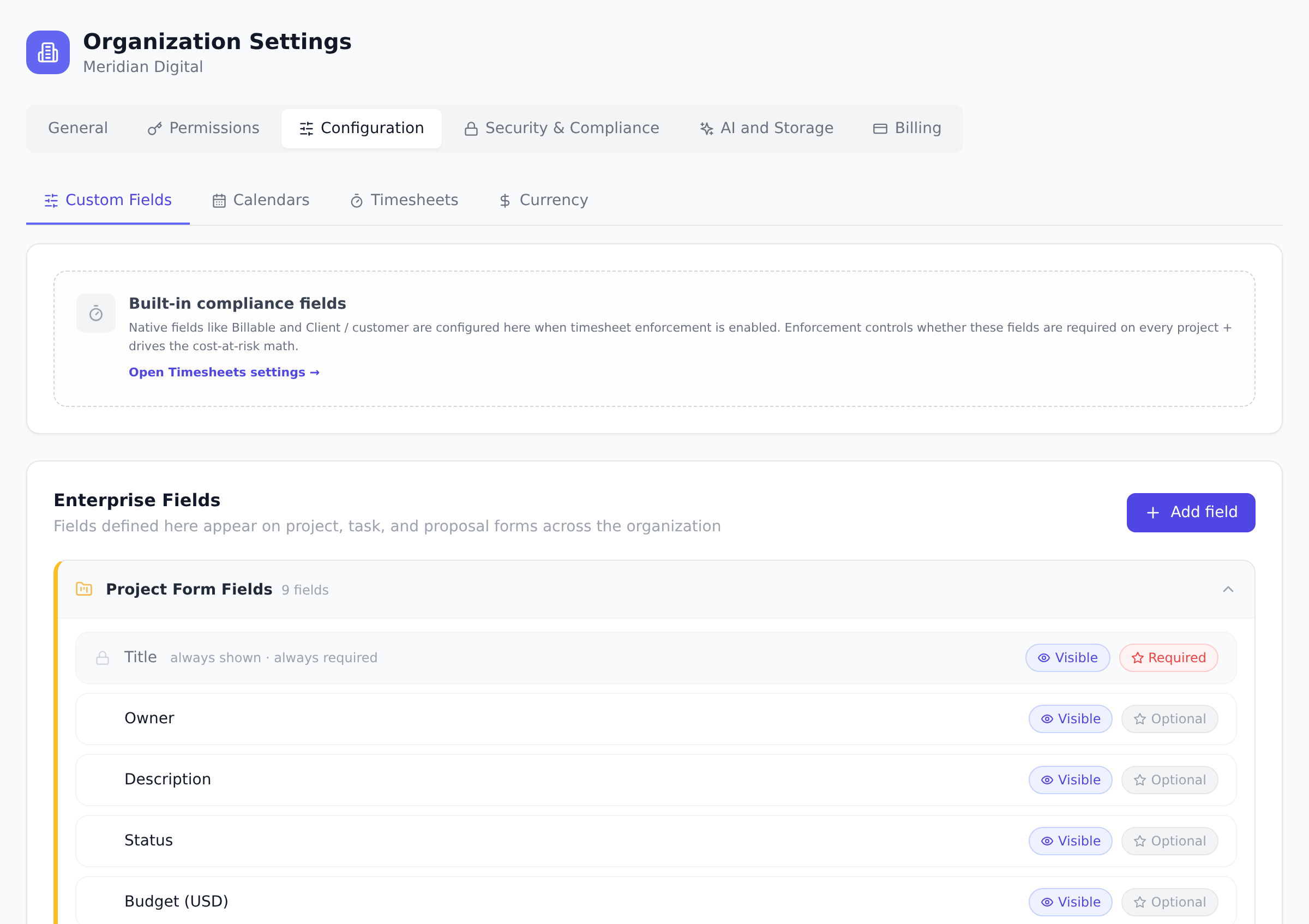
-
Open Organization Settings, go to the Configuration tab, and open the Custom Fields section.
-
Add a field: give it a name, pick the type, and choose which form it belongs to (project, task, or proposal).
-
For Dropdown and Multi-select fields, enter the list of options users can pick from.
-
Save. The field is live on that form across the organization immediately.
By default, managing organization-wide custom fields requires the Portfolio Manager role or above. Like most permissions, your organization can tighten or loosen this in the permissions matrix.
Fields for just one project
Section titled “Fields for just one project”Sometimes a field only makes sense inside a single project and would be noise everywhere else. Those are created from within the project itself rather than in Organization Settings; see Scope custom fields to one project.
Best practices
Section titled “Best practices”- Prefer Dropdown to Text every time the options are knowable. A “Department” text field becomes “Engineering”, “engineering”, “Eng”, “ENG” within a quarter, and reports built on it break. A “Department” dropdown stays “Engineering” forever, filters work, and dashboards group correctly. The same applies to priority class, status, region, environment, and any other small-vocabulary field.
- Name fields the way reports will read. “Cost Center” reads well at the top of a Report column; “CC#” requires the reader to know your shorthand. Custom field names appear in Report headers, the Grid view, and the filter chips. Spend an extra five seconds picking a name that survives a reader who has not used Onplana before.
- Set fields required only when the data really is required. A required field on every task creates friction on every task. The right pattern: required on a project’s non-negotiable identifiers (cost center, owner), optional on everything else. Required-by-default is the most common cause of users picking the wrong dropdown value just to submit the form.
- Use project-scoped fields for one-off work. If only one project tracks an “Acceptance Criteria” or “Reviewer Set” field, scope it to that project rather than polluting the org-wide grid. See Scope custom fields to one project.
Troubleshooting / common pitfalls
Section titled “Troubleshooting / common pitfalls”- My field doesn’t show on the form. Check the entity type you picked at creation. A field scoped to the Project form only shows on the project creation/edit modal, not on tasks. Re-create it as a Task field if you wanted task-level data (or vice versa). Existing values cannot be migrated across entity types.
- I deleted a dropdown option and the existing tasks went blank. Deleting a dropdown option clears it from any task using it. The clean pattern: rename the option instead, or add a new option and migrate the values yourself via bulk-edit before deleting the old one. Onplana doesn’t auto-migrate to a “closest match.”
- Reports don’t show my custom field. Custom fields appear as optional columns in Reports’ column picker; they aren’t shown by default. Open the column manager and tick the field. Same applies to the project’s Grid view, custom fields are opt-in columns.
- Trying to delete a field gives “Field has values” error. Onplana blocks deletion while data exists, by design, this is the safety net against destroying historical data. Either bulk-clear the field’s values via the Grid view first, or change the field’s name to something like “[Deprecated] X” if you want to keep the historical data while hiding the field from new entries.
- The Custom Fields section in Organization Settings is read-only for me. Managing org-wide custom fields requires the Portfolio Manager role or higher by default. Your organization’s permissions matrix can tighten this; check Understand roles and permissions.
How this combines with other features
Section titled “How this combines with other features”- Custom Fields + Reports. Custom fields appear as columns and filter dimensions in the Reports builder, so the data you collect is queryable across projects. See Run cross-project reports.
- Custom Fields + Grid view. Project Grid view shows tasks in a spreadsheet-style grid where every custom field becomes an optional column. Grid is the fastest surface for bulk- editing custom field values across many tasks.
- Custom Fields + Import. Microsoft Project ExtendedAttributes import as project-scoped custom fields by default (not org-wide), so an imported project’s columns don’t pollute every other project’s grid. Promote a useful one to org-wide later if it earns it. See Import from Microsoft Project.
- Custom Fields + Governance. Proposal-scoped fields let governance pipelines collect the data they need without bolting it onto every task or project. Useful for capturing strategic alignment, sponsor, or budget category at intake. See Submit a proposal.
Coming from another tool
Section titled “Coming from another tool”| Tool | Mapping |
|---|---|
| Microsoft Project ExtendedAttributes | Custom fields on tasks; import as project-scoped by default |
| Asana custom fields | Direct concept; Asana has 6 types, Onplana has 12 |
| Jira custom fields | Direct mapping; Jira’s scope choice (system/project) ≈ org-wide/project-scoped in Onplana |
| Notion database properties | Project Grid view + custom fields are the closest Onplana equivalent |
| Smartsheet column types | Direct mapping; Smartsheet has similar 12 types |
What happens to existing data if I edit a field? Renaming a field or adding dropdown options is safe; values already entered stay attached. Deleting a field is blocked while values exist, so you cannot silently destroy data.
Do imported Microsoft Project plans bring their custom columns? Yes. Custom columns from an imported plan become custom fields, scoped to the imported project so they do not clutter the rest of the organization. See Import from Microsoft Project.
Can I make a custom field required? Yes. Each field definition has a required checkbox, and required fields show the usual asterisk on the form. The same Custom Fields section also lets admins control visibility and requirements for the built-in form fields.
Can two fields share the same name? Nothing stops you technically, but keep names unique per entity type (you can have a “Status” field on tasks and a different “Status” field on proposals, just not two “Status” fields on tasks). Two identically-named fields on the same entity make the form ambiguous to anyone filling it in.
Can I reorder fields on the form? Fields appear in the order you created them; there’s no drag-reorder today. If a field needs to sit earlier on the form, the workaround is to note the order you want when you’re first setting fields up.
How many custom fields can my organization have? Practical limits are very high (50+ org-wide fields per entity type is fine). Above that the create/edit forms get long; consider project-scoping rarely-used fields instead of carrying them at the organization level.
Are custom fields visible to Guests? Custom fields follow the same visibility rules as the entity they belong to. A guest who can see a project sees its custom fields; a guest blocked from a project sees nothing about it, including its fields.
Related
Section titled “Related”- Scope custom fields to one project, the project-scoped alternative for one-off needs
- Run cross-project reports, query custom fields across projects
- Understand roles and permissions, who can manage custom field definitions
Was this helpful?
Thanks for your feedback!