
Log and submit timesheets
Every hour you record in Onplana is attached to a real task in a real project, which is what makes timesheets useful downstream: project costs, capacity planning, and compliance reporting all read from the same entries.
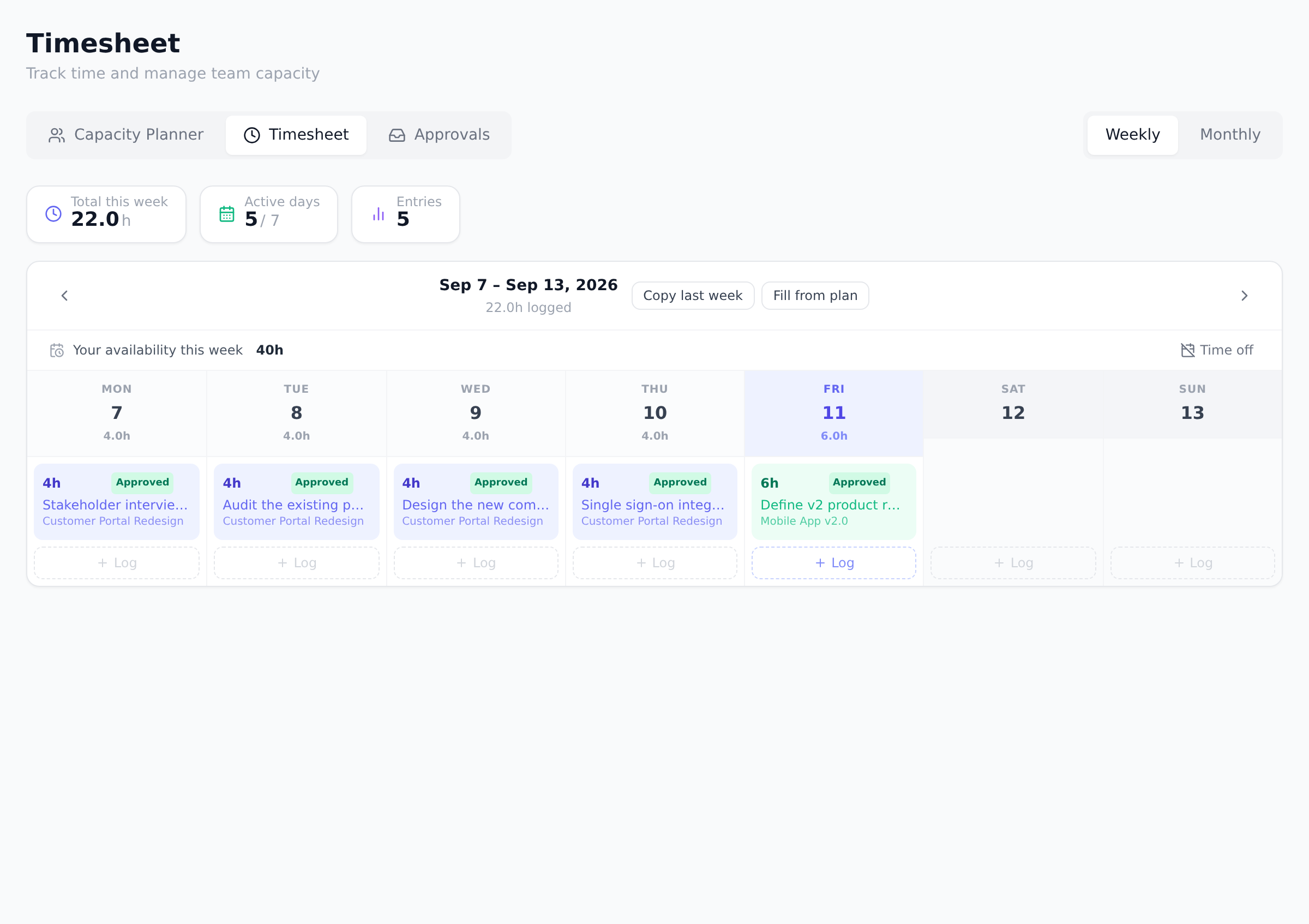
Log your hours
Section titled “Log your hours”-
Select Timesheet in the sidebar. The Timesheet tab opens on the current week; use the Weekly / Monthly toggle to switch views.
-
Click the day you worked. The Log Hours dialog opens for that date.
-
Pick the Project, then the Task within it. You can only log time against projects you belong to.
-
Enter the Hours (minimum 0.25, maximum 24 per entry, in steps of 15 minutes) and optionally a note describing what you did.
-
Select Log Hours to save. The entry appears on the day with a Draft badge.
The clip carries on past these steps into submitting, because the two halves belong together. Watch the total and the entry count move as the entry lands, and the badge turn from Draft to Pending on submit. A logged entry that is never submitted stays a draft, and nobody reviews a draft.
The summary chips above the grid keep a running total for the period: total hours, active days, and entry count.
Start the week faster
Section titled “Start the week faster”Two buttons next to the week navigator fill a week in one click. Both create drafts you can edit or delete, and neither touches a day that already has an entry.
- Copy last week puts last week’s entries onto this week, weekday for weekday, with the same tasks, hours and notes. A day you have already started is skipped whole, and days still in the future are left empty.
- Fill from plan spreads your available hours for the week (from your capacity, or 40 if none is set) across the projects you are allocated to, in proportion to each allocation, over the empty working days. Each draft goes on the task you last logged against in that project, or an open task assigned to you. A project with no such task is named in the message so you can log it by hand.
The message after either button says what landed and what was skipped, so a week that looks half filled is never a mystery.
Submit the week for approval
Section titled “Submit the week for approval”When approval is enabled for your organization (it is on by default), an amber bar appears above the week whenever you have draft entries:
-
Review the week. Draft entries can still be edited or deleted.
-
Select Submit for approval. Every draft entry in the visible week moves to Pending in one step, and your approvers are notified.
Take back a submission
Section titled “Take back a submission”Submitted too early? While your entries are still Pending, the same amber bar offers Take back. It moves every pending entry in the visible week back to Draft so you can edit them and resubmit, without involving your approver.
Entry statuses
Section titled “Entry statuses”| Badge | Meaning |
|---|---|
| Draft | Saved but not yet submitted. Editable. |
| Pending | Submitted, waiting for an approver. Locked, but you can still Take back the week. |
| Approved | Accepted by an approver. Locked. |
| Returned | Sent back by an approver, usually with a reason. Edit it to fix and resubmit. |
What happens on the approver’s side is covered in Approve timesheets.
Best practices
Section titled “Best practices”- Log time the same day it was worked. End-of- week recall is a guess; same-day logging is accurate. The teams that get useful project cost reports are the ones whose entries arrive on the day the work happened.
- Use the note field generously. “Reviewed architecture for Q3 migration” beats “code review” by a country mile when, six months later, someone asks “what did we spend on migration prep?” The note is the answer to that question.
- Round to 15-minute increments, not 5-minute. The 15-minute minimum is the system’s; respect it. Logging in 5-minute increments creates false precision that wastes effort without improving data.
- Submit weekly, not bi-weekly. The longer entries sit in Draft, the higher the chance one gets lost or forgotten. Weekly submission also keeps approvers on a predictable cadence (see Approve timesheets).
- Re-check the Pending bar before closing the week. “I thought I submitted” is the most common cause of stale Drafts. The amber bar is a one-second visual check.
Troubleshooting / common pitfalls
Section titled “Troubleshooting / common pitfalls”- The task I worked on isn’t in the dropdown. You can only log time against projects you’re a member of. If the task is on a project you’re not on, ask the project owner to add you.
- My entry won’t save with the hours I want. Per-entry limit is 24h, minimum 0.25h. Trying to log 25 hours rejects. Split across two days if you genuinely worked through midnight.
- My week shows draft entries I can’t edit. Two causes: (a) someone with edit rights moved them to Pending; (b) the organization changed which weeks are open for editing. Refresh; if still locked, ask an approver to return them.
- The approval bar isn’t appearing. Three causes: (a) no draft entries to submit; (b) approval workflow disabled at the organization level; (c) the entries are on a different week than the one displayed. Toggle Weekly/Monthly and navigate to the week you intend.
- A rejected entry’s reason is missing. Approvers don’t have to leave a reason (though best practice says they should). If rejected without context, message the approver directly.
How this combines with other features
Section titled “How this combines with other features”- Timesheets + Rate cards. Logged hours multiplied by configured rate cards produce project labor cost, visible on the Finance tab. Configure rate cards before the first timesheet week so costs are priced correctly from day one. See Configure rate cards.
- Timesheets + Capacity planning. Logged hours feed actual-vs-planned capacity. A manager can see whether the team is over- or under-capacity in retrospect. See Plan team capacity.
- Timesheets + Compliance. Org-level timesheet compliance enforcement (Pro+) watches whether hours are logged against expected weekly totals. Non-compliance is surfaced; over-enforcement is configurable. See Monitor timesheet compliance.
- Timesheets + EVM. Actual cost from logged hours × rate cards is the AC input to earned-value math. Without timesheets, EVM falls back to estimated cost. See Read the EVM dashboard.
Coming from another tool
Section titled “Coming from another tool”| Tool | Mapping |
|---|---|
| Microsoft Project Online (PSI/PWA) | Direct concept; task-level time logging |
| Harvest | Direct mapping; task-based timer |
| Toggl Track | Onplana lacks a running timer; logs are entered |
| Jira Tempo plugin | Direct concept |
| ServiceNow Time Card | Similar |
Do I have to submit, or can I just log hours? That depends on your organization. Admins can turn the approval workflow off in Organization Settings, in which case there is no submit step and entries simply accumulate.
Can I log time for someone else? No. Timesheet entries belong to the person who logs them. Approvers review entries; they do not create them on others’ behalf.
Why can’t I see the Timesheet page at all? Time tracking is a Pro-plan feature, and the page is hidden for the Guest role. If your organization is on Pro or above and you still cannot see it, ask an admin to check your role.
Can I log time on a subtask? The task picker lists a project’s top-level tasks. Log against the parent task and use the note field for detail.
Does Onplana have a running timer? No, entries are added after the fact. Some teams pair Onplana with a personal timer app (Toggl, Harvest) and import hours manually. Direct timer integration is on the roadmap.
Can I log time on a project I’m not a member of? For most members, no. Membership is the access control; if you need to log on a project, ask the project owner to add you. Organization Owners, Admins, and Portfolio Managers are the exception. They can log time against any project in the organization without being a member of it.
What happens to my timesheet if my account is deactivated? Entries you logged stay attached and continue to feed reports and rate-card math; your name stays on them in the audit trail. You can’t log new entries while deactivated.
Related
Section titled “Related”- Approve timesheets, the manager side
- Configure rate cards, the rates that price your hours
- Monitor timesheet compliance, the org-level visibility on submission rates
Was this helpful?
Thanks for your feedback!