
Read the EVM dashboard
Every project has a Finance tab with classic earned value management (EVM): is the project on budget, and is it on schedule? It is visible to project managers and organization owners and admins; regular project members do not see finance data.
Where the numbers come from
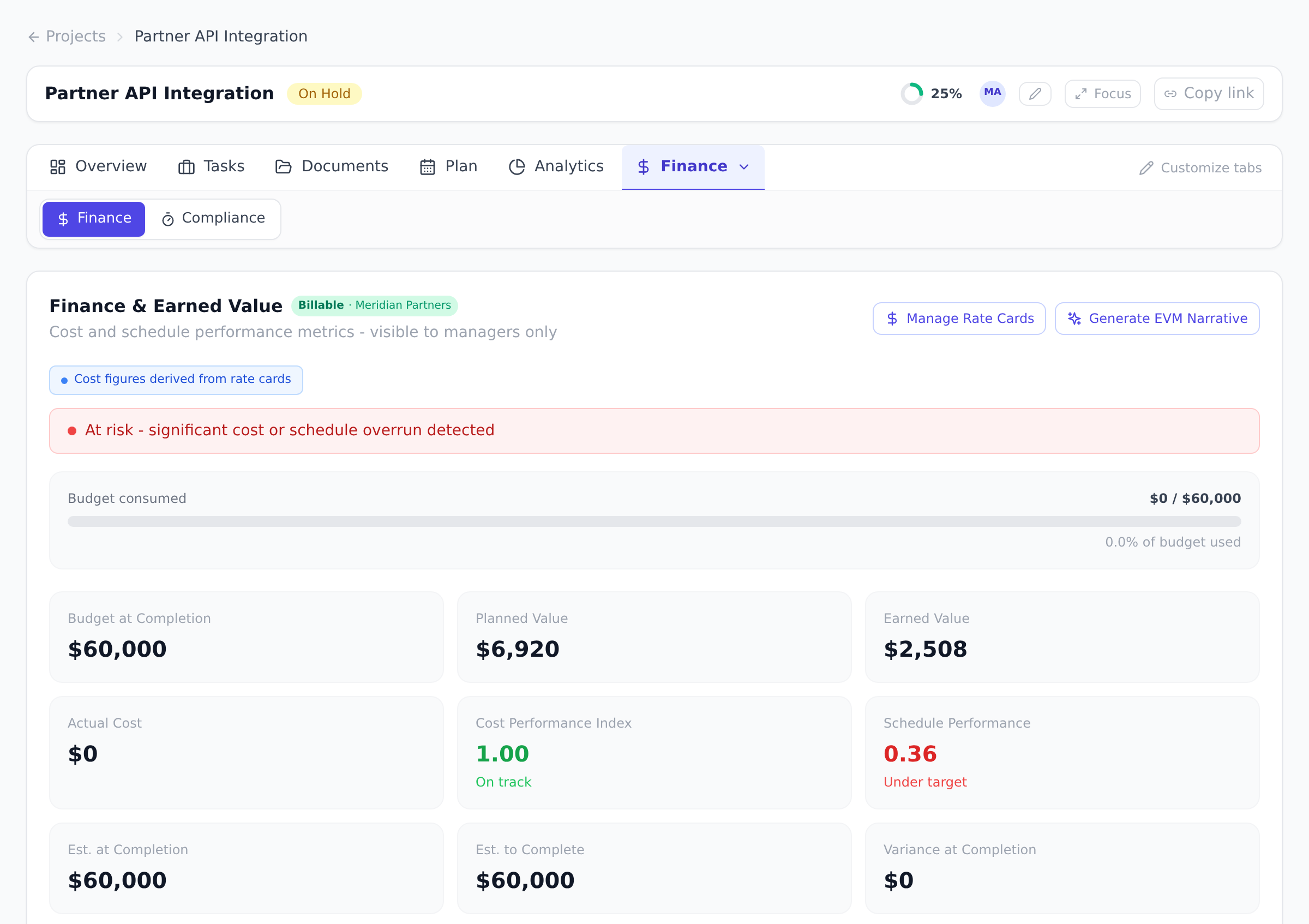
Section titled “Where the numbers come from”A badge under the header tells you which signal the cost figures are built from:
- Cost figures derived from rate cards: planned cost is each task’s estimated hours times the assignee’s resolved rate, and actual cost is logged timesheet hours times rates. If timesheet approval is enabled for your organization, only approved entries count toward actual cost, and rejected entries never count.
- Cost figures imported from Microsoft Project: when most of the project’s tasks carry cost values from a Microsoft Project import, those imported values are used directly. Tasks without an imported cost still fall back to rate cards.
If the project has neither rate cards nor imported costs, the tab shows an empty state instead of inventing dollar values. Set up rate cards or a default hourly rate and it populates on the next refresh.
The metric cards
Section titled “The metric cards”- Budget at Completion: the total approved budget.
- Planned Value: the cost of work scheduled to be done by now.
- Earned Value: the cost-weighted value of work actually completed.
- Actual Cost: money spent to date, from timesheets times rates.
- Cost Performance Index (CPI): earned value divided by actual cost. Above 1.0 means under budget.
- Schedule Performance (SPI): earned value divided by planned value. Above 1.0 means ahead of schedule.
- Est. at Completion, Est. to Complete, and Variance at Completion project the final cost forward from current performance.
A health banner summarizes both indexes: green at 0.95 and above, “Slightly behind” between 0.8 and 0.95, and “At risk” below 0.8.
The S-curve
Section titled “The S-curve”The S-Curve - Planned vs Actual Cost chart plots planned value against actual cost from the project start to today. The two lines should track each other; actual cost climbing above the planned line is the earliest visual sign of an overrun.
The per-task table
Section titled “The per-task table”Below the chart, each task shows its planned cost, Earned Value, Actual Cost, and CPI, with a per-row badge telling you whether the planned cost came from the import, from rate cards, or from the budget-spread fallback.
The revenue cards
Section titled “The revenue cards”On a project marked Billable, four extra cards appear once any rate card carries a billable rate or markup: Earned Revenue, Planned Revenue, Revenue Margin, and Realization %. They mirror the cost metrics from the client-billing side. See Split cost and billable rates.
Best practices
Section titled “Best practices”- Add estimated hours to EVERY task at project start. EVM math needs effort estimates; tasks without them fall back to a budget-spread approximation that’s less precise. Five minutes upfront beats imprecise reports throughout the project.
- Read CPI and SPI together, not separately. CPI < 1 and SPI > 1 = “ahead of schedule but overspending” (likely overstaffed). CPI > 1 and SPI < 1 = “underspending but late” (likely understaffed). The combination is the real signal.
- Use the S-curve as the leading indicator. Actual climbing above planned is the first visible sign of overrun, often before CPI drops below 1. Watch the gap, not just the index.
- Approve timesheets weekly to keep AC current. If approval is on but slow, Actual Cost lags behind reality. Stale AC = stale EVM. See Approve timesheets.
- Reconcile EVM against the baseline. EVM measures performance; baseline records “what we agreed to”. The two together answer “did we deliver what we promised?”. See Capture and compare baselines.
Troubleshooting / common pitfalls
Section titled “Troubleshooting / common pitfalls”- Finance view shows empty state. No rate signal: no rate cards, no default hourly rate, no imported costs. Set up rate cards first. See Configure rate cards.
- CPI > 2.0 looks too good. Three causes: (a) Earned Value calculation is wrong (check task progress); (b) Actual Cost is too low (timesheets unsubmitted/unapproved); (c) wrong rate card resolving.
- S-curve flat for actual cost. Either no hours logged, or hours unapproved. Check timesheet status.
- Project-level estimate hint shown. Some tasks have no estimated hours. EVM falls back to budget-spread for those. Add estimates per task for precise EVM.
- Imported cost badge differs from rate- card badge across tasks. Mixed signal: some tasks imported from MS Project, others on rate cards. Look at the per-task badges; both regimes can coexist on one project.
How this combines with other features
Section titled “How this combines with other features”- EVM + Rate cards. Rate cards price the effort; EVM is the math. Without rate cards (or imported costs), EVM has nothing to math. See Configure rate cards.
- EVM + Baseline. EVM compares current performance against the baseline’s “what we agreed to”. The baseline is durable; EVM is live. See Capture and compare baselines.
- EVM + Billable rates. With billable rates set, EVM gets revenue cards (Earned Revenue, Margin) alongside cost. See Split cost and billable rates.
- EVM + Reports. Cross-project Reports can roll up EVM metrics across the portfolio. See Run cross-project reports.
Coming from another tool
Section titled “Coming from another tool”| Tool | Mapping |
|---|---|
| Microsoft Project Online EVM | Direct concept; same PMI EVM math |
| ServiceNow PSA | Direct; same CPI/SPI pattern |
| Smartsheet Resource Management | Lacks formal EVM; cost-only |
| Spreadsheet EVM templates | Onplana automates the math |
| Custom PMO dashboards | Onplana’s EVM is built-in, no custom needed |
Why does my Finance view say it needs a rate signal? The project has no imported costs and your organization has no rate cards or default hourly rate, so there is nothing honest to price work with. Onplana deliberately leaves the figures empty instead of guessing.
Why did Actual Cost not move when someone logged hours? If timesheet approval is enabled, draft and submitted hours do not count until an approver accepts them. This keeps speculative entries from red-flagging the project.
Who can see the Finance view? Project owners and managers, plus organization owners and admins. Everyone else gets a “restricted to project managers” message.
What’s the difference between Planned Value and Budget at Completion? Budget at Completion = total approved cost. Planned Value = cost scheduled to be done by NOW. PV grows over time; BAC is fixed (unless changed via CCB).
How is Earned Value calculated per task? Task progress (0-100%) × planned cost = EV for that task. Project EV = sum across all tasks. Tasks marked Done = 100% EV.
Is there a way to see EVM history over time?
Yes, the EVM history endpoint (or calculate_evm_history via MCP)
returns the time series. The Finance view shows current state;
history is via reports.
Does changing a task’s status to Done flip its EV instantly? Yes, EV recalculates on every task status change. The S-curve shows the most recent values.
Related
Section titled “Related”- Configure rate cards, what EVM math reads
- Capture and compare baselines, the EVM reference
- Split cost and billable rates, adds revenue cards
Was this helpful?
Thanks for your feedback!