
Take the tour and finish setup
The first ten minutes in a new Onplana organization shape what the next year feels like. A team that runs the tour, lands the Setup hub, and configures the dozen-or-so opinionated defaults gets useful dashboards on day one and accurate financial reports by the end of the quarter. A team that skips it learns the same lessons by trial and error over the next two months. Both paths work; the first one is faster.
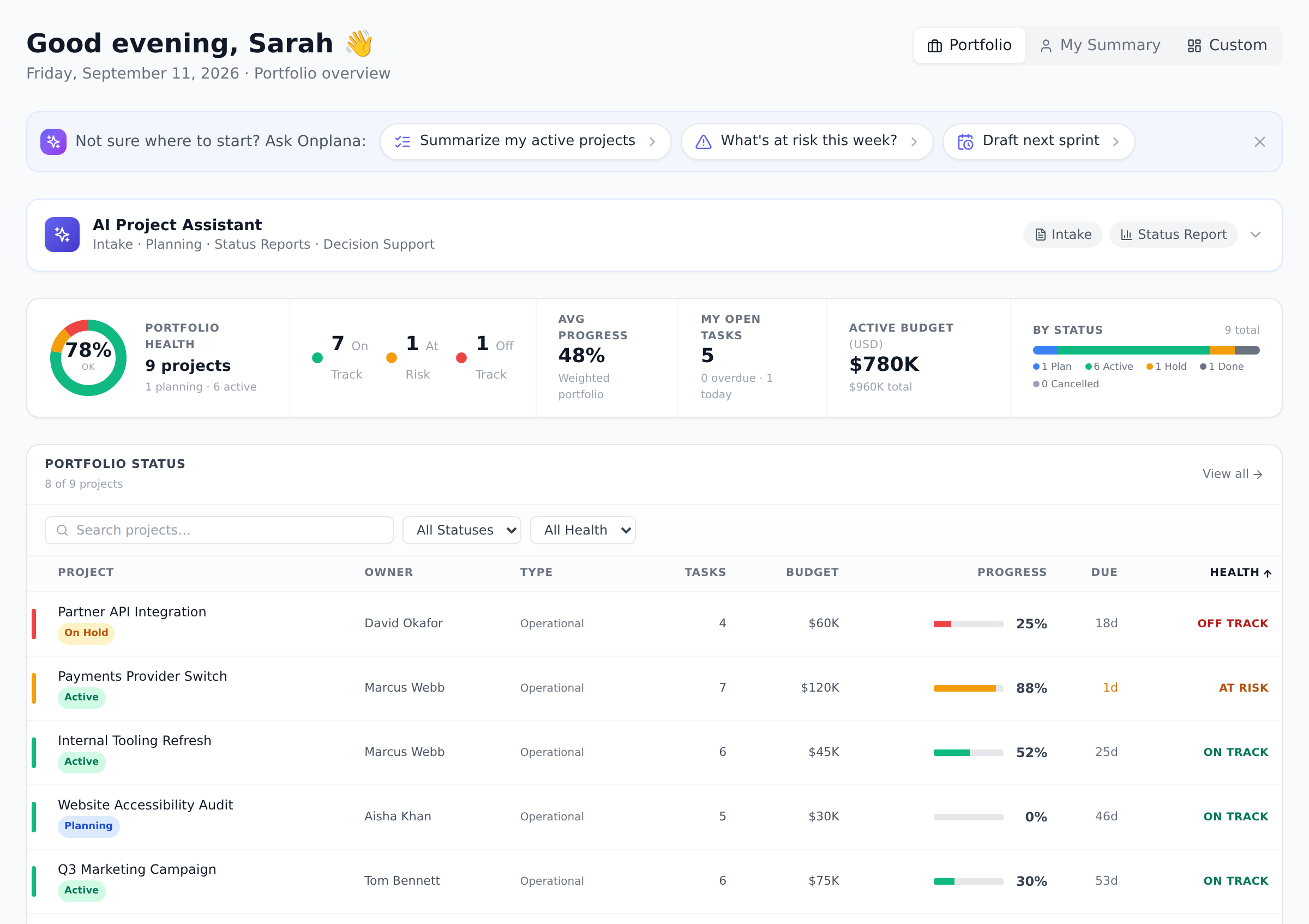
The first-run tour
Section titled “The first-run tour”Right after onboarding, Onplana points out the essentials in a short guided tour: where your work lives, how to create things, and where settings are. You can step through it or skip it; either way it only plays once. There is nothing to set up for the tour, it is simply part of your first visit.
The Setup hub
Section titled “The Setup hub”The tour shows you around; the Setup hub gets your organization properly configured. Open Setup from the sidebar.
- The hub lists setup steps grouped by area, from the basics (team, projects) through deeper configuration like rate cards, timesheets, and compliance.
- Each step opens a guided drawer that takes you to the right screen and explains the decision you are making.
- Progress is tracked per organization, so admins can see at a glance what is configured and what is still default.
The ticks and empty circles beside each step are the useful part: a tick is a decision your organization has actually made, an empty circle is a default nobody has confirmed yet. A drawer says which it is and why, so “still default” never has to be guessed at.
Where to get help later
Section titled “Where to get help later”- The in-app Help page (the question mark in the top bar) is a searchable reference of every feature with its plan tier.
- This documentation site covers the same ground with step-by-step guides, and the in-app Help links here for the full walkthroughs.
Best practices
Section titled “Best practices”- Run the tour even if you’ve used another PM tool. The five-minute tour highlights what Onplana does differently (the Setup hub, the org/project role split, the way the AI assistant appears at the top of every page). Skipping it because “I know how PM tools work” is the most common cause of three- month-later “wait, that has been there the whole time?”
- Complete Setup in two passes, not one. The first pass: the five steps that get the team productive (name, members, working calendar, default currency, first project). The second pass, a few days later: the deeper configuration (rate cards, timesheet enforcement, permission matrix tuning). Trying to do all of it in one sitting leads to defaults you regret because you didn’t yet know what you were choosing.
- Bookmark the in-app Help page. It is the searchable single-page reference for every feature with its plan badge. Faster than searching this docs site for “did Onplana ship X yet?” questions.
- Send the docs link to one teammate, not the whole team. A single deputy who reads the docs alongside you saves you from explaining the same five things to fifteen people one-on-one. The PM onboarding bundle is designed for exactly this hand-off.
Troubleshooting / common pitfalls
Section titled “Troubleshooting / common pitfalls”- The tour never appeared. Two causes: (a) you were invited into an existing organization rather than creating one, so you get the compressed welcome instead; or (b) someone in your organization opted you out at provisioning. The Setup hub and this docs site cover everything the tour does and more.
- The Setup hub shows steps I can’t complete. Plan-locked steps (SSO, SCIM, audit logs, etc.) appear as informational rather than counting against your progress on Free and Pro plans. If a step you should be able to do shows as locked, open Settings → Account and verify your role; configuration steps need Admin or Owner.
- I dismissed the tour and now I’d like to see it again. The tour itself is one-shot, but the PM onboarding bundle walks through the same flows in detail with screenshots, and the in-app Help page surfaces every navigation entry with context.
- My dashboard looks empty. Two of the four widgets need data to show anything: the portfolio health ring needs at least one project; the KPI cards need tasks with due dates. Create your first project (the tour points you at this), assign a task to yourself with a due date, and the dashboard populates immediately.
How this combines with other features
Section titled “How this combines with other features”- Tour + Setup + first project. The tour orients you, the Setup hub teaches you the configuration vocabulary, and creating your first project exercises both into muscle memory. Do all three on the same day and Onplana feels familiar by the time you start day two.
- Setup hub + Permission matrix. Setup tells you what to configure; the Permissions matrix tells you who can see and change each thing once it’s configured. Open them side by side when you’re deciding role boundaries.
- Help page + this docs site. The in-app Help page is the “what does this feature do?” surface; the docs site is the “how do I actually use it?” surface. Linking between them is intentional; if a doc article isn’t linked from in-app Help, it probably should be. File feedback in the Ask AI assistant on this site and we’ll add it.
Can I replay the tour? No, the tour is a one-time first-run experience. The Setup hub and the Help page cover the same ground in a form you can return to any time.
I was invited to an existing organization. Do I get the tour? Invited members get a compressed welcome rather than the full organization-setup flow, since their workspace already exists.
Who can see the Setup hub? Owners and Admins.
How long does the full Setup hub take to complete? Two hours of focused work, spread across the first week. Some steps are literally one-click (set your default currency), others take a real decision (rate-card structure, permission-matrix tuning, timesheet enforcement mode). Don’t rush. The Setup hub is designed for two passes.
Do unfinished Setup steps block anything? No. Setup is a checklist, not a gate. You can use every feature your plan includes without finishing Setup; the hub just helps you not forget the high-impact configuration items.
Can I dismiss the Setup hub from the sidebar? Not directly today, but the icon shrinks once you’ve completed the basics-tier steps. A future release will let admins hide it once 100% complete.
Related
Section titled “Related”- Create your first project, exercises what the tour pointed at
- PM onboarding bundle, eight articles in sequence after the tour
- Admin first-week checklist, if you’re the first admin in the organization
Was this helpful?
Thanks for your feedback!