
Manage notification preferences
Onplana sends notifications when things you care about happen: a task is assigned to you, a project changes status, your timesheet is reviewed, and so on. Settings → Notifications lets you decide which events email you, on top of the in-app bell that always shows them.
Open the Notifications tab
Section titled “Open the Notifications tab”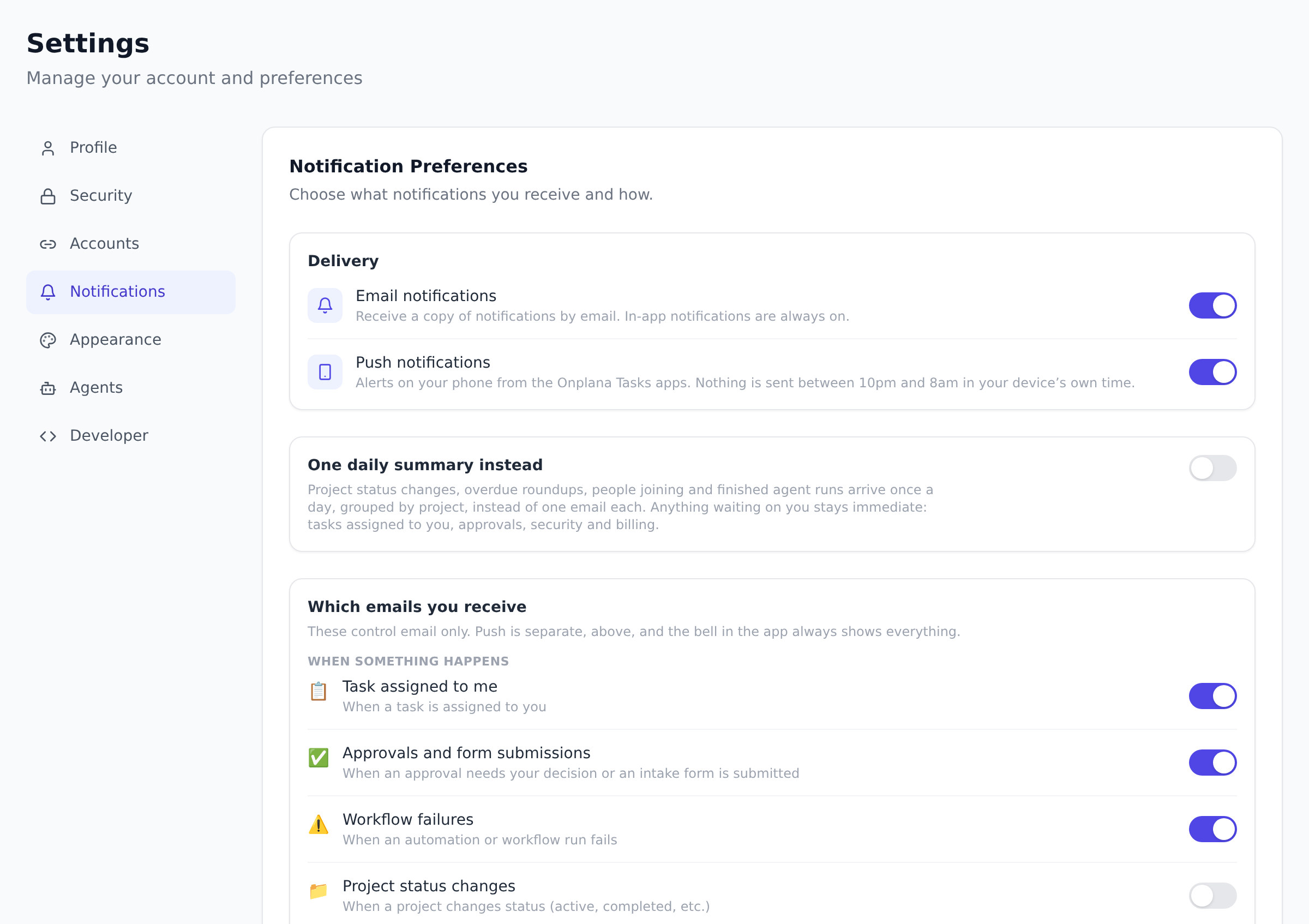
-
Select your avatar (top-right) and choose Settings.
-
Open the Notifications tab.
The tab has four sections, Delivery, One daily summary instead, Which emails you receive, and Lifecycle emails, plus a set of notifications that arrive whatever you choose.
Delivery: two channels, two switches
Section titled “Delivery: two channels, two switches”Delivery has two independent switches, one per channel, so “email off, push on” is a real combination: read assignments on your phone and keep them out of your inbox.
- Email notifications is the master switch for the email channel. With it off you still get in-app notifications (those are always on) but no email copies. With it on, every event you have enabled below also lands in your inbox.
- Push notifications controls alerts on your phone from the Onplana Tasks apps. Push has built-in quiet hours: nothing is sent between 10 PM and 8 AM in your device’s own time zone. An overnight event is not queued for the morning; it is simply not pushed, and it still shows in the bell (and in email, if that channel is on).
One daily summary instead
Section titled “One daily summary instead”Above the list of individual emails there is a single switch, One daily summary instead. It is off by default and it is yours alone: turning it on changes nothing for anyone else in your workspace.
With it on, the events that can wait are held back and arrive as one email a day, grouped by project with the busiest project first, rather than as they happen. What it collects:
- Project status changes
- Overdue roundups
- People joining your organization, and invitations lapsing
- Finished agent runs
- Risk digests and completed migrations
A quiet day sends nothing. There is no daily email confirming that nothing happened.
Two rules about how it interacts with the list below it:
- It never turns anything back on. An event type you switched off in the list stays off; the summary collects from what you already receive, it does not widen it.
- The master email switch still wins. With Email notifications off in Delivery, there is no summary either, because a summary is an email.
Which emails you receive
Section titled “Which emails you receive”The toggles under Which emails you receive choose which events also email you. They control the email copy only; the in-app bell always shows these notifications, and push is governed separately by the switch above. The list is grouped by how often each one arrives:
- When something happens: Task assigned to me (default: on), Approvals and form submissions (on), when an approval needs your decision or an intake form you own receives a submission, Workflow failures (on), when an automation or workflow run you created fails, and Project status changes (default: off, because status churn can be high volume on large organizations).
- Daily: Task overdue alerts (on), when a task you own passes its due date.
- Weekly: Weekly digest (on), a Monday summary of your projects; Timesheet emails (on), submission and review updates, reminders, and the weekly compliance digest; and Project risk alerts (on), high and critical risks found on projects you own or manage.
- Occasional: Security suggestions (on), occasional advice on protecting your account, such as two-step sign-in. This toggle also covers the repeat 2FA reminders (up to three, a month apart, see Enforce two-factor authentication).
- Monthly: Workspace setup reminders (on), a list of the setup steps still open in your workspace, sent to owners and admins until every step is completed, skipped, or marked not applicable, see Finish setting up your organization; and Product updates (on), a monthly note on what changed in Onplana, separate from the in-app Product news bell item described below.
Several of these are grouped toggles: one switch covers a family of related events (for example, Timesheet emails covers submissions, reviews, reminders, and the compliance digest). Turning a toggle off stops the email for that group; you still see those events in the bell.
With the master Email switch off, this whole list shows as off, with a note that nothing is sent. Your choices are saved, though, and come back exactly as they were when you turn email on again.
Lifecycle emails (Free-plan opt-out)
Section titled “Lifecycle emails (Free-plan opt-out)”A separate Receive lifecycle emails switch controls a short sequence of at most six emails in total: onboarding tips during your first 30 days, and inactivity warnings before a long-idle Free-tier organization is suspended or deleted. Turning this off does not stop password resets, project notifications, or any other transactional email.
What stays on regardless
Section titled “What stays on regardless”Two things are never silenced by the toggles under Which emails you receive:
- In-app notifications. The bell always shows an event, even when you turn off its email. The toggles above control the email copy, not the in-app notice.
- A few critical emails. These ignore the per-type toggles because you need to see them: organization and project invitations, AI quota warnings, Maker app hosting renewal and takedown notices, import or migration complete, and integration (webhook) auto-disabled alerts. They still follow your master Email notifications switch.
Reply to a task email
Section titled “Reply to a task email”When your organization has inbound email set up and the project has a mailbox, a notification email about a task can be replied to. Your reply becomes a comment on that task, and a status word on the first line moves the task as well. The email carries a line saying so.
Nothing on this page turns that on or off: it follows the project’s mailbox, not your notification preferences.
Product news
Section titled “Product news”Announcements about new Onplana features arrive as a Product news notification, marked with a megaphone icon, in the bell and the Notification Center alongside your other activity.
The bell item itself is in-app only: it is never emailed, so turning off the email channel makes no difference to it, and it is not a popup, nothing interrupts what you are doing, and an announcement you never open simply sits in the bell. A separate monthly Product updates email digest does exist, with its own toggle under Which emails you receive, described above.
Some announcements carry a link, such as Learn more. A link to somewhere inside Onplana opens in place; a link to an external page, such as a documentation article or a store listing, opens in a new tab.
Announcements age out on the same 90 day schedule as every other notification, so the bell does not accumulate them forever.
Can I change the quiet hours for push? Not today. The 10 PM to 8 AM window is fixed and follows your device’s own clock, so it travels with you across time zones. The desktop (Windows and Mac) apps have their own configurable quiet hours in their in-app Settings, separate from this page.
Can I mute notifications for one specific project? Not today. Toggles apply to event types across every project you are on. The closest workaround is to turn off Project status changes if a busy project’s status churn is the source of the noise.
Can my admin change my notification preferences? No. Preferences are personal to your account. Admins can configure organization-level features that fire notifications (timesheet enforcement reminders, workflow runs, intake forms), but the preferences themselves are owned by each user.
How do I stop timesheet reminder emails? Turn off the Timesheet emails toggle. It covers submission and review updates, reminders, and the weekly compliance digest. You still see them in the bell, and your organization’s admin still controls whether reminders fire at all (see Timesheet Compliance).
Does turning off email also turn off Slack or Teams? Slack, Microsoft Teams, and webhook deliveries are configured per workflow, not in your personal preferences. The Email switch here only controls Onplana’s transactional email channel.
Best practices
Section titled “Best practices”- Turn off email for activity types you check in-app daily. Bell already shows it. Email is for things you might miss.
- Leave approvals and timesheet reviews on. They’re mutable toggles, not the always-on set, but the events need action, so muting them costs you more than it saves.
- Audit settings quarterly. Activity preferences drift as your work shifts. Quarterly review keeps them fresh.
- Coordinate Slack/Teams via workflows, not preferences. Per the FAQs, Slack/Teams are workflow-driven, not per-user.
- For project-level mute, leave the project. Today’s only workaround for per-project noise is to leave projects you’re not actively on.
Troubleshooting / common pitfalls
Section titled “Troubleshooting / common pitfalls”- No email arriving. Three causes: (a) master Email switch off; (b) spam filter; (c) email field unverified.
- Bell notifications arrive late. The live connection dropped. Refresh the page.
- Preferences not saving. Browser tab cached. Hard refresh.
- Timesheet reminder emails still arrive. Turn off the Timesheet emails toggle; it covers reminders + the compliance digest.
- Workflow notifications not in preferences. Workflow outputs are configured per workflow, not here. See Build a workflow.
How this combines with other features
Section titled “How this combines with other features”- Notifications + Mentions. @mention drives notifications. See Comment and mention.
- Notifications + Workflows. Slack/Teams routing happens per workflow. See Build a workflow.
- Notifications + Approvals. Approval emails are a toggle you can mute; the bell still shows them. See Add approval steps to a workflow.
- Notifications + Sessions. Sign-in from new device notifies. See Manage sessions and devices.
Coming from another tool
Section titled “Coming from another tool”| Tool | Mapping |
|---|---|
| Slack notification preferences | Direct concept |
| Microsoft Teams settings | Direct |
| Asana inbox preferences | Direct |
| Jira preferences | Direct |
| Custom email config | Standard pattern |
Related
Section titled “Related”- Manage sessions and devices, sign out of devices you didn’t notify on
- Enforce two-factor authentication, the other half of personal security hygiene
- Build a workflow, wire Slack, Teams, and webhooks for team-level notifications
Was this helpful?
Thanks for your feedback!