
Track milestones
Milestones are the dates that matter: a launch, a contract deadline, a phase gate. Each one is a title and a due date with a completion toggle, shown on the project’s Milestones tab and summarized on the project Overview.
Add milestones
Section titled “Add milestones”-
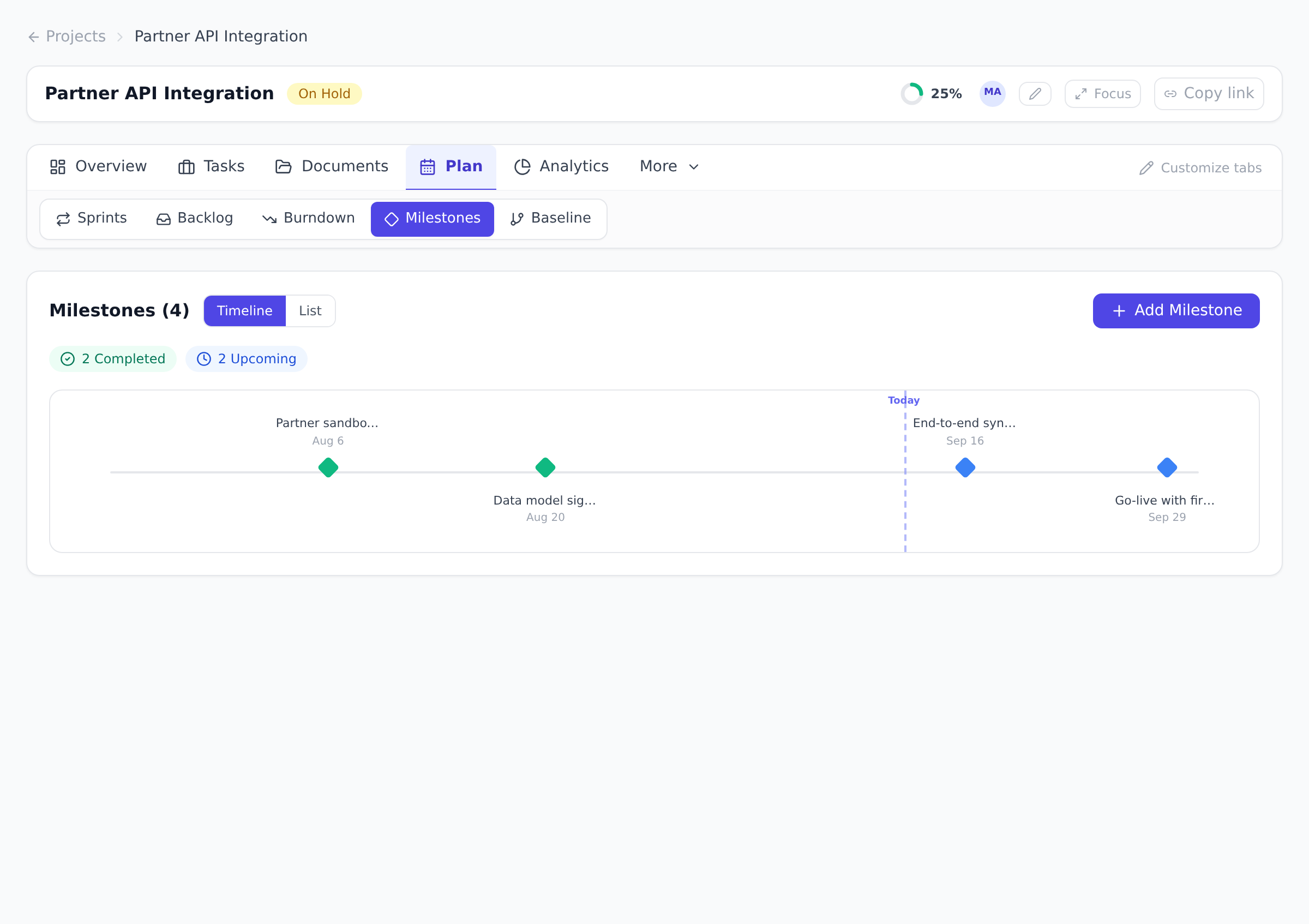
Open your project, open the Plan tab under the project header, and select Milestones.
-
Select Add Milestone, enter a title and a due date, and select Add.
The view has two layouts, switchable with the Timeline / List toggle:
- Timeline lays the milestones out as diamonds along a horizontal line spanning the project, with a dashed Today marker showing where you stand. It is the default while the milestone count stays small; projects with many milestones default to List for readability.
- List shows one row per milestone with its due date, a relative countdown (“in 12d”, “3d overdue”), and a status chip.
Track completion
Section titled “Track completion”Click a milestone’s diamond to mark it complete; click again to reopen it. Color tells the story at a glance: completed milestones turn green, upcoming ones are blue, and anything past its due date and still open turns red. Chips above the views count Completed, Upcoming, and Overdue, and completed rows record the date they were finished.
In List view, hover a row for the pencil and trash icons to edit the title and date or delete the milestone.
Milestones on the Gantt chart
Section titled “Milestones on the Gantt chart”Tasks have a Mark as milestone checkbox in the task form. A task marked this way renders on the Gantt view as a diamond marker at its date instead of a duration bar, which is how key dates stand out on the timeline among regular task bars. This is also how milestones imported from Microsoft Project files arrive.
When a project has no milestone entries of its own, the Milestones view automatically lists the project’s milestone-flagged tasks instead, labeled from task. These derived rows are read-only here: open the underlying task to change its title, date, or completion.
See milestones in context
Section titled “See milestones in context”The project Overview tab includes a Milestones panel with the next few milestones and a View all link to the full view, so the key dates stay visible without switching views. For the task side of the workflow, see working with tasks.
Best practices
Section titled “Best practices”- Use milestones for the dates a stakeholder would care about, not every internal target. “Beta launch”, “Contract signed”, and “Phase 1 hand-off” all qualify. “Tuesday’s standup” and “code review” do not; those are tasks. A milestone-rich project ends up with 30 diamonds and no signal; a 5-7 milestone project tells a story.
- Anchor milestones to real external dates. Internal “we’d like this done by” dates are softer than “regulator demands by Sept 30”. The honest milestone reflects the date someone outside the team is measuring against, not the team’s wish.
- Mark milestones complete the moment they’re done, not at end-of-week. Live tracking is the entire value: the project Overview should reflect today’s state, not Friday’s snapshot.
- Use milestone-flagged tasks (not standalone entries) when the milestone has real work behind it. A “Beta launch” with assignees, comments, and a dependency graph belongs in the task model. A pure external date (“Contract signed by Acme”) works as a standalone milestone entry.
- Capture a baseline that includes your milestones. Variance against the baseline lets you say “Phase 1 hand-off was planned for Oct 15 and actually delivered Oct 22”. That is the single most useful stakeholder-update sentence you can have. See Capture and compare baselines.
Troubleshooting / common pitfalls
Section titled “Troubleshooting / common pitfalls”- My milestone-flagged task doesn’t show as a diamond on the Gantt. Two causes: (a) the task has no due date (the Gantt anchors it to the date); (b) the Gantt is filtered to exclude completed tasks and the milestone is completed.
- The Milestones view shows tasks I didn’t add as milestones. When a project has no standalone milestone entries, the view automatically lists tasks flagged “Mark as milestone” instead. Add a standalone milestone and the auto-listing stops; or accept the derived rows (they’re read-only on this view; edit the task to change).
- A milestone marked complete went back to upcoming later. Someone toggled it. Onplana doesn’t prevent reopening. That is intentional for cases where a milestone “completed” but evidence later showed it wasn’t. The activity log records the toggle.
- My imported MS Project milestones are all dated the same day. MS Project sometimes stores milestone dates as constraints rather than scheduled dates. After import, verify the milestones’ due dates against the original plan; if any are wrong, edit them in Onplana (the source file isn’t touched).
- The Overview panel shows milestones I don’t see on the tab. The Overview’s milestone panel shows the next few upcoming + any overdue; a milestone completed weeks ago is in the view’s Completed list but not on the Overview by default.
How this combines with other features
Section titled “How this combines with other features”- Milestones + Gantt. Diamond markers on the timeline make key dates jump out among task bars. The critical path computation respects milestones the same as tasks. See Plan on the Gantt chart.
- Milestones + Baseline. Baselines record milestone dates at capture time; variance reports show whether milestones drifted between then and now. See Capture and compare baselines.
- Milestones + Status Reports. Status reports for stakeholders read most cleanly when organized milestone-by-milestone. The Status Report view in the Reports area has a milestone-anchored layout. See Run cross-project reports.
- Milestones + the Milestones view. There’s no notification for a milestone going overdue today; the Milestones view is where slip surfaces, an overdue milestone shows in red with its own count in the header, so a quick look catches it without waiting on an alert.
Coming from another tool
Section titled “Coming from another tool”| Tool | Mapping |
|---|---|
| Microsoft Project | Milestone tasks (duration 0) ≈ Onplana milestone-flagged tasks; same diamond visual on Gantt |
| Jira | No native milestone concept; teams use issue type “Epic” or “Initiative” with a target date |
| Asana | Asana milestones are direct concept; same dual-track model (task vs lightweight marker) |
| Smartsheet | Direct mapping |
| Monday.com | Direct mapping |
Why can’t I edit some milestones on the Milestones view? Rows labeled from task are derived from tasks that have Mark as milestone ticked. Edit or complete the task itself and the row follows.
Do milestones affect task scheduling? No. A milestone entry is an independent date marker; it does not move tasks or create dependencies. Use task due dates and dependencies for scheduling, and milestones for the headline dates.
Who can manage milestones? By default, project members and above can add, edit, complete, and delete them. Project viewers see them read-only. Admins can adjust this in the organization’s permission matrix.
Can a milestone be assigned to someone? A standalone milestone entry doesn’t have an assignee. It’s a date marker. A milestone-flagged task does have an assignee like any other task. If the milestone has an owner, use the task model.
Do milestones count toward project progress? No. The progress rollup excludes milestones to avoid distorting the calculation. A project with 5 tasks and 5 milestones reads progress from the 5 tasks only.
Can I set a milestone’s date as a dependency target? Yes, a milestone-flagged task can be the predecessor or successor of dependencies like any other task. Standalone milestone entries can’t be dependency endpoints.
Are milestones shared across projects? No, milestones are per-project. For portfolio-level “key dates”, either use portfolio-level reports that aggregate per-project milestones, or use cross-project goals.
Related
Section titled “Related”- Plan on the Gantt chart, diamonds on the timeline
- Capture and compare baselines, preserve milestone dates over time
- Track goals and OKRs, strategic counterpart for cross-project
Was this helpful?
Thanks for your feedback!