
Organize the Projects page
The Projects page is your organization’s project list. As the list grows, the built-in sort, filters, and saved views keep it scannable, and a sensible default keeps long-finished work out of your way.
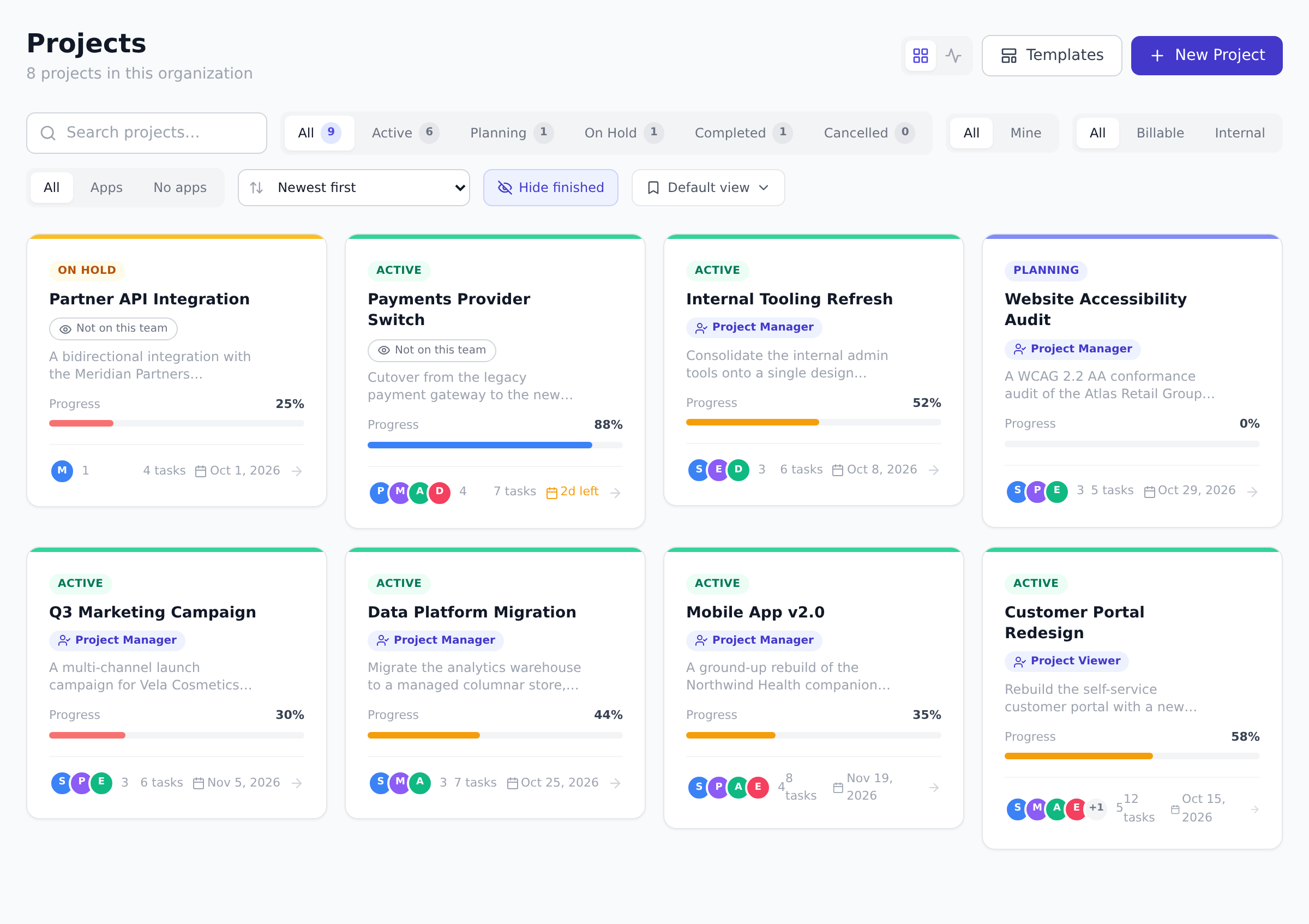
Filter and sort the list
Section titled “Filter and sort the list”Across the top of the page you will find:
- Status tabs: All, Planning, Active, On Hold, Completed, and Cancelled, each with a live count.
- Billable filter: All, Billable, or Internal, for separating client work from internal projects.
- Type filter: All Types, Strategic, or Operational. This appears when your organization has project classification enabled (an Enterprise feature), and admins can rename the two type labels.
- Search: matches project names.
- Sort: Newest first (the default), Oldest first, Name A to Z, Name Z to A, Due date (soonest), Progress (high to low), and Progress (low to high).
The “Hide finished” default
Section titled “The “Hide finished” default”The Hide finished toggle is on by default. It hides projects that are both marked Completed and at 100% progress, so the grid stays focused on work that still needs attention.
Two details worth knowing:
- A project that is Completed but below 100% progress, or at 100% but not yet marked Completed, stays visible. Only the combination of both is treated as finished.
- Selecting the Completed status tab overrides the toggle. Choosing that tab means you want to see completed work, so nothing is hidden there.
Save your filters as a view
Section titled “Save your filters as a view”A view is a named bundle of your current status, type, billable, sort, and hide-finished choices.
-
Set the filters and sort the way you want them.
-
Open the views menu (the bookmark button in the filter row). It shows Default view plus any views you have saved.
-
Type a name under Save current filters and select Save. The new view becomes active immediately.
-
To make a view load automatically when you open the page, select the star next to it. To remove a view, use its delete icon.
The page remembers the last view you used (per organization, in this browser) and re-applies it next time. A small dot on the views button means your current filters have drifted from the selected view.
Where else you can save a view
Section titled “Where else you can save a view”The same views menu, the same star and the same drift dot sit on nine other lists, and behave identically on every one of them:
- My Work, Issues, Ideas and Goals
- People and the Capacity Planner
- Governance proposals and Workflows
- the Logs audit trail
Views belong to the list they were saved on, so one saved on Issues does not turn up on Goals. What they share is everything else: personal to you, stored with your account rather than in one browser, and loaded automatically when starred.
Best practices
Section titled “Best practices”- Star one default view per role. A Portfolio Manager wants “all active projects, by due date”; a Member wants “projects I’m on, by recent activity”. Star the view that matches your daily ask, and the Projects page becomes a one-second answer instead of a multi-click filter dance.
- Use Hide finished as the default; only un-toggle for audits. Finished projects clutter ongoing work discussions. Keep them hidden by default; bring them back when you specifically need to look at finished work (quarterly reviews, audit prep). The dot indicator tells you when you’ve drifted from the saved view.
- Save views for portfolio segments, not personal filters. A “Billable Active” view shared informally across the portfolio team gives everyone the same starting lens. Views are personal, but the convention of “we all use the same name for the same filter” makes coordination easier.
- Treat the search box as a quick locator, not a permanent filter. Search narrows the page; clear it when you’re done. A search left behind looks like missing data (“where did all my projects go?”). The dot near the saved view button signals “you’re not on a clean view”.
Troubleshooting / common pitfalls
Section titled “Troubleshooting / common pitfalls”- A project I expected to see is missing. Three causes: (a) Hide finished is on and the project is Completed at 100%; (b) the status filter is set to something other than the project’s status; (c) you don’t have permission to see the project (you are not a member, and your role cannot see every project in the organization). Toggle Hide finished off and clear filters to verify (b); ask an admin to verify (c).
- My saved view shows different projects on a different device. Two reasons: (a) the “currently active view” preference is per-browser, so a fresh device starts from your starred default, re-pick the view; (b) projects you weren’t a member of on the other device might be visible/hidden by membership.
- The dot indicator stays on even when I haven’t changed filters. A configuration drift happened in the saved view itself (someone else’s session may have re-saved it). Open the views menu and re-select the view; if the dot persists, save a fresh view from your current filter set.
- Performance feels slow at 500+ projects. Use a filter, status, type, or billable, to reduce the projected count. The page is paginated server-side but rendering many cards at once is the bottleneck. The Reports builder is a better lens for portfolio-scale work.
How this combines with other features
Section titled “How this combines with other features”- Projects page + Portfolios. Portfolios add a layer on top of the project list: a portfolio is a curated grouping of projects with its own RAG health rollup. Use portfolios when you have ~20+ projects and need top-level summary; use the Projects page for direct access. See Portfolios (Business+).
- Projects page + Reports. The Projects page shows individual projects; cross-project Reports aggregate across them with totals, trends, and rollups. Use the page to find one project, use Reports to characterize a hundred. See Run cross-project reports.
- Projects page + AI assistant. Ask the in-app AI assistant “show me my projects at risk” or “summarize the status of every billable project I own”, it reads the same data the page does and answers in context. See Chat with Onplana AI.
- Projects page + Custom Dashboard. Pin a project-list widget to your Custom Dashboard for a curated view of the projects you care about, alongside other widgets. See Build a custom dashboard.
Are saved views shared with my teammates? No. Views are personal. Each person builds and stars their own set, so your saved views never change what a colleague sees.
Why do I still see a Completed project with Hide finished on? The toggle only hides projects that are Completed and at 100% progress. A Completed project whose progress sits below 100% stays visible so unfinished work cannot silently disappear.
Does a saved view follow me to another device? The views themselves are stored with your account, so they appear on any device. Which view was last active is remembered per browser, so a new device starts from your starred default.
Can I export the project list? The Reports builder is the right tool for that, pick the Projects entity, the columns you want, and export to CSV. See Run cross-project reports.
Why are some projects grayed out? Grayed projects are typically On Hold or Cancelled. They stay visible but are visually de-emphasized so active work stands out. The status filter chips let you focus on a specific state.
Related
Section titled “Related”- Manage project status and progress, how the status filter chips map to lifecycle
- Run cross-project reports, for portfolio-scale aggregation
- Portfolios, curated groupings on top of the project list
Was this helpful?
Thanks for your feedback!