
Plan on the Gantt chart
The Gantt chart is where schedule problems become visible: a dependency you forgot creates a hanger, a Christmas-week deadline shows the whole team booked off, the critical path makes it obvious which task slipping a day costs you a week on the project end. List views show you what; the Gantt shows you when, and most schedule-related arguments resolve in two minutes once everyone is looking at the same timeline.
Read the chart
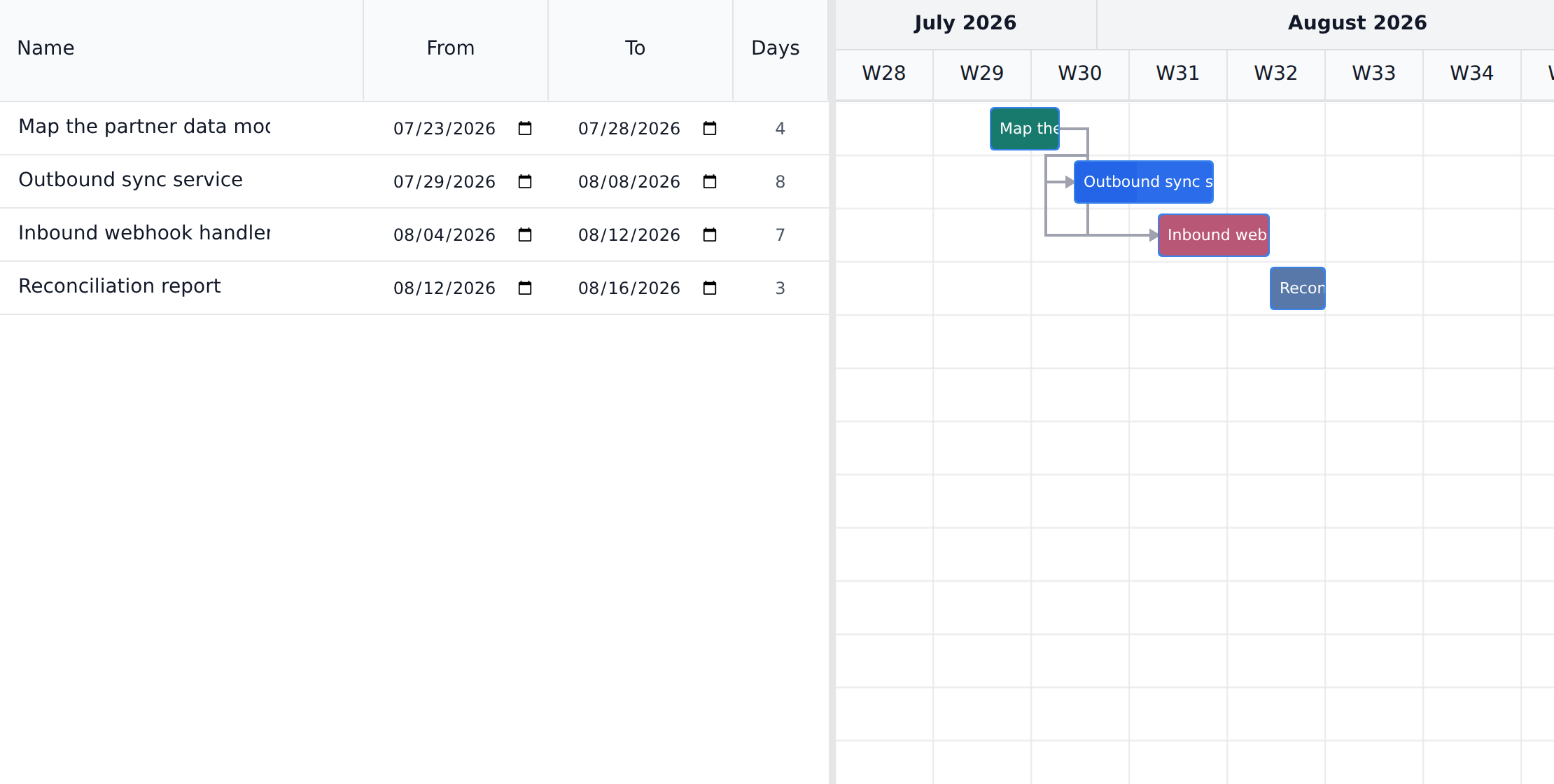
Section titled “Read the chart”- Bars are tasks, positioned by start and due date and colored by status.
- Arrows are dependencies between tasks, so you can trace what is waiting on what.
- Diamonds are milestones, rendered as zero-duration markers on their date.
- Zoom runs from day-level detail out to a whole-year overview.
- Indentation in the task list carries the hierarchy: a subtask sits under its parent behind an expand chevron. Parent and subtask bars look the same on the timeline, so the shape of the plan is read from the list on the left rather than from the bars.
Change the layout
Section titled “Change the layout”Everything below is a per-person view setting on your own screen. None of it changes the plan, and none of it is visible to anyone else, so there is nothing to undo after experimenting.
- Timescale: Day, Week, Month or Year. The chart opens at the scale your project reads best at, measured from its earliest start to its latest due date: Day for a span up to about six weeks, Week up to eight months, Month up to three years, and Year beyond that. A project with nothing scheduled opens at Week. Pick a scale yourself and your choice holds for that project.
- Zoom: the minus and plus buttons either side of the column width stretch or compress the timeline without changing the timescale. Useful when a Month view is nearly right but will not fit the screen.
- Subtasks are always shown, nested under their parent behind an expand chevron in the Name column. Collapse a parent to put a branch out of the way; the collapse survives a change of timescale.
- Hide done: drops completed tasks so the remaining plan is readable.
- Full screen: hands the whole window to the chart, which is the one to reach for in a review meeting.
The toolbar also carries the critical path, float labels, baseline and assignee filter. Those change what the chart emphasizes rather than how it is drawn, so they are covered under Focus the view below.
The task list on the left has controls of its own:
- Sort: click a column heading to sort by it, click again for descending, and a third time to go back to the plan’s own order. Status sorts from To Do to Done and Priority from Low to Critical, rather than alphabetically. Subtasks sort among their siblings and stay under their parent. While the list is sorted, rows cannot be dragged to a new position; Clear sort in the toolbar brings the plan’s order back.
- Filter a column: select the funnel in its heading. Name, Assignee, Status and Priority filter on text they contain, From and To on a date range, and Days, Hours and Progress on a number range. A match keeps its parent rows for context, the toolbar counts the matches, and Clear filters removes every column filter at once.
- Show or hide columns: Columns in the toolbar. Name is always shown, and the timeline gains the space a hidden column gave up. Five more columns start hidden: Assignee, Hours, Progress, Status and Priority. Turn them on there. Type into Hours to set a task’s estimate; a parent task shows the hours rolled up from its subtasks instead.
- Column width: drag the divider at the right of a column heading. Columns > Reset column widths puts them back.
- Days is derived from the two dates rather than typed, so it always agrees with them.
Column widths and hidden columns are remembered per project on your own machine. A sort or a filter lasts until you leave the chart.
Reschedule by dragging
Section titled “Reschedule by dragging”-
Open a project, open the Tasks tab under the project header, and select Gantt.
-
Drag a bar left or right to move the task, or drag its edge to change its duration. The task’s dates update as soon as you release.
-
Drag any empty area of the chart to pan around the timeline without hunting for scrollbars.
Add, reorder, and edit tasks on the chart
Section titled “Add, reorder, and edit tasks on the chart”You can manage the plan without leaving the Gantt:
- Add a task: use the Add Task button in the Gantt toolbar, or the + on a row to add a task or a subtask without leaving the chart. A task needs a start and a due date to appear as a bar.
- Reorder rows: drag the grip handle at the left of a task’s name to move it up or down among its siblings. A toast with an Undo button appears after every reorder, so a mis-drop is one click to reverse. Rows reorder within their own level only; to move a task under a different parent, indent or outdent it (below), or open the task and change its parent there. Reordering is off while the list is sorted by a column heading.
- Indent and outdent: select a row and press Alt+Shift+→ to make it the last subtask of the task above it, or Alt+Shift+← to move it up one level, to sit just after its old parent. Ctrl+] and Ctrl+[ do the same (Cmd on a Mac, where Alt+Shift+Arrow selects words instead). The Indent and Outdent buttons in the toolbar do it too. Several selected rows move together and keep their order. Like reordering, it needs permission to edit the project and is off while the list is sorted.
- Work on several rows at once: Ctrl-click (Cmd-click on a Mac) adds a row to the selection or takes it out, Shift-click selects the rows in between, and Shift+↓ or Shift+↑ extends the selection from the keyboard. With two or more selected, the toolbar shows Change…, which sets the same fields on all of them in one go, and a delete button; Delete on the keyboard deletes the selection too.
- Undo: the Undo button in the toolbar, or Ctrl+Z (Cmd+Z), reverses the latest change made on the chart: a moved bar, a moved, indented or outdented row, a name, date or hours typed into the grid, a delete, or a Change… batch. Hover over it to see what it will undo, and press it again to go further back. Undo writes the earlier values back to the plan, so it also replaces a colleague’s later change to the same field. Inside a text box, Ctrl+Z undoes your typing instead. There is no redo.
- Edit in the grid: the Name, From and To cells are editable in place. One click puts the caret in the cell, so renaming a task or nudging a date is the same gesture as in a spreadsheet. Days recalculates from the dates and is not typed directly.
- Link two tasks: drag from the round handle on the edge of one bar onto another bar. The arrow is saved as a real dependency, and the ends you join set the type, so a drag from a bar’s finish to another bar’s start is finish-to-start. Removing a link on the chart removes the dependency too.
- Open the full task form: double-click a row. Status, assignee, priority, progress, description, subtasks and comments all live there. Clicking a bar opens the what-if preview instead, and each row carries a small flask button that opens the same preview, which is the keyboard route to it.
Focus the view
Section titled “Focus the view”- Find a task: type in the toolbar’s search box to narrow the task list by name. A matching subtask keeps its parent rows for context, so you can still see where in the plan the match sits.
- Assignee filter: show only one person’s bars to review an individual’s schedule.
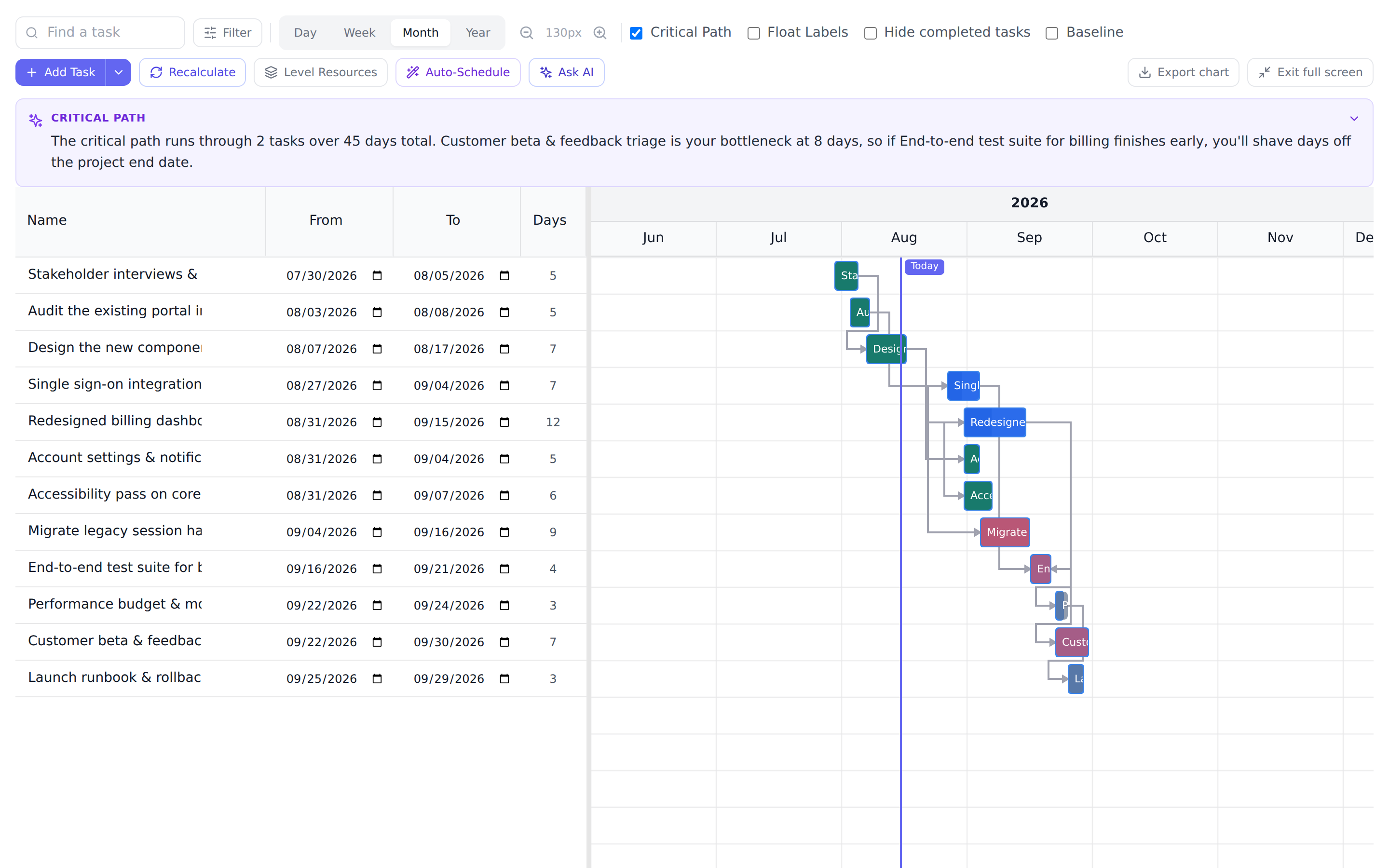
- Critical path: highlight the chain of tasks that directly determines the project end date. Anything on the critical path that slips, slips the project.
- Float labels: write each task’s slack onto the chart, so you can see which bars have room to move and which have none. A task with zero float is on the critical path by definition.
- Baseline: overlay a saved snapshot of the planned schedule as gray ghost bars to see drift at a glance. See Capture and compare baselines.
Print or share the chart
Section titled “Print or share the chart”The chart leaves Onplana as a PDF or a PNG, on every plan, from the Export chart button on the Gantt toolbar or Export Gantt chart in the project’s actions menu. Anyone who can see the project can export it.
Which format. The PDF is paginated for printing, and is the one to use for a schedule of any size. The PNG is a single image with every task in it: the page size sets its width and it grows as tall as the task list, which is convenient for pasting into a deck and impractical past a few hundred tasks. A PNG that would come out too tall to read is refused with a message pointing you at the PDF rather than produced as a smear.
Options, the same for both formats:
| Option | Choices |
|---|---|
| Page size | A4, A3, A2, A1, A0, Letter, Tabloid, always landscape |
| Time scale | Automatic, days, weeks, months |
| Layout | Fit the whole timeline to one page width, or tile it across pages at a readable scale. For a PNG, tiling widens the image instead of adding pages. |
| Table columns | Compact or full |
| Baseline overlay | Any saved baseline, or none |
| Critical path | On or off |
| Dependency arrows | On or off |
| Hide completed tasks | On or off |
| Date range | The whole project, or a window |
What comes out: WBS numbers, status-coloured bars with their progress, summary brackets, milestone diamonds, finish-to-start arrows, weekend and holiday shading taken from the project’s working calendar, a today line, a legend, and page numbering on the PDF.
Limits. A project over 20,000 tasks is refused, as is a PDF layout that would run past 600 pages, both with a message rather than a half-drawn file. Exports are capped at 30 per person per hour across both formats.
Schedule columns in the Excel export
Section titled “Schedule columns in the Excel export”The project’s Excel export gained three columns on its Tasks sheet, after Deadline, so a schedule read in a spreadsheet answers the same questions the chart does:
- Duration (work days), counted on the project’s working calendar with both ends included, so a task running Monday to Friday reads 5. A milestone reads 0.
- Total Float (days), how long a task can slip before it moves the project end date.
- Critical,
Yeson the tasks that have no float and blank on the rest.
Total Float and Critical come from the same critical-path calculation that draws the red bars on the chart, so the spreadsheet and the chart cannot disagree.
Best practices
Section titled “Best practices”- Zoom out to year first. Most planning conversations start with “where are we going to land?” (a question the year view answers in five seconds). Zoom in only when discussing a specific week or sprint. PMs who default to the day view miss the big-picture drift.
- Turn on the critical path before any replanning session. Compressing tasks not on the critical path doesn’t move the end date; the team will spend effort on the wrong tasks without the highlight. Five seconds to enable, saves an hour of misdirected work.
- Capture a baseline at the moment the plan stabilizes. As soon as the dates feel right, take a baseline. The gray ghost bars become the reference for every change that follows, and answer “have we slipped?” with a visible answer instead of “kind of.”
- Use the Auto-Schedule button when changes pile up. Manual drag is best for one-or-two-task adjustments; once you’ve moved a dozen, Auto-Schedule respects dependencies and lag and propagates the changes in one pass. Review the result before committing. It’s not a black box.
- Set the working calendar before planning. Dates respect the org-wide working calendar (default Mon-Fri); if your team works Sun-Thu or includes US holidays, configure that first or the Gantt schedules people onto days they’re actually off. See Configure working calendars.
Troubleshooting / common pitfalls
Section titled “Troubleshooting / common pitfalls”- A task isn’t visible on the chart. A bar needs both a start date and a due date. Open the task and set them; it appears immediately. The other views (list, Kanban, calendar, burndown) work without dates, but Gantt requires them.
- The critical path looks wrong / shorter than I expected. Two causes: (a) dependencies aren’t wired correctly (an implicit dependency in your head isn’t in the graph; add it explicitly); (b) the chart respects only the dependency graph and dates, not resource conflicts. If two critical-path tasks share an assignee, they don’t auto-stack. That’s a resource conflict the resource leveler addresses, not the Gantt.
- Dragging a bar broke a downstream dependency. The Gantt flags the conflict (a warning badge on the task’s name, plus the constraint-violations banner above the chart) but does NOT auto-cascade dates. This is deliberate. The team decides how to resolve. The two clean fixes: drag the downstream task forward to honor the dependency, or shorten the predecessor.
- The baseline overlay isn’t showing. Either no baseline has been captured (use the baseline button to take one now), or the baseline toggle is off. Multiple baselines can coexist. Pick the one to compare against from the baseline selector.
- “Hanger” tasks (no dependencies in or out, mid-project). Usually means an implicit dependency was missed when the plan was built. The Gantt is the best surface for spotting these because the bar sits at an unexpected date. Add the dependency in the task edit view.
How this combines with other features
Section titled “How this combines with other features”- Gantt + Dependencies + Baseline. The trio that makes schedule problems visible: dependencies make the structure clear, baselines pin the original plan, and the Gantt is the surface where you actually see drift. Capture the baseline immediately after wiring dependencies; every change after that is visible at a glance. See Link task dependencies and Capture and compare baselines.
- Gantt + Working calendar. The scheduling engine respects the organization’s working calendar. Changing the working week (e.g., adding a holiday) does not move saved dates by itself: run Recalculate in the Gantt toolbar afterwards, and the engine re-derives dates around the new non-working days. See Configure working calendars.
- Gantt + AI assistant. Ask the in-app AI assistant “what’s on
the critical path of
<project>?” or “what’s the longest dependency chain?” The assistant cites the tasks and renders the answer next to the chart. Available on every plan. See Chat with Onplana AI. - Gantt + Sprints. A sprint is a date-bounded slice of the project. The Gantt shows the sprint’s tasks against the project timeline so you see whether the sprint commitment fits the project’s overall flow. See Plan a sprint.
Coming from another tool
Section titled “Coming from another tool”| Tool | Mapping |
|---|---|
| Microsoft Project | Gantt chart ≈ Gantt chart; arrows are FS/SS/FF/SF same as MS Project; critical path is computed the same way |
| Asana Timeline | Asana Timeline ≈ Gantt; Asana doesn’t natively show critical path |
| Jira Advanced Roadmaps | Roadmap timeline ≈ Gantt; dependencies render similarly; Jira’s “auto-scheduling” is closer to Onplana’s Auto-Schedule |
| ClickUp Gantt | Direct mapping; critical path toggle is similar |
| Smartsheet Gantt | Sheets ≈ list view; Gantt view is rendered from the same data, same dependency conventions |
Still holding .mpp files rather than a plan that lives here? Onplana
Schedule is a free desktop app that opens one on your own machine, with no
account, and publishes a copy into a workspace when you want your team on it.
See
Open Microsoft Project files with Onplana Schedule.
Why don’t some tasks appear on the chart? A bar needs dates. Tasks without a start or due date cannot be placed on a timeline; give them dates and they appear.
Can I create dependencies from the Gantt? Yes. Drag from the handle on the edge of one bar onto another and the dependency is saved, with the type taken from the ends you joined. Use the task’s edit view when you want to set a lag, or pick the link type explicitly rather than by gesture. The Gantt draws every dependency as an arrow however it was created.
Does dragging a bar move its dependent tasks too? No. Dragging changes that one task’s dates. The dependency arrows make any new conflicts visible immediately, and you decide how to resolve them rather than having the chart cascade changes for you.
Which plans include the Gantt? All of them, Free included, with the critical path, all four dependency types, and the baseline overlay. Paid plans add sprints, resource capacity planning, and portfolio rollup on top. See Compare plans and upgrade.
Can I export the Gantt as a PDF or image? Yes. Export chart in the Gantt toolbar is the direct route. The Reports tab also renders a Gantt-shaped snapshot suitable for stakeholder updates, and the browser print dialog produces a clean PDF of the current zoom level.
How does Auto-Schedule decide what to move? Auto-Schedule reads the dependency graph (with link types and lag) and the working calendar, then propagates earliest-start times forward from the project’s start date. It does NOT consider resource availability. That’s the resource leveler’s job.
Why is my critical path empty? You don’t have any dependencies wired yet. The critical path is the longest dependency chain from the project’s start to the project’s end; without dependencies, no chain exists. Wire dependencies and the path appears.
Related
Section titled “Related”- Switch between the new and classic Gantt, which of the two charts you are on, and how to change it
- Duration, remaining work and actual start, what a task was planned to take, what is left, and when it really began
- Link task dependencies, wire FS/SS/FF/SF arrows the Gantt renders
- Capture and compare baselines, the gray ghost-bar overlay for drift detection
- Plan team capacity, the resource view that complements the Gantt’s date view
- Open Microsoft Project files with Onplana Schedule, the free desktop app for reading and editing an
.mppbefore it comes here
Was this helpful?
Thanks for your feedback!