
Build a workflow
Workflows are multi-step automations: an event fires, optional conditions filter it, and a chain of steps runs (update a task, notify someone, wait, ask for approval, call an external system). You build and manage them from Workflows in the sidebar.
Triggers
Section titled “Triggers”Every workflow starts from one trigger event. The builder groups them into five families:
- Tasks: task created, status changed, priority changed, assignee changed, progress changed, task completed, due date passed, due date approaching, attachment added, tag added, tag removed.
- Projects: project created, project status changed, milestone reached, budget exceeded, budget threshold reached, project billability changed, scenario applied to portfolio.
- Activity: comment added, time logged, timesheet submitted, approved, or rejected.
- Governance: proposal created, stage changed, approved, or rejected, gate review requested or submitted, change request created or status changed, intake form submitted.
- Organization: member joined, member removed.
Each trigger can carry a condition (for example, only fire Task status changed when the new status is Done). You can also add a recurring Schedule (cron expression plus timezone) under the builder’s advanced options; a schedule fires independently of the trigger event.
After the trigger, you chain steps of five kinds:
- Action: the workhorse. Actions are grouped into Update task (set
status, priority, progress, assignee, due date, custom fields, and more),
Organize (add or remove tags, move to sprint, epic, or another project,
create a subtask), Communicate (post a comment, send an in-app
notification, send an email with placeholders like
{task.title}), Project & milestones, Governance, Integrations (call a webhook), and AI agent. - Condition: branch on a field check (Task Status, Priority, Progress, Assignee, Project Status, or Project Type) with true and false paths.
- Delay: wait a number of minutes, hours, or days before the next step.
- Approval: pause until designated people sign off. See Add approval steps to a workflow.
- Webhook: POST a payload to an external URL.
Create a workflow
Section titled “Create a workflow”-
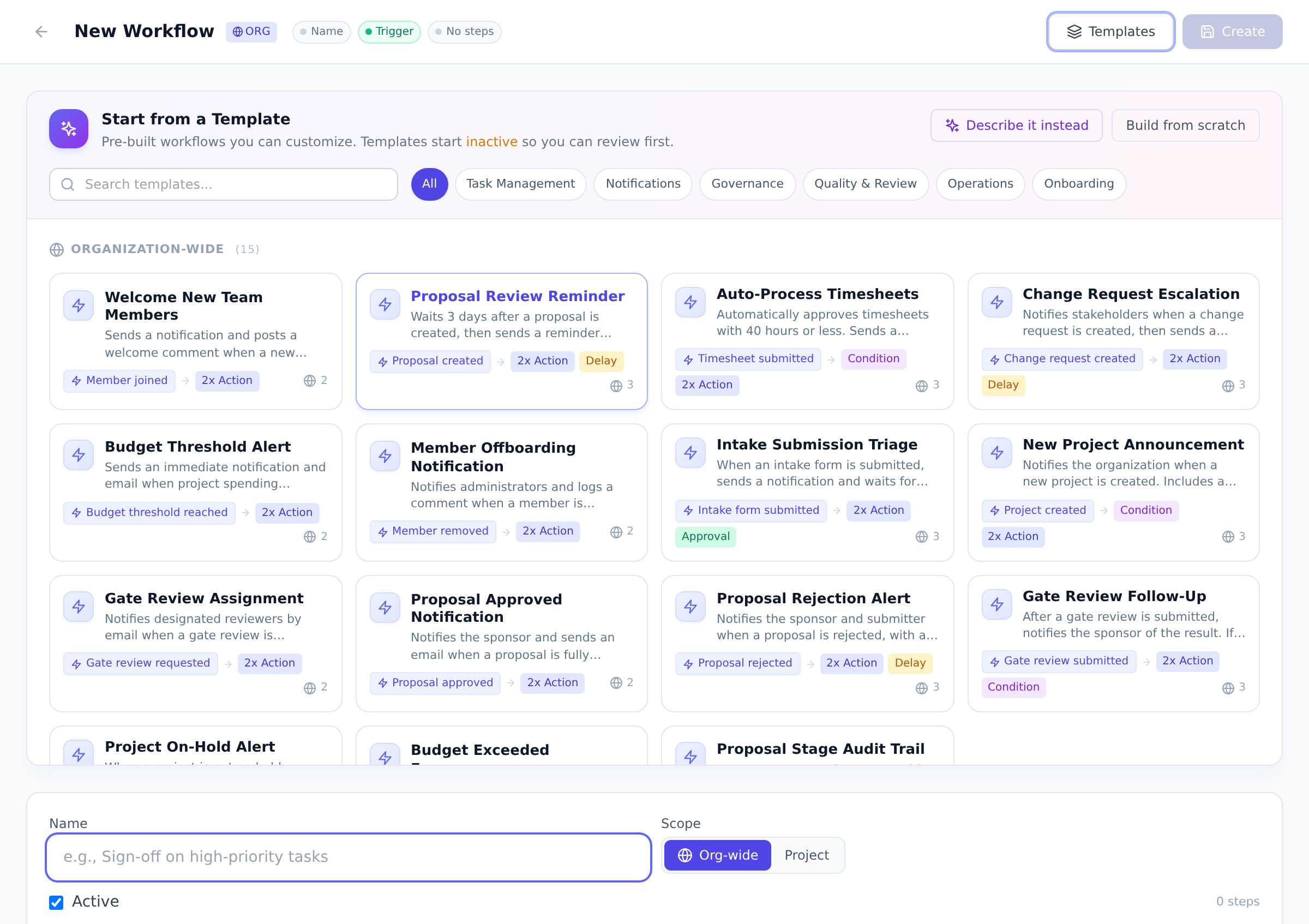
Open Workflows and select New Workflow.
-
Name it, then pick the scope. Org-wide workflows run against every project; project-scoped workflows run only in the project you pick.
-
Choose the trigger event and any trigger conditions.
-
Add steps and connect them. Condition and approval steps let you wire separate branches for each outcome.
-
Save. Once saved, Test Run fires the workflow once against the latest matching item so you can verify it before real events hit it.
Watch it run
Section titled “Watch it run”The Activity tab on the Workflows page is the run history: every run with its status (running, waiting on a delay or approval, succeeded, failed), a full step-by-step timeline, and options to cancel a stuck run or retry a failed one.
Best practices
Section titled “Best practices”- Start with templates, customize later. The template gallery covers common patterns (proposal reminders, escalation, intake routing). Pick the closest one, adapt it. Faster than building from scratch.
- Use Test Run before activating. The dry-run feature exercises the workflow against real data without consequence. Verify each step fires correctly before flipping live.
- Name workflows clearly. “Escalate overdue task” beats “WF-001”. Names appear in run history and audit logs.
- Watch the Activity tab regularly. Failed runs need investigation; stuck-on- approval runs need a nudge. Don’t let failures accumulate.
- Recipe examples to copy:
- Auto-create-on-merge: GitHub webhook → create task with PR title + URL
- Escalate-on-overdue: Task due date passed + status not Done → 3-day delay → email manager
- Status-change notification: Task status → Done → post comment to project Slack channel via webhook
Troubleshooting / common pitfalls
Section titled “Troubleshooting / common pitfalls”- Workflow doesn’t fire on a matching event. Three causes: (a) trigger condition mismatches; (b) workflow inactive; (c) Max runs reached. Check Activity tab.
- Step failed mid-run. Failed runs show step + error in Activity. Retry once cause is fixed.
- Approval step stuck. Designated approver hasn’t acted. See Add approval steps to a workflow.
- Webhook returned non-2xx. External endpoint failed. Retry from Activity; fix the endpoint.
- Delay step taking longer than expected. Delays are coarse (minute granularity). A “wait 5 minutes” delay may fire at 4:59 or 5:01.
How this combines with other features
Section titled “How this combines with other features”- Workflows + Approvals. Multi-step approvals with delegation. See Add approval steps to a workflow.
- Workflows + Webhooks. Integration glue for external systems. See Send webhooks.
- Workflows + Intake forms. Auto- process inbound submissions. See Create public intake forms.
- Workflows + Email. Inbound email triggers + outbound notifications. See Receive email into projects.
Coming from another tool
Section titled “Coming from another tool”| Tool | Mapping |
|---|---|
| Zapier | Direct concept; Onplana workflows are first-party + free |
| Microsoft Power Automate | Direct concept |
| n8n | Direct; self-hosted alternative |
| ServiceNow Workflow Designer | Direct |
| Asana Rules | Direct |
Who can build workflows? Owners, Admins, and Portfolio Managers manage org-wide workflows. For a project-scoped workflow, the project’s automation permission applies, so a project owner or manager can automate their own project.
What is the difference from per-project automations? Workflows are the org-level surface with branching, delays, and approvals. The same engine powers them; use Workflows when a rule should span projects or needs more than a single trigger-action pair.
Do workflows run retroactively? No. A workflow only reacts to events that happen after it is saved and active. Use Test Run to exercise it against existing data once.
Can workflows call AI agents? Yes, the AI Agent action group lets a workflow delegate a step to a connected agent. See Assign work to an agent.
Are there workflow run limits? Workflows require Pro or above; Free and Starter don’t have access to them at all. On Pro and up, there’s no per-plan cap on runs triggered by signed-in members, though you can set an optional Max runs limit on any one workflow. Only runs caused by anonymous public visitors (a public form submission, for example) carry a plan-scaled abuse budget.
Can a workflow trigger another workflow? Indirectly, via webhooks. There’s no direct workflow-to-workflow chain today.
Related
Section titled “Related”- Add approval steps to a workflow, multi-step approvals
- Send webhooks, external integrations
- Receive email into projects, inbound automation
Was this helpful?
Thanks for your feedback!