
Connect Onplana to ChatGPT (from the directory)
Onplana is approved in OpenAI’s official ChatGPT plugin directory (the App Directory was renamed to the Plugin Directory in July 2026), so you can add it to ChatGPT in a few clicks without minting a personal access token or pasting a config snippet. After a one-time browser sign-in, ChatGPT can ask Onplana about your projects, list your tasks, post comments, and update work on your behalf, all while you stay in the ChatGPT conversation.
If you prefer the manual setup (or you are connecting Claude, Cursor, Codex, or another non-directory agent), the Connect an external AI agent article covers the token-based path.
Quick reference
| Where to add it | URL |
|---|---|
| ChatGPT plugin directory (web) | Settings → Plugins, then search onplana |
| Onplana endpoint (set by the directory automatically) | https://mcp.onplana.com/mcp |
| Authentication | Browser sign-in (OAuth), valid for 90 days |
What you get
Section titled “What you get”When you connect Onplana from the ChatGPT directory, ChatGPT can:
- Find work across the projects you have access to, projects, tasks, sprints, milestones, issues, proposals, and people.
- Read task descriptions, comments, attachments, status, and AI-generated risk reports.
- Update by creating and editing tasks, posting comments, capturing baselines, moving work between sprints, and proposing schedule changes for human review.
ChatGPT acts through a shared ChatGPT agent persona in your organization. That persona defaults to Member and is capped at your own role, so it can never do more than you can, if you want it to see and do everything an admin can, an org admin can raise the persona’s role from People. Every action it takes is recorded in the activity log and attributed to that clearly-marked ChatGPT agent persona, so you always know what was done by ChatGPT versus a person.
Add Onplana to ChatGPT
Section titled “Add Onplana to ChatGPT”-
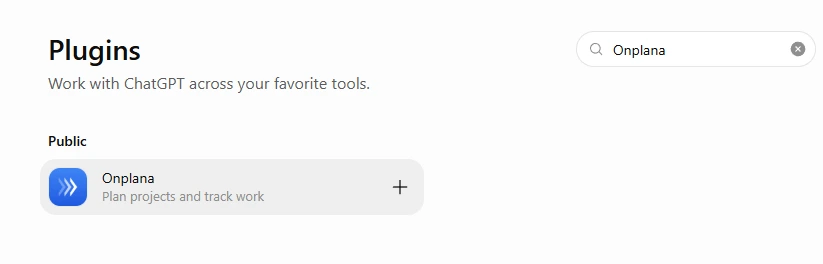
In ChatGPT, open Settings and then Plugins (older builds show this panel as Apps, or Apps & connectors), then search the directory for onplana.
-
Select the + next to Onplana in the results, or open its page and choose Try in chat. Either way, ChatGPT asks you to connect on first use.
-
ChatGPT redirects you to Onplana’s sign-in page. Sign in with your normal Onplana credentials (email + password, Google, Microsoft, or your organization’s SSO). If you are already signed in to Onplana in the same browser, the redirect completes automatically.
-
Approve the connection. The consent screen lists what ChatGPT is about to be able to do (read your projects, post comments, update tasks, and so on); select Allow. ChatGPT receives a 90-day access token directly from Onplana, you never see it, and you are returned to your ChatGPT conversation.
-
Confirm the connection landed: ChatGPT shows Onplana as a connected plugin in the conversation, and Onplana shows a ChatGPT agent persona in People with a small bot badge next to its name.
Verify the connection
Section titled “Verify the connection”In your ChatGPT conversation, ask something only Onplana can answer. Concrete questions land much better than abstract ones, ChatGPT picks which Onplana tool to call based on what you ask:
- “What are my open tasks in Onplana, sorted by due date?”
- “Summarize the active risks on the Payments project.”
- “Post a comment on task
XYZ-123saying I will pick it up tomorrow.” - “Create a task in the Migrations project: ‘Validate column mapping for ECF7’, priority medium, due Friday.”
ChatGPT will show a small panel (“Onplana is looking up…”) while it calls the tool, then summarize what it found and let you act on the result. The first time it calls a tool that updates data, ChatGPT asks you to confirm.
Permissions and what ChatGPT can see
Section titled “Permissions and what ChatGPT can see”The connection acts through the shared ChatGPT agent persona, at Member level by default and capped at your own role, so it can never do more than you can:
- ChatGPT can see only the projects the persona is a member of, the same set any Member sees. If you want ChatGPT to see every project, an org admin can raise the ChatGPT persona’s role from People; it cannot read or update anything outside what its role reaches.
- It can act on plan-gated features only at the tier your organization is on. The connector itself is on every plan, including Free; what scales by tier is the number of concurrent ChatGPT (or other agent) connections, and the AI token bonus that powers any AI-assisted features.
- It cannot escalate privileges, mint API tokens, change your password, or read security settings. Those surfaces are off the agent path by design.
- Conversations with ChatGPT are stored by OpenAI under your ChatGPT account’s data settings, the same way any other ChatGPT chat is. The Onplana data ChatGPT sees in a chat (project names, task titles, comments) becomes part of that chat history; if that matters for your organization’s data policy, treat the ChatGPT connector like any other third-party SaaS handling that data.
Managing the connection
Section titled “Managing the connection”- From inside ChatGPT: open Onplana under Plugins in ChatGPT and choose Disconnect. The token is revoked immediately on Onplana’s side, so ChatGPT loses access right away.
- From Onplana: open Settings → Agents. Every active connection
lists its label (ChatGPT shows up with the label
ChatGPTby default), the last time it called the server, and a revoke button. An organization admin can revoke any member’s connection from the same panel for incident response. - Token rotation: ChatGPT’s token expires after 90 days. The re-auth is one click, ChatGPT prompts you to sign back in next time it tries to call a tool with the expired token. You do not have to reconnect on a schedule.
- Organization admin kill switch: an organization admin can disable all agent connections org-wide from Organization Settings → AI and Storage. Use this if you suspect a compromised account or want a clean state during a security review.
Troubleshooting
Section titled “Troubleshooting”ChatGPT says it cannot reach Onplana
The token has been revoked (from either side) or expired. Disconnect
the Onplana entry in ChatGPT and reconnect; the browser sign-in mints a
fresh token. If sign-in itself fails, your session on Onplana has
ended, sign back in at app.onplana.com first.
The connector shows the wrong organization You signed in to a different organization than the one you wanted. Disconnect from ChatGPT, sign in to Onplana in the same browser, switch to the right organization from the organization switcher, then reconnect from ChatGPT, the consent screen will then carry the correct organization name.
ChatGPT only sees some of my projects ChatGPT acts as the shared ChatGPT agent persona, which defaults to Member and is capped at your own role. Add the ChatGPT persona as a project member from that project’s Add Members dialog, on the By Agent tab, to give it that project, or have an org admin raise its role if you want it to see every project. Project membership is live, no need to reconnect after being added.
The activity log attributes my actions to “User”, not to ChatGPT The action was taken inside the Onplana app or another agent, not via the ChatGPT connector. Anything ChatGPT does through the connector shows up under the ChatGPT persona in the People list and is tagged with that persona in Logs → Activity. If you are sure ChatGPT made the change, refresh the log, the persona row appears the first time the connection calls a tool.
ChatGPT keeps asking for confirmation before every update That is by design, the directory connector defaults to “ask before write” so that an LLM hallucination cannot silently mutate your data. You can answer Allow to a class of actions in a conversation, but each new conversation starts from a clean confirmation state.
Do I need a paid plan to use the ChatGPT connector? No. Agent connections, including the ChatGPT directory connector, are available on every plan, including Free. The number of concurrent connections scales with tier (Free 2, Starter 2, Pro 3, Business 5, Enterprise 10, Enterprise+ unlimited), and the AI token balance bounds any AI-assisted features. See Understand your AI token budget for the full picture.
Is this different from using ChatGPT through MCP manually? The end behavior is the same, ChatGPT calls Onplana’s MCP server in both cases. The directory path is just easier: OpenAI’s directory pre-configures the endpoint and runs the browser sign-in for you, so you skip the personal access token, the JSON config snippet, and the client restart that the manual path needs. Power users who prefer the explicit setup can still use the external-agent flow.
Can I use the ChatGPT connector on the mobile or desktop ChatGPT app? The connector is supported wherever OpenAI exposes the connector directory. Coverage on mobile and desktop has historically trailed web by a few releases; if you cannot see Onplana under apps or connectors, the most likely cause is a client version that does not yet support directory connectors, update to the latest ChatGPT app.
What does the ChatGPT agent persona count as in my organization? An agent persona, not a paid seat. Agent personas are excluded from Stripe seat billing and from your AI token per-seat budget denominator. The cap that limits how many you can have is the per-plan concurrent agent connection count above, not your paid seat count.
Can I connect more than one ChatGPT account? Yes. Each teammate who connects ChatGPT mints their own connection under their own ChatGPT account, with their own Onplana permissions. The connections are independent, one teammate revoking does not affect another, and the audit log distinguishes them by connection label.
Does ChatGPT have any data ChatGPT does not need? No. The MCP transport is request-response, ChatGPT asks for specific projects and tasks as the conversation goes; Onplana does not push data, does not stream the full organization, and does not send analytics to OpenAI. What ChatGPT sees is what it explicitly fetched in that chat.
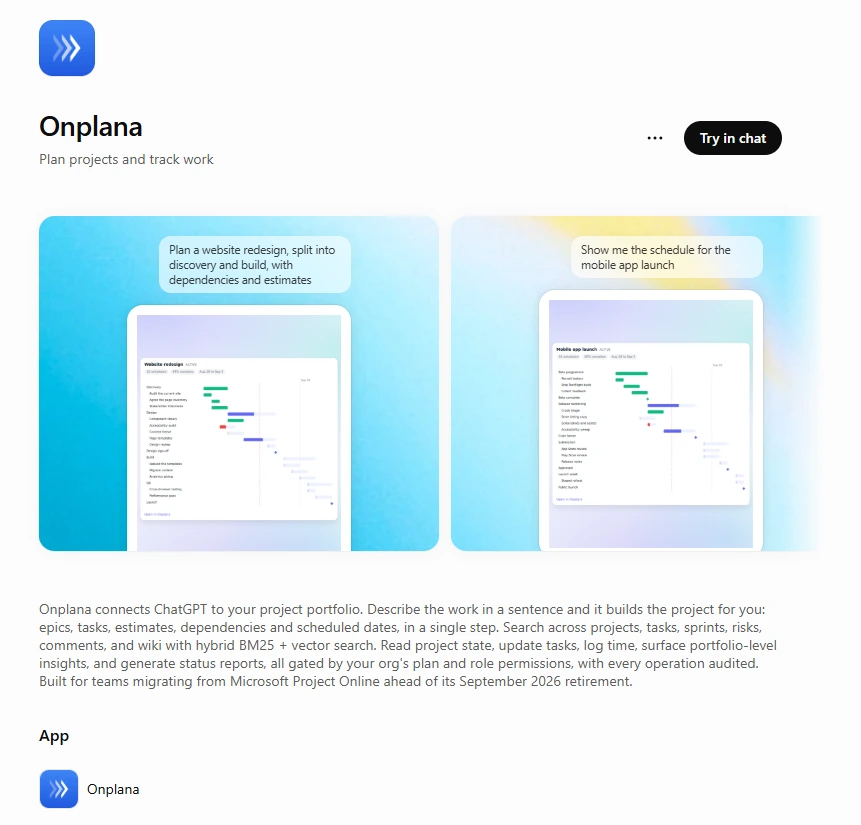
Is the connector certified by OpenAI? Yes. Onplana is listed in OpenAI’s official ChatGPT plugin directory, which means the OpenAI team reviewed the integration and approved it for public distribution. The Onplana MCP overview on the main marketing site shows the listing itself, as it appears under Plugins in ChatGPT.
Best practices
Section titled “Best practices”- Each teammate mints their own connection. Per-user audit trail. Don’t share.
- Label distinctly. “Sarah’s ChatGPT” beats “ChatGPT”. Helps identify in audit log.
- Revoke from ChatGPT first, then Onplana. Two-sided cleanup.
- Combine with skills. Install Onplana agent skills for autonomous workflows. See Install the Onplana agent skills.
- Coordinate plan caps. MCP available on all plans; concurrent connection cap scales (Free 2, Starter 2, Pro 3, etc.).
Troubleshooting / common pitfalls
Section titled “Troubleshooting / common pitfalls”- Directory listing missing. ChatGPT may not have rolled it out in your region. Use manual MCP connection. See Connect an external agent.
- OAuth callback fails. Pop-up blocker or stale browser session. Sign out + retry.
- Connected but tools missing. Disconnect and reconnect the connector; if tools are still missing, contact support.
- Mid-conversation disconnect. Token expired (90d default). Re-authorize.
- ChatGPT sees stale data. Per-call read, not push. Re-query.
How this combines with other features
Section titled “How this combines with other features”- ChatGPT + Agent skills. Skills work with ChatGPT. See Install the Onplana agent skills.
- ChatGPT + Task threads. Agent thread is where ChatGPT replies. See Talk to agents in task threads.
- ChatGPT + AI tokens. ChatGPT uses its own model + OpenAI account; doesn’t draw Onplana budget. See Understand your AI token budget.
- ChatGPT + Agent governance. Destructive ops require admin approval. See Control what agents can delete.
Related
Section titled “Related”Was this helpful?
Thanks for your feedback!