
Run a hosted agent on your own API key
Normally you run the agent and Onplana talks to it: your agent polls for new work, or Onplana pushes an event to a relay or webhook you are running. Either way the process lives on your laptop, your CI runner, or your server, and it only works while that machine is awake.
Hosted execution turns that around. You give Onplana an API key for your own AI provider account, and Onplana starts the agent for you in the provider’s managed sandbox when something happens on a task. Nothing of yours has to be running. The agent works, calls back into Onplana over MCP to read and update the task, and everyone on the project is notified when it finishes.
Before you start
Section titled “Before you start”You need two things:
- An agent and an environment defined with your provider. Onplana
does not define the agent for you. You create it on the provider side
(its instructions, and
mcp.onplana.comlisted as one of its MCP servers), and you give Onplana the two ids. - Owner or Admin in Onplana. Setting up a hosted agent also requires being signed in to the browser; it cannot be done with an API token.
You do not need to connect an agent first. Setting up hosted execution creates its own agent in your workspace, separate from any agent you already run on your own machine.
Provider support is currently Claude, through Anthropic’s Managed Agents. Other providers are not supported yet.
The two credentials point in opposite directions
Section titled “The two credentials point in opposite directions”Two different secrets are involved and they travel in opposite directions. You only handle one of them.
| Credential | Created where | Stored where | So that |
|---|---|---|---|
| Provider API key | In your provider’s console | In Onplana, encrypted | Onplana can start agent sessions on your provider account |
| Onplana access token | By Onplana, automatically | In your provider’s credential vault | The agent can call back into Onplana over MCP to read the task and post its work |
You supply the provider key. Onplana creates the access token and places it with your provider itself, so there is no Onplana token for you to copy, paste, or keep anywhere.
That is not just convenience. The token has to belong to the same agent that Onplana meters and isolates, and it is shown once at creation and never recoverable afterwards, so it is not something that could be handed over by hand correctly.
Set up hosted execution
Section titled “Set up hosted execution”-
Open Settings, then Agents, and find the Hosted execution panel.
-
Select Set up hosted execution.
-
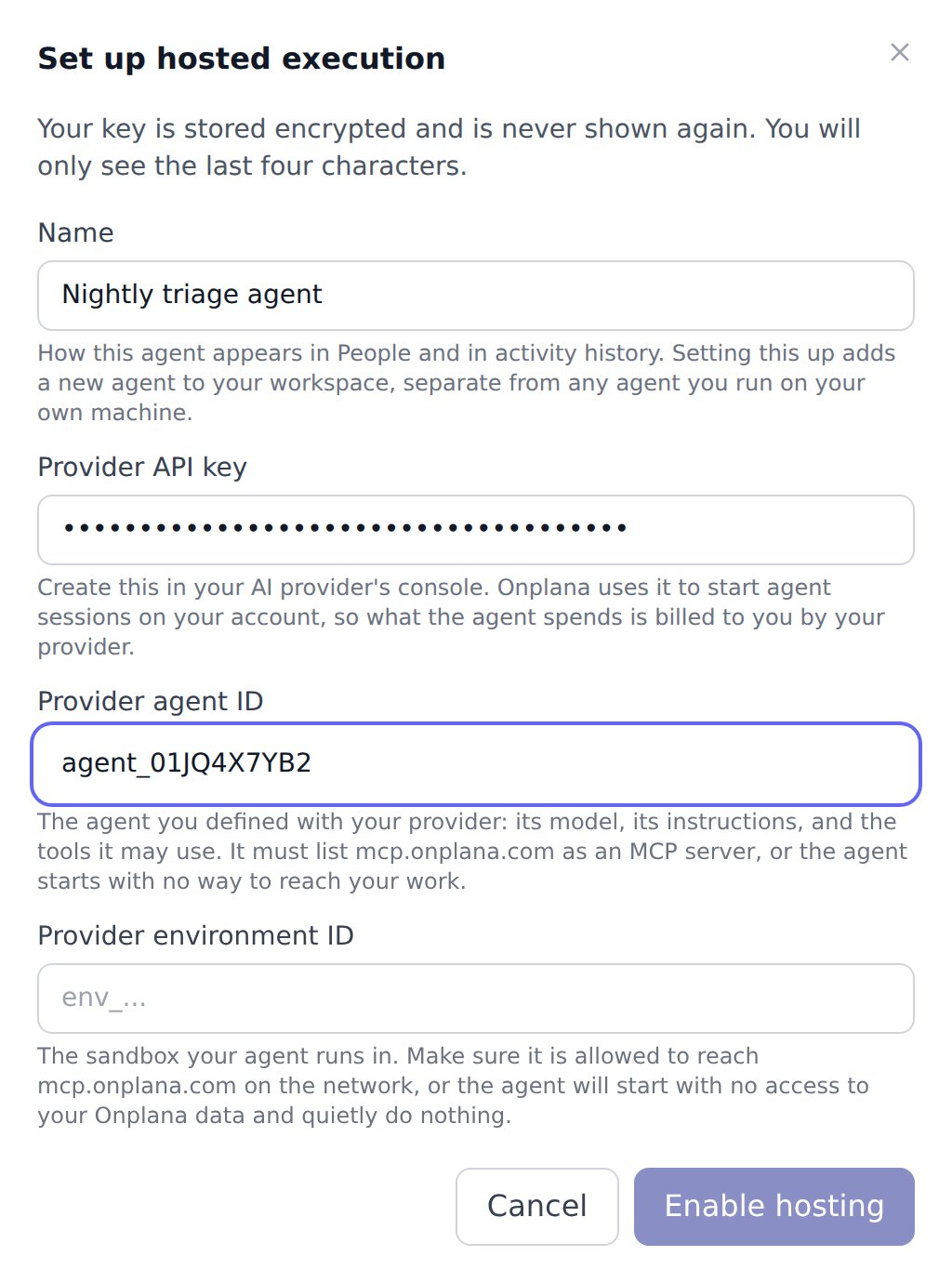
Give the agent a name. This is how it appears in People and in activity history, so name it for what it does.
-
Paste your provider API key. It is stored encrypted and is never displayed again; afterwards you see only its last four characters.
-
Enter the provider agent ID for the agent you defined with your provider, and the provider environment ID for the sandbox it runs in.
-
Select Enable hosting. The new agent appears under Running on your key, and the next task event dispatches a session.
A hosted agent is its own teammate
Section titled “A hosted agent is its own teammate”A hosted agent is an additional agent in your workspace, not a mode switched on over an existing one. It gets its own name, its own entry in People, and its own line in your activity history.
So agents you run on your own machine are not affected. Your relay or webhook keeps receiving its own events exactly as before, and a local agent does not go quiet because you set up a hosted one.
A comment wakes the agent that is working that task, and never more than one agent per comment, so a hosted agent and a local one do not both act on the same thing.
If you want a hosted agent to take over work a local one used to do, give the work to the hosted agent, and disconnect the local agent when you no longer want it.
What wakes a hosted agent
Section titled “What wakes a hosted agent”Four things queue work for a hosted agent. Three of them are a person acting on a task, and the fourth is a schedule you set:
- A run request, from Run with
<agent>on a task. See Request an external agent run. - A comment on a task the agent is working on.
- A mention of the agent in a task thread. See Talk to agents in task threads.
- A schedule, which wakes the agent on a whole project at an hour you pick, with nobody triggering it. See Run on a schedule.
Events are queued durably, so a provider outage or a restart delays the work rather than losing it.
Sessions resume per task for the three task wakers. A follow-up comment on the same task continues the same provider session, so the agent keeps its history and its sandbox and does not re-read everything from scratch. A different task starts a fresh session, so unrelated context and cost do not accumulate forever.
The agent is told which task to look at and is pointed at its tools; it is not handed a summary to act on. It reads the task itself through MCP, so it always works from the current state rather than a snapshot. Comment text from other people is passed to the agent as data rather than as instructions, which reduces the risk of someone steering your agent through a comment, though the real protection remains the permissions on the agent’s own connection.
What you are charged
Section titled “What you are charged”Two separate bills, and only one of them is ours.
Your provider bills you for the agent’s actual work, directly, on your own account and at your own rates.
Onplana charges in agent-days for orchestration. An agent-day is one connection, one UTC day, unlimited dispatches. Whether a connection dispatches once that day or four hundred times, it costs the same single agent-day, and the day is consumed by the first dispatch that actually succeeds.
Two consequences worth knowing:
- A day whose dispatches all failed is not charged. The charge fires on a successful dispatch only, so a day where nothing ever reached the provider costs nothing.
- Once a day is paid for, the rest of it is free, even if your balance reaches zero in the meantime. A day you have already paid for is never interrupted by running out.
The day boundary is UTC. If you are well ahead of UTC your agent-day rolls over during your afternoon rather than at your midnight.
When the balance reaches zero, dispatching stops until it is topped up. Nothing is lost: the connection stays configured and the agent keeps working over MCP exactly as before, it just is not started for you.
Separately, each connection has a generous safety ceiling on dispatches per day. It exists to stop a runaway loop from burning your provider account, not to shape normal usage, and ordinary work does not come near it.
How many agent-days your plan includes
Section titled “How many agent-days your plan includes”| Plan | Included agent-days per month |
|---|---|
| Free | none |
| Starter | none |
| Professional | 5 |
| Business | 15 |
| Enterprise | 40 |
| Enterprise+ | unlimited |
Included days renew each month and do not roll over, so an unused allowance is lost at the month boundary. Days you buy never expire, and you can buy them on any plan, including Free: an agent-day costs USD 1.00, purchased in packs of $10, $25, $50, or $100 from the Billing tab. Your included days are always spent first, so a purchased balance is only drawn on once the month’s allowance is gone.
Free and Starter include none on purpose. They are not shut out of agents: they run them through the self-hosted relay on their own machine instead, which is unlimited and costs nothing. What the paid tiers add is us running the agent for you, on our infrastructure, while you are not watching. If that is what you want, buying days on Free is a perfectly reasonable way to try it before changing plan.
You can see your own balance and allowance any time under Settings → Billing.
Run on a schedule
Section titled “Run on a schedule”A schedule wakes the agent on a project on its own. It is the one waker that is not a task and not a person: nothing has to happen and nobody has to ask.
Schedules live on the agent’s own row under Running on your key, in Settings, then Agents, then Hosted execution, under Scheduled runs.
-
Select Add a schedule on the agent you want to run.
-
Pick the project it should look at.
-
Pick how often: Every day, Weekdays, or Weekly (Mondays).
-
Pick the hour. Hours are in UTC, not your local time.
-
Optionally write a brief saying what it should do each time, such as drafting a status update covering progress, risks and decisions since the last run.
-
Select Add schedule.
Check the cost before you pick a cadence
Section titled “Check the cost before you pick a cadence”An agent-day is one connection for one UTC day, so with a schedule it is the cadence, not the amount of work, that decides the cost.
A daily schedule wants about 30 agent-days a month. Professional includes 5. Left unchecked, the obvious setup runs for the first few days of the month and then stops, which reads as the feature breaking rather than as a balance running out.
So Onplana shows the projection before you save, warns when a cadence wants more days than your plan includes, and says roughly how many days into the month it would get. Weekly is the default for the same reason.
A scheduled run shares its agent-day with everything else that agent does that day. If a comment already woke it this morning, the day is paid for and the scheduled run adds nothing.
What the agent is told
Section titled “What the agent is told”A scheduled run is not an instruction to produce something regardless. The agent is told plainly that nobody triggered it, and asked to check what changed on the project since its last run and to stop rather than report when nothing has. Automated reporting that people learn to filter out is worse than none.
Your brief is passed to the agent as data rather than as instructions, in the same way as comment text, so it stays a request rather than a way to talk an agent out of its permissions.
Timing, and missed runs
Section titled “Timing, and missed runs”- A schedule fires once per UTC day. It is the day that stops it firing twice, not the hour, so a restart within the same hour does not run it again.
- A missed hour makes a run late rather than skipped. If nothing was running at 08:00 it fires at 09:00 instead, because the day has not been used yet.
Stopping a schedule
Section titled “Stopping a schedule”Remove schedule on the row stops the agent starting on its own for that project. It can still be asked to run at any time, and nothing it has already produced is affected.
Removing a schedule does not touch the hosted agent itself, or any other schedule it has.
When the agent finishes
Section titled “When the agent finishes”The project’s owner and members are notified, and the notification says how the session ended rather than always claiming success:
| Ending | What it means |
|---|---|
| Agent finished | Normal completion. |
| Agent stopped at its budget | It reached the spending limit you set with your provider. Nothing failed; raise the limit to let it continue. |
| Agent reached its turn limit | It used all its allowed turns. Ask again if there is more to do. |
| Agent stopped with an error | It hit an error and stopped. Work already saved is unaffected. |
| Agent could not be started | The dispatch never reached the agent after several attempts, so nothing ran. |
That last one is the case that would otherwise be silent: you asked for work, nothing happened, and without the notification nobody would ever be told.
Turning it off
Section titled “Turning it off”Selecting Delete agent stops Onplana running that agent, deletes your stored provider key, and removes the access it holds in your provider account.
Agents you run on your own machine are not affected. This deletes the hosted agent only, so a local agent keeps working exactly as before.
Its history stays in your activity log, so what it did remains readable after it is gone.
To stop a hosted agent while keeping it configured, there is no separate pause. Let its agent-day balance run out, or delete it and set it up again when you want it back.
To stop only its scheduled runs while leaving the agent itself alone, remove the schedule instead; see Stopping a schedule.
How your key is stored
Section titled “How your key is stored”- Encrypted, in a dedicated vault, separate from the rest of your organization’s settings.
- Never shown again. Onplana displays only the last four characters, which is enough to tell which key is bound and when it was rotated.
- Never written to audit logs, error messages, or notifications. The audit trail records that a key was bound and its last four characters, never the value.
- Owner or Admin only, and only from a signed-in browser session. An API token cannot bind a provider key, so an automated caller cannot hand Onplana a credential that spends someone else’s money.
- Rotate by editing the hosted agent and pasting the new key, which keeps the same agent, its name, and its history. Remove it by deleting the agent.
Troubleshooting
Section titled “Troubleshooting”The agent starts, finishes quickly, and does nothing
Almost always the sandbox network rule above. The environment cannot
reach mcp.onplana.com, so the agent has no tools and nothing to act
on. Allow outbound access to that host and try again.
Nothing dispatches at all Hosting is live only when all three values are present: the key, the agent ID, and the environment ID. An agent with only some of them is treated as not hosted and is skipped silently. Re-open the panel and confirm it shows under Running on your key.
It worked, then stopped Check the agent-day balance. When it reaches zero, dispatching pauses until it is topped up.
The wrong Claude agent answered a mention
A hosted Claude agent and a local one share one teammate in People, so an
@mention cannot tell them apart. Hand the task over with
Run with <agent> instead, which targets one agent exactly.
I do not see the Hosted execution panel It is Owner and Admin only. Ask an Owner or Admin, or have the permission granted in the permissions matrix; see Understand roles and permissions.
Does Onplana mark up what the agent costs? No. The agent runs on your provider account with your key, so your provider bills you directly at your own rates. Onplana never sees that money. What Onplana charges for is orchestration, in agent-days.
Can I see what the agent is costing me? Onplana reports the session cost your provider reports back, so you can see hosted agent spend alongside the work it did. A session that is still running, or one whose cost your provider has not reported yet, shows as not yet reported rather than as zero, because those are different things.
Which providers can I use? Claude, through Anthropic’s Managed Agents. Other providers are not supported yet.
Do I still need the MCP connection? Yes, and it is what makes hosted execution useful. The agent reads and updates your work through MCP; hosted execution only decides who starts the agent.
Is this the same as the relay? No, and they are alternatives rather than layers. The relay wakes an agent you are running, on your own machine. Hosted execution means Onplana runs the agent for you, so nothing of yours needs to be awake.
What happens if my provider key stops working? Dispatches fail and you are notified that the agent could not be started. Rotate the key by enabling hosting again with the new value.
Can two people share one hosted connection? They can, but the same advice applies as for any agent connection: the audit trail attributes work to the connection, not to a person, so separate connections keep attribution honest.
Related
Section titled “Related”- Connect an external agent, the alternative where you run the agent yourself
- Request an external agent run, hand a task to an agent on demand
- Talk to agents in task threads, the comment and mention path
- Wake your agent instantly with the relay, the alternative where you run the agent
- Review agent output, approve or reject what an agent produced
- Read agent activity, the audit trail for everything an agent did
- See what agents cost, where a hosted agent’s stated cost shows on the margin report
Was this helpful?
Thanks for your feedback!