
September 2026
Three changes this month, and all of them are in the place you spend the most time: inside a project.
A project’s views are a tab bar again
Section titled “A project’s views are a tab bar again”Last month the views moved into the left sidebar. That turned out to be the wrong call. Opening a project replaced the whole menu, so the organization’s navigation disappeared exactly when you were deepest in the product, and the thing under your cursor changed as you clicked.
They are back to a tab bar under the project header, with the section on the top row and its views underneath.

- The organization menu stays put. Projects, Goals, Issues, People and the rest remain in the sidebar the whole time you are in a project.
- Every existing link still works. Bookmarks, shared links and the Teams tab all open the same view they did before.
- You can rename, hide and reorder the tabs, and add links of your own, from Customize tabs at the right of the bar. Hiding a tab never removes anyone’s access to it. Navigate a project
The Gantt chart edits like a spreadsheet
Section titled “The Gantt chart edits like a spreadsheet”The grid on the left of the chart is now editable in place. Type a date, tab to the next cell, drag a row to reorder it.
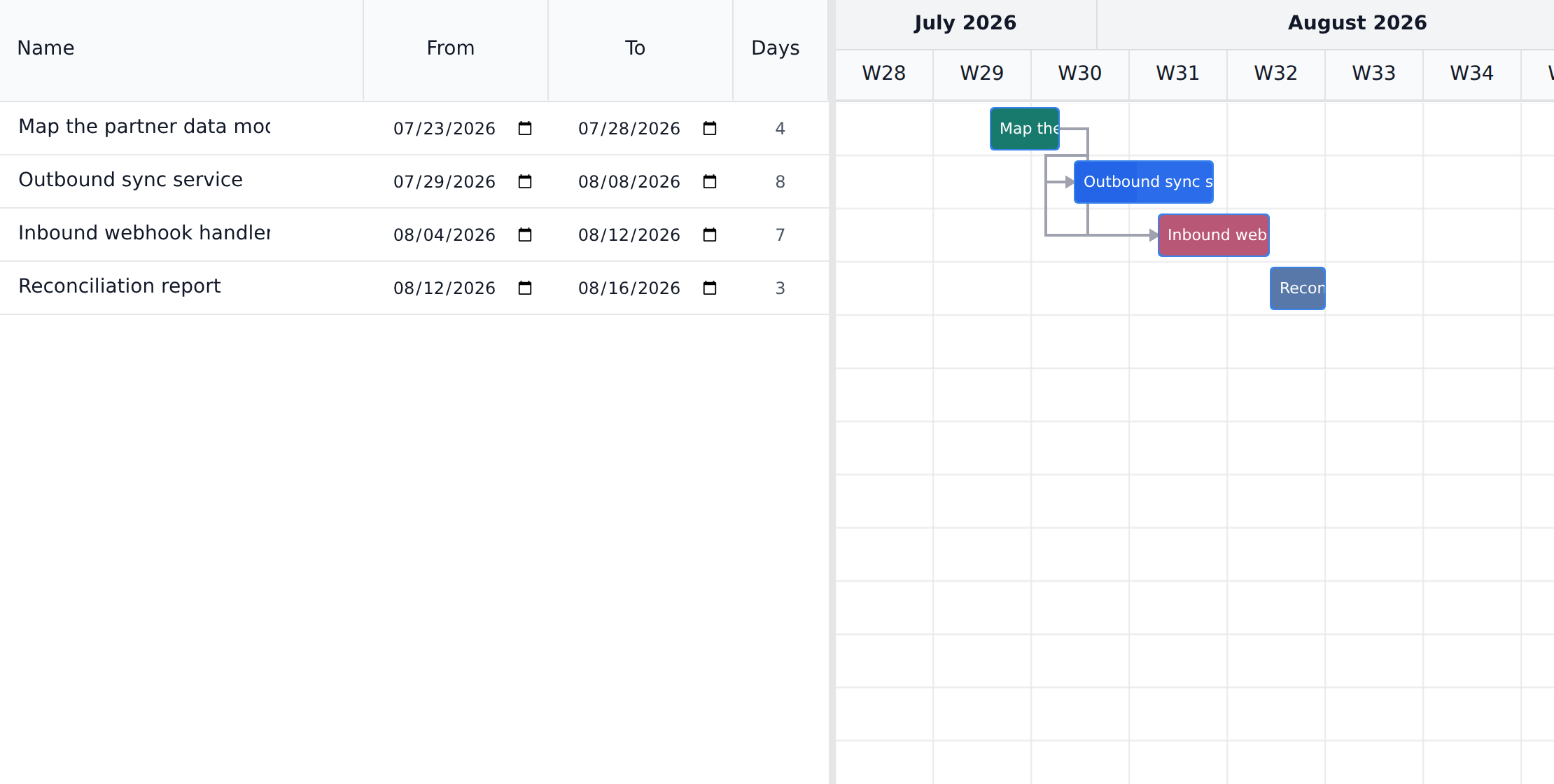
- Dates, durations and names are edited in the grid, without opening a form or leaving the chart.
- The Days column speaks the scheduler’s units, so what you type is what the schedule uses.
- The classic chart is still there behind “Back to the classic Gantt”, if you prefer it. Plan on the Gantt chart
The task form saves as you go
Section titled “The task form saves as you go”Opening a task no longer means filling in a form and remembering to press Save. Changes save on their own, and the fields you actually use every day sit together on the right.
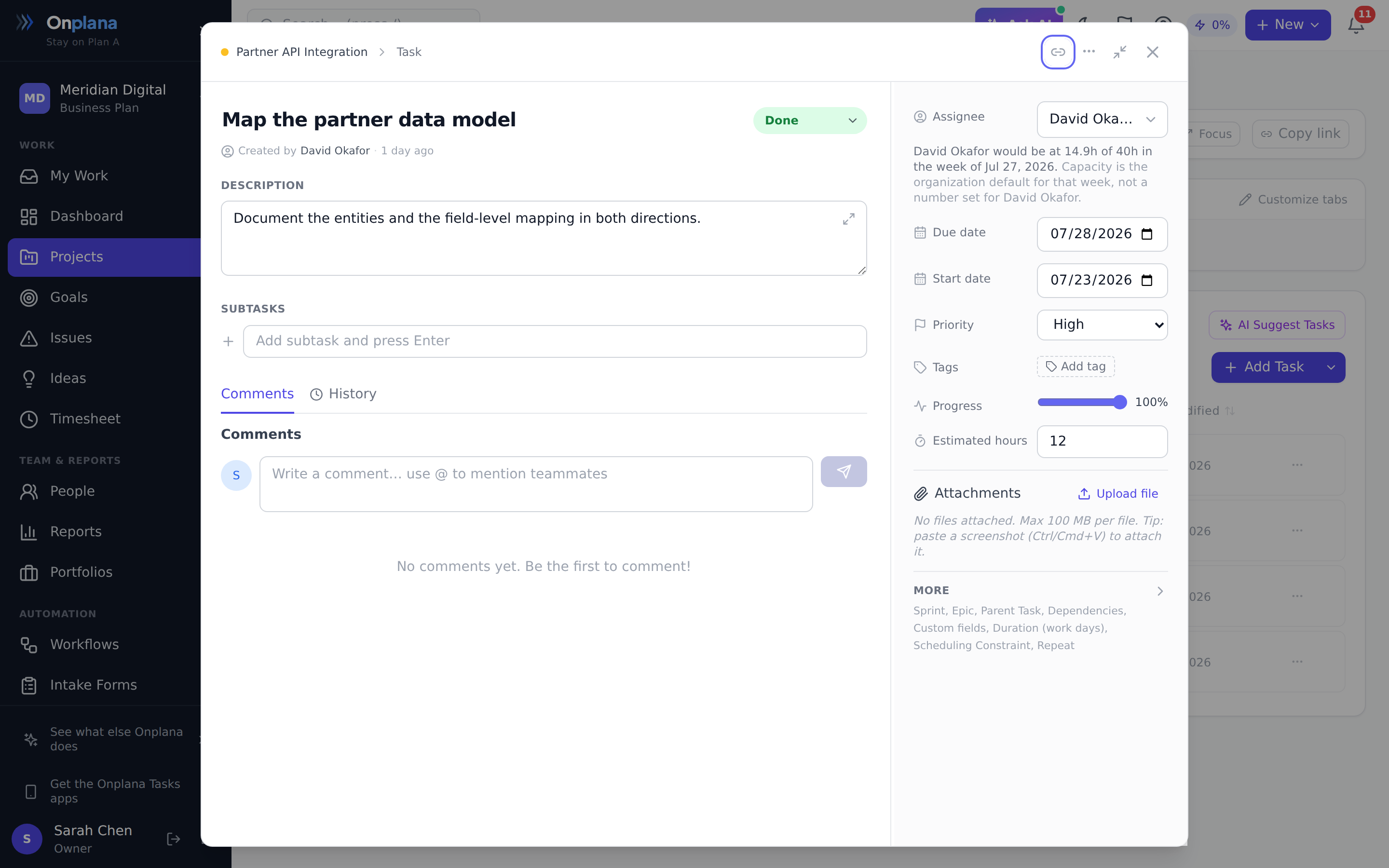
- There is no Save button. Text saves when you click away, everything else saves as you change it, and closing the form flushes anything in flight.
- The everyday fields are on the rail: assignee, dates, priority, progress, estimate, tags and attachments. Sprint, epic, dependencies, custom fields and the scheduling constraints moved under More.
- Marking a task Done fills the progress bar, and dragging progress back below 100% reopens it. The two can no longer disagree.
- Creating a task is a title and Enter. The rest of the form is behind More options if you want it. Work with tasks
Also this month
Section titled “Also this month”- Timesheets can be pre-filled from last week, or from your project allocations across the working days you have not filled in yet. Both arrive as drafts you edit before submitting, and neither one touches a day that already has hours on it. Log and submit timesheets
- A dependency can span two projects, and the schedule honours it. A task waiting on a task in another project is now scheduled after that task finishes, where before the link was stored, drawn, and quietly ignored. It works one way: Onplana still schedules one project at a time, so the project holding the predecessor is scheduled without reference to the one that follows it.
- Onplana Schedule opens Microsoft Project files without Microsoft Project. A free desktop app: the grid beside a Gantt chart with the critical path and float, edits that reschedule the plan as you make them, a save as Project XML, a one-click health check, and a copy you can publish into a free workspace. Project XML files are read on your own machine and never uploaded. It is in preview, so the Mac download is live now and the Windows listing is arriving on the Microsoft Store. Open Microsoft Project files with Onplana Schedule
- Moving a task to another project keeps its dependencies. They used to be deleted on the way out, because a link across two projects moved no dates and was worse than none. Now they are kept, and any whose other end stays behind will span the two projects. Link task dependencies
- The folder and page lists fold away, and stay useful folded. The list down the left of Document Folders, Lists and a project Wiki folds to a narrow strip that still switches between folders, lists or pages, so the content gets the width without costing you your place. The fold control is a visible button now rather than a faint grey icon. Organize project files in document folders
- A schedule can go back to an earlier moment. Restore schedule… in the Gantt toolbar puts every task’s dates, durations, constraints and links back to how they stood an hour ago, this morning or at any moment the project’s history reaches, with no baseline needed. It shows a preview first, leaves status, progress and assignees alone, deletes nothing, and Undo restore puts it all back. On every plan, for anyone who can edit tasks in the project. Restore a schedule to an earlier moment
Was this helpful?
Thanks for your feedback!