
Finish setting up your organization
This article mirrors the Setup page (the sparkle icon in your sidebar) section by section. Each step below says what it changes, how to complete it in a few minutes, and when the honest answer is that it does not apply to your team. It is the companion the monthly setup reminder email links to, and the reference behind the admin first-week checklist, which orders these same steps into a day-by-day reading plan.
Get started
Section titled “Get started”Two steps, and the hub opens on them, because they are the two that turn an empty workspace into one somebody can work in.
Create your first project. Ticks the moment your workspace has any project at all, including one an agent created for you through the Claude or ChatGPT connector, so a workspace that started from a conversation is not asked to do it again. Its drawer sends you to the projects page with the create dialog already open rather than offering a second form to fill in. See create your first project.
Invite admins. One owner is a bus-factor of one. Invite at least one other person and make them an Admin, per invite your team.
Foundations
Section titled “Foundations”Default currency. Every budget, rate card and financial report renders in it, and changing it later re-labels rather than converts. Set it in organization settings before the first budget is typed.
Working calendar. Which days your organization works. It drives Gantt scheduling, resource leveling, timesheet expectations, and when Onplana is allowed to email your team, so a Sunday-to-Thursday organization should say so here. Walkthrough: configure working calendars.
Timesheet policy. Whether submitted time needs approval. Both answers are fine; the step is complete once you have chosen one. Covered in monitor timesheet compliance.
Custom fields. Org-wide fields every project and task can carry, such as a cost center or a client reference. See create custom fields.
People and permissions
Section titled “People and permissions”Permissions matrix. Pick a posture preset (Open, Standard, Strict, or Formal PMO) and adjust from there. The presets and every individual toggle are explained in understand roles and permissions.
Create your teams
Section titled “Create your teams”Teams group people the way your org chart does, and they power workload views, per-team capacity, team-wide invitations to projects, per-team timesheet expectations, intake notifications, and agent access. They are not a way to grant permissions, which stay tied to roles. Full detail in create and manage teams.
- Open People in the sidebar, then the Teams tab.
- Select New team, name it the way your organization already talks about it (Design, Platform, PMO), and save.
- Open the team and add members. A person can belong to several teams, and the workload pane on the right updates as you add.
- Repeat for each real team. Skip org-chart layers nobody plans work by; teams here should match how work is actually assigned.
Compensation
Section titled “Compensation”Rate cards put an hourly cost on people’s time so project finance means something. Three scopes (organization-wide, per role, per person) with date ranges, in configure rate cards. The same article covers the default hourly rate, the fallback used when no card matches.
Capacity baseline. How many hours per week each person is available for project work, which is what utilization and overallocation are measured against: plan team capacity.
Governance Enterprise
Section titled “Governance ”Three steps, each with its own article: classify projects as strategic or operational, set up gate reviewers, and configure evaluation criteria. If your plan does not include governance, these steps do not appear on your Setup page and no reminder will ever mention them.
Integrations Business+
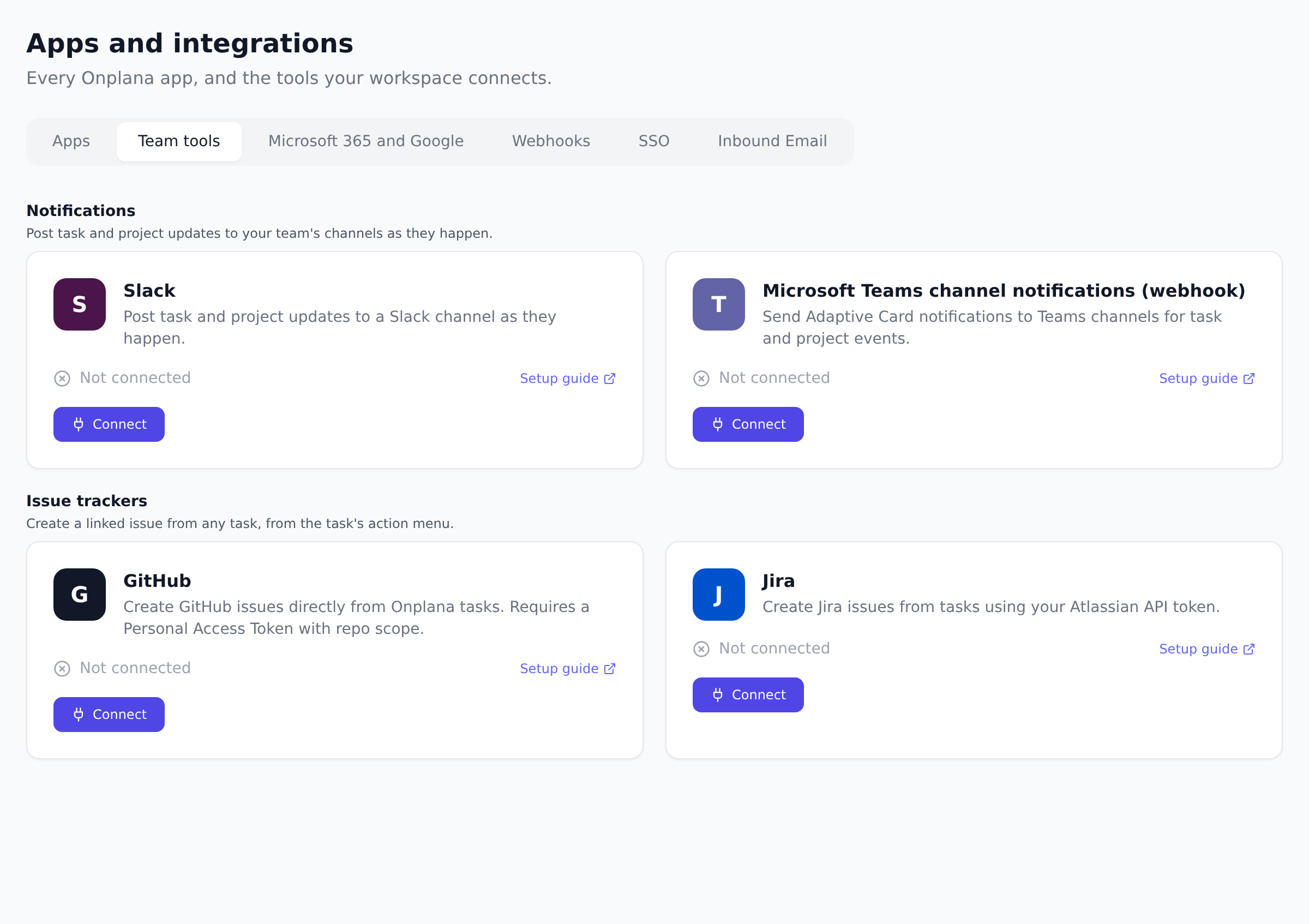
Section titled “Integrations ”Messaging connects Slack or Microsoft Teams so notifications land where your team already is, from Apps and integrations, on the Team tools tab; the Teams path is in deploy Onplana for Microsoft Teams. Single sign-on and SCIM provisioning (Enterprise) are covered in configure SSO and provision users with SCIM.
Compliance Professional+
Section titled “Compliance ”Rate cards again (they are the prerequisite), then mark each project billable or internal, then decide whether to enable timesheet enforcement. Enforcement is the one step here with teeth, so read the article before switching it on.
Why am I receiving setup reminder emails? You are an owner or admin of an organization where some setup steps are still undecided. The email lists the open steps with a link to each walkthrough above, and it arrives once a month rather than weekly. It stops as soon as every step on your plan is completed, skipped, or marked not applicable, and you can switch it off any time under Settings → Notifications → Workspace setup reminders.
If you are the only person in your workspace, it also carries a short note on what a second person changes and which role to give them.
Do I have to finish every step? No. The steps exist because each one makes some Onplana feature more accurate, not because the product breaks without them. A five-person team with no billing needs may honestly mark the whole Compensation section not applicable.
Who can see the Setup page? Owners and Admins only. Everyone else, including Portfolio Managers, is redirected to the Dashboard if they open the link.
Was this helpful?
Thanks for your feedback!