
Import a spreadsheet into a list
If the data you want in Onplana already exists in a spreadsheet, you do not have to retype it. There are two ways in, and both read a CSV or Excel (.xlsx) file and show you exactly what they would do before they do it:
- Turn the file into a new list. Every column in your file becomes a column in the list, with a type worked out from the values.
- Add its rows to a list you already have, matching your columns to the ones that are there.
Only adding a block of rows to a list that already has its columns? You can paste them straight in from Excel or Google Sheets, with no file to save. Up to 200 rows at a time.
Create a new list from your file
Section titled “Create a new list from your file”-
In the project’s Lists area, choose + New list, then Start from a spreadsheet instead at the bottom of the window.
-
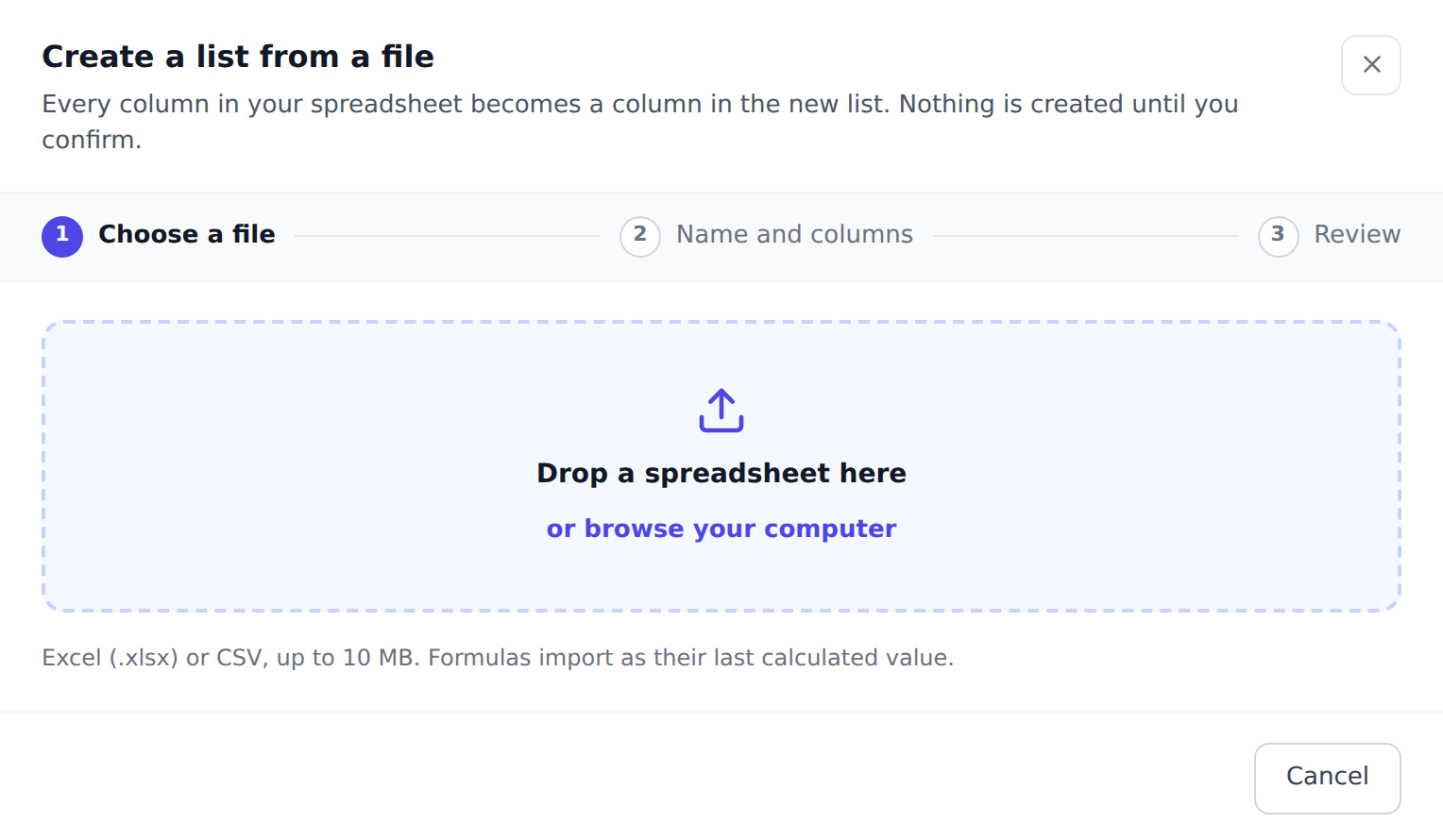
Drop your file on the box, or browse for it. Excel (.xlsx) and CSV, up to 10 MB.
-
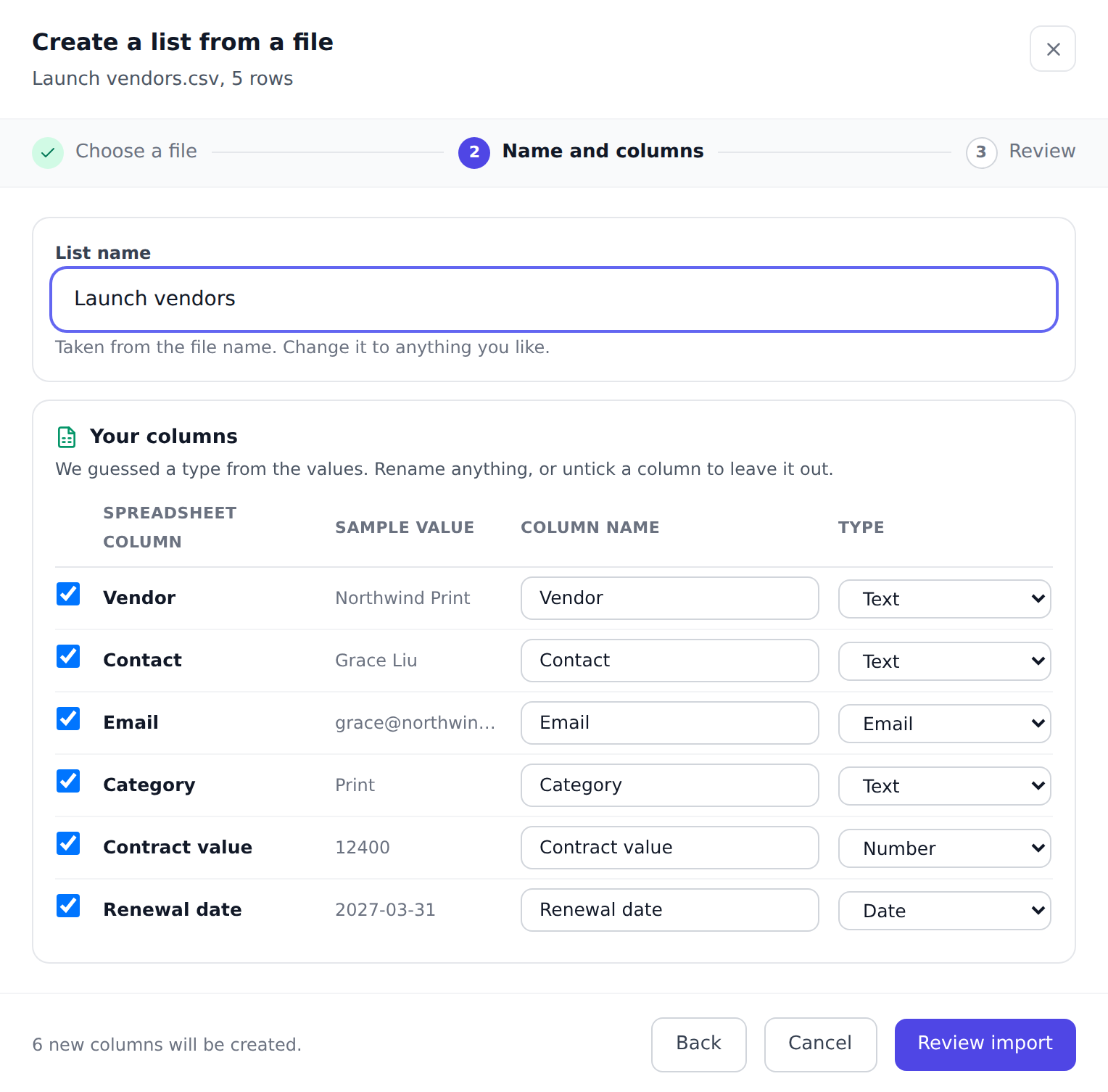
Name it and check the columns. The list name arrives filled in from the file name, so usually there is nothing to change. Below it, one row per column in your spreadsheet:
- a sample value from your file, so you can see what you are looking at,
- the name the column will have in the list, which you can edit,
- its type, which we guessed from the values.
Untick a column to leave it out of the list entirely.
-
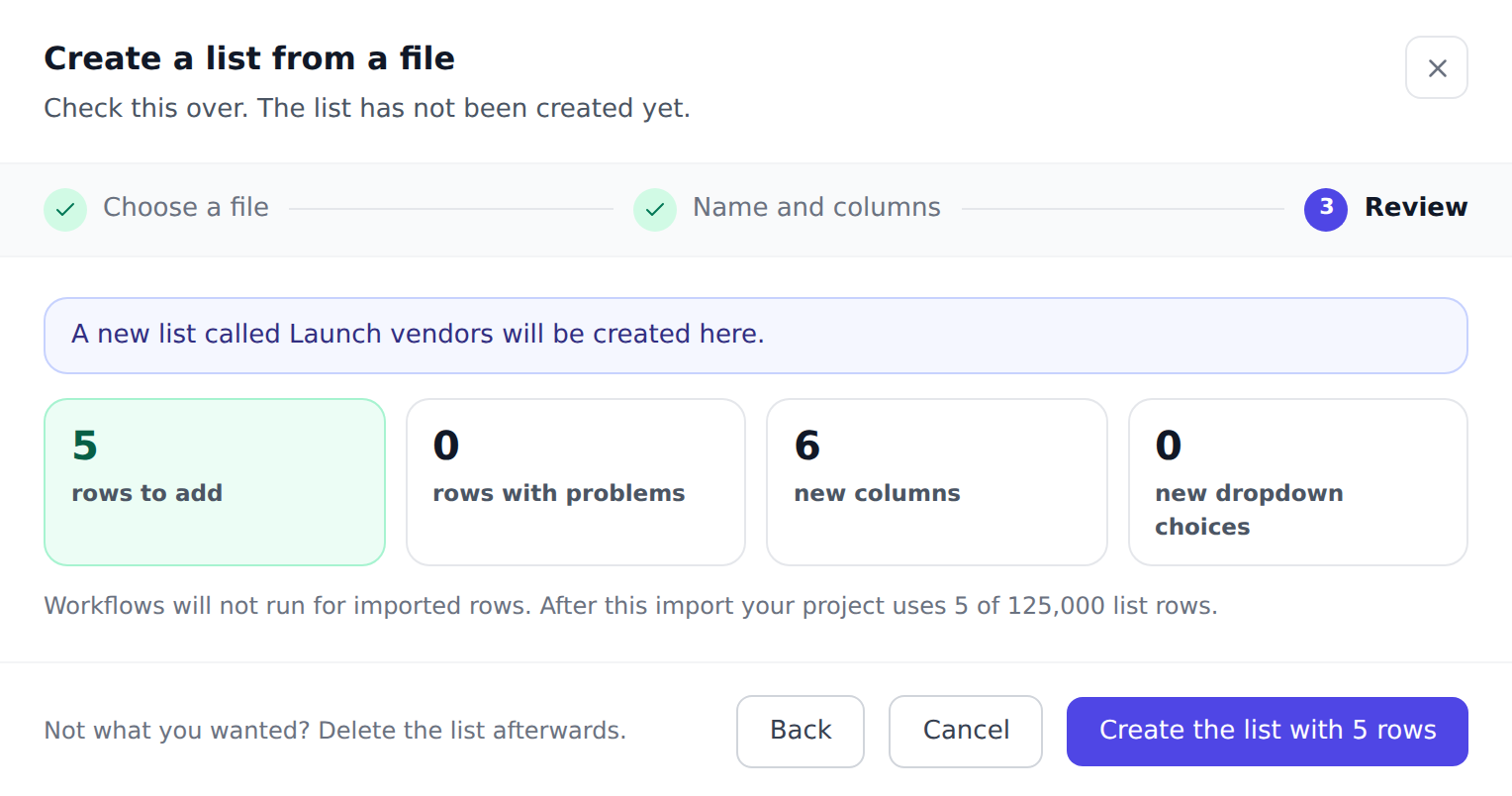
Choose Review import, check the summary, then choose Create the list with N rows. The list is created and opens with your rows in it.
Add rows to a list you already have
Section titled “Add rows to a list you already have”-
Open the list, then choose More actions (the
...button beside Export) and Import from CSV or Excel. -
Drop your file on the box, or browse for it.
-
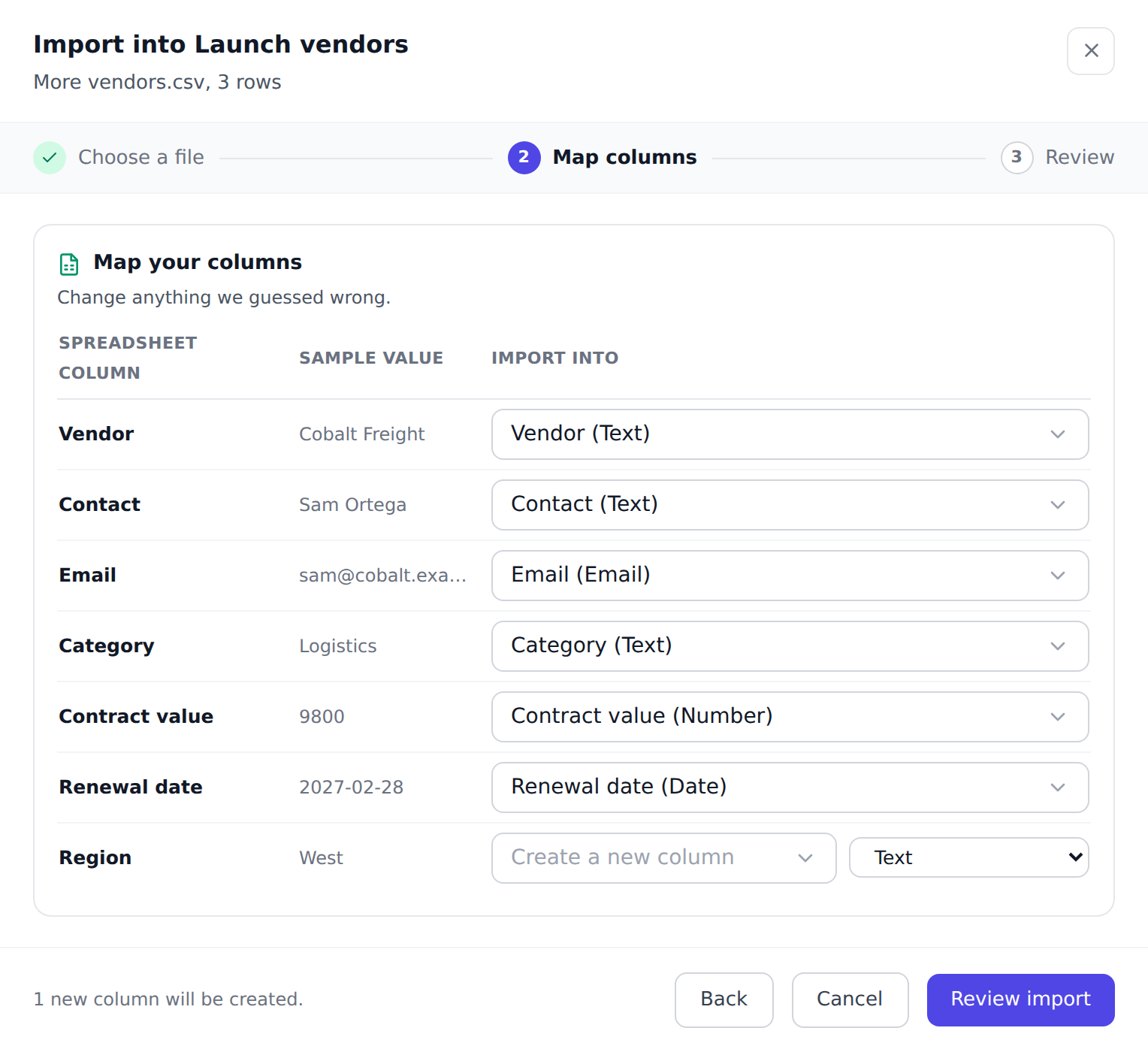
Map your columns. Each column in your spreadsheet gets a destination:
- a column that already exists in the list, matched by name where we can,
- a new column, where you also pick its type, or
- skip this column, and nothing from it is imported.
A sample value from your file sits beside each row, so you can see what you are actually mapping.
-
Choose Review import. You will see how many rows will be added, any rows we could not read and why, which columns would be created, and any new dropdown choices your file would add.
-
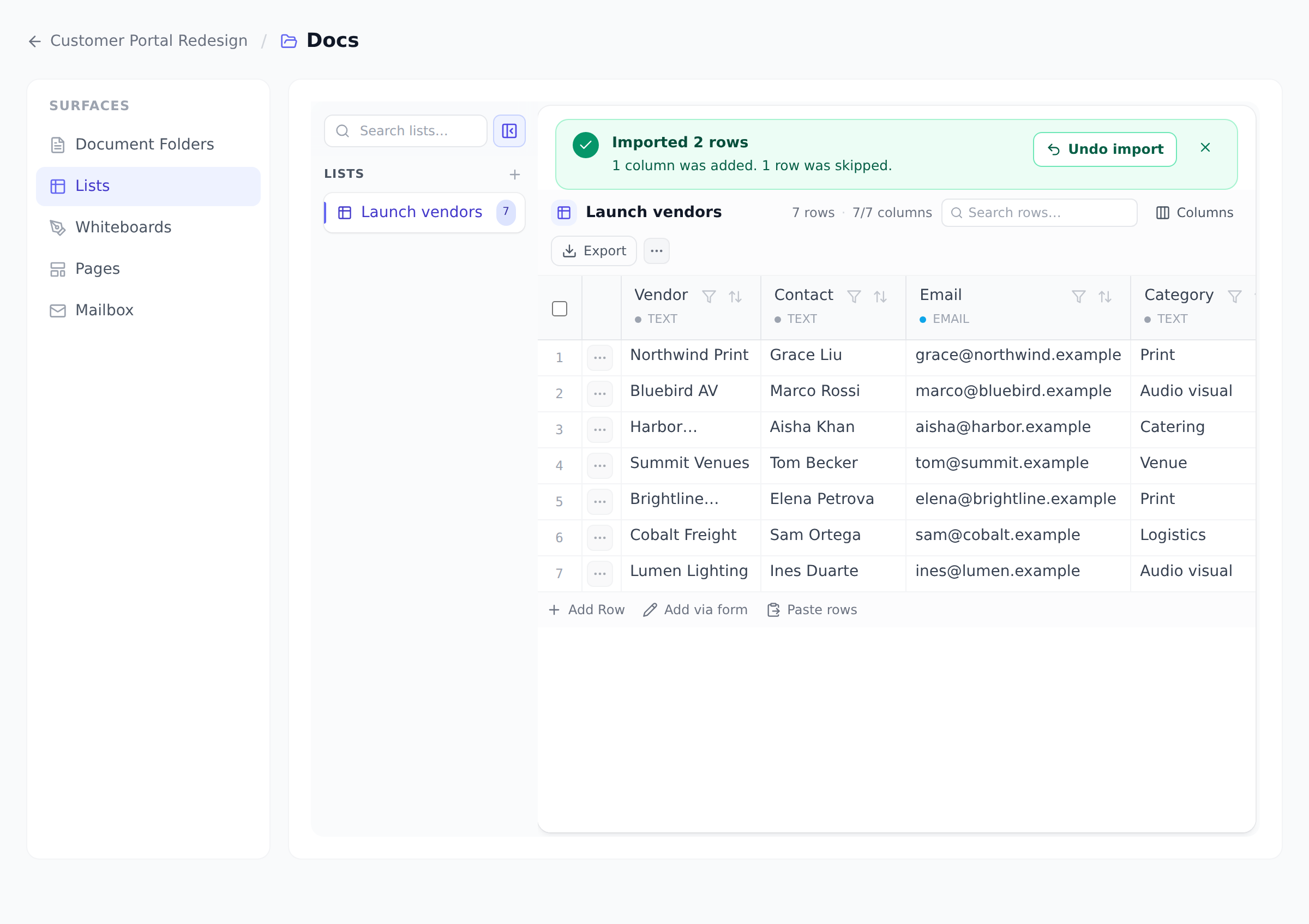
Choose Import N rows. The rows land in the list, and a green banner above it says how many were imported.
What happens to rows we cannot read
Section titled “What happens to rows we cannot read”A row is left out when one of its values does not fit the column it is going to: a word in a number column, something that is not a date in a date column, an address that is not an email address.
The review step lists those rows by the row number you see in your spreadsheet, with the reason, so you can find and fix them. It shows the first 20 and counts the rest. Everything else is imported.
To bring in what was left out, fix those rows and import just them into the list. Importing the whole file again would add every other row a second time, because an import always adds rows and never updates existing ones.
Undoing an import
Section titled “Undoing an import”The two ways in are undone differently, because they leave you in different places.
A file you added to an existing list. Choose Undo import on the green banner above the list. It removes the rows that import added, and only those. The button lives on the banner, so it is there until you close the banner, open another list, or leave the page. Two more things bound it, both on purpose:
- It works for a day. After 24 hours an import can no longer be undone, because an import from last week is not something you undo by accident, and a button that removes four hundred rows should not stay live indefinitely.
- A row you have edited is kept. If you have changed a row since it was imported, it is no longer just a copy of a spreadsheet line, so undo leaves it alone and tells you how many it kept.
A list you created from a file. There is no Undo import here: delete the list instead. Emptying it would leave you with an empty list rather than with the nothing you had before, so deleting is the undo that means what you want. A deleted list goes to the recycle bin, so you can bring it back if you change your mind.
Things worth knowing
Section titled “Things worth knowing”- Formulas arrive as their last calculated value, never as the formula. In
an Excel file, a formula with no saved value, or a cell showing an error
such as
#REF!, arrives empty. - Numbers can use either decimal style. When a value has both a comma and
a point, the rightmost one is the decimal point, so
1.234,56and1,234.56are the same number. When it has only commas, a single comma followed by exactly three digits is a thousands separator, and so are repeated commas:48,200is forty-eight thousand and1,234,567is over a million. Any other single comma is a decimal point, so3,5is three and a half. Currency symbols and spaces are ignored. Check the review step if your file mixes styles. - Dates in Excel date cells are read exactly. Dates typed as text with
slashes, which is how most CSV files hold them, are read as month/day/year,
and the review step warns you when your file has them.
2026-11-30is never ambiguous, so use that form if you can. - New dropdown choices are added to the column when your file uses a choice the column does not have yet. The review step names them before anything is written, so a typo in your spreadsheet shows up there.
- Multi-select values are split on commas and on semicolons, so one
choice cannot contain either:
Leeds, UKarrives as two choices,LeedsandUK. - Workflows do not run for imported rows. A workflow that fires when a row is added would otherwise fire once per row, and a single import could send hundreds of emails. The review step says so before you commit.
- Blank rows are skipped, so a trailing empty line at the end of a CSV costs nothing.
Limits
Section titled “Limits”| Formats | Excel (.xlsx), CSV |
| File size | 10 MB |
| Rows per import | 5,000. Split a larger file and import the parts |
| Columns per list | 200, whether they arrive from a file or by hand |
| Undo window | 24 hours, for an import into an existing list, from the banner that follows it |
Rows also count toward your project’s list-row limit, which depends on your plan. The review step shows what the import would leave you using, and refuses an import that would go past it.
Who can import
Section titled “Who can import”Anyone who can add rows to the list, and for a new list, anyone who can create one. If you can see a list but not change it, the import option does not appear.
Import is available on every plan.
Was this helpful?
Thanks for your feedback!