
Keep a risk register
Every project has a risk register: a list of the things that could go wrong, how bad each would be, and what to do about it. You keep it on the project’s Risks tab. Adding and editing risks works on every plan, including Free, and never uses AI tokens.
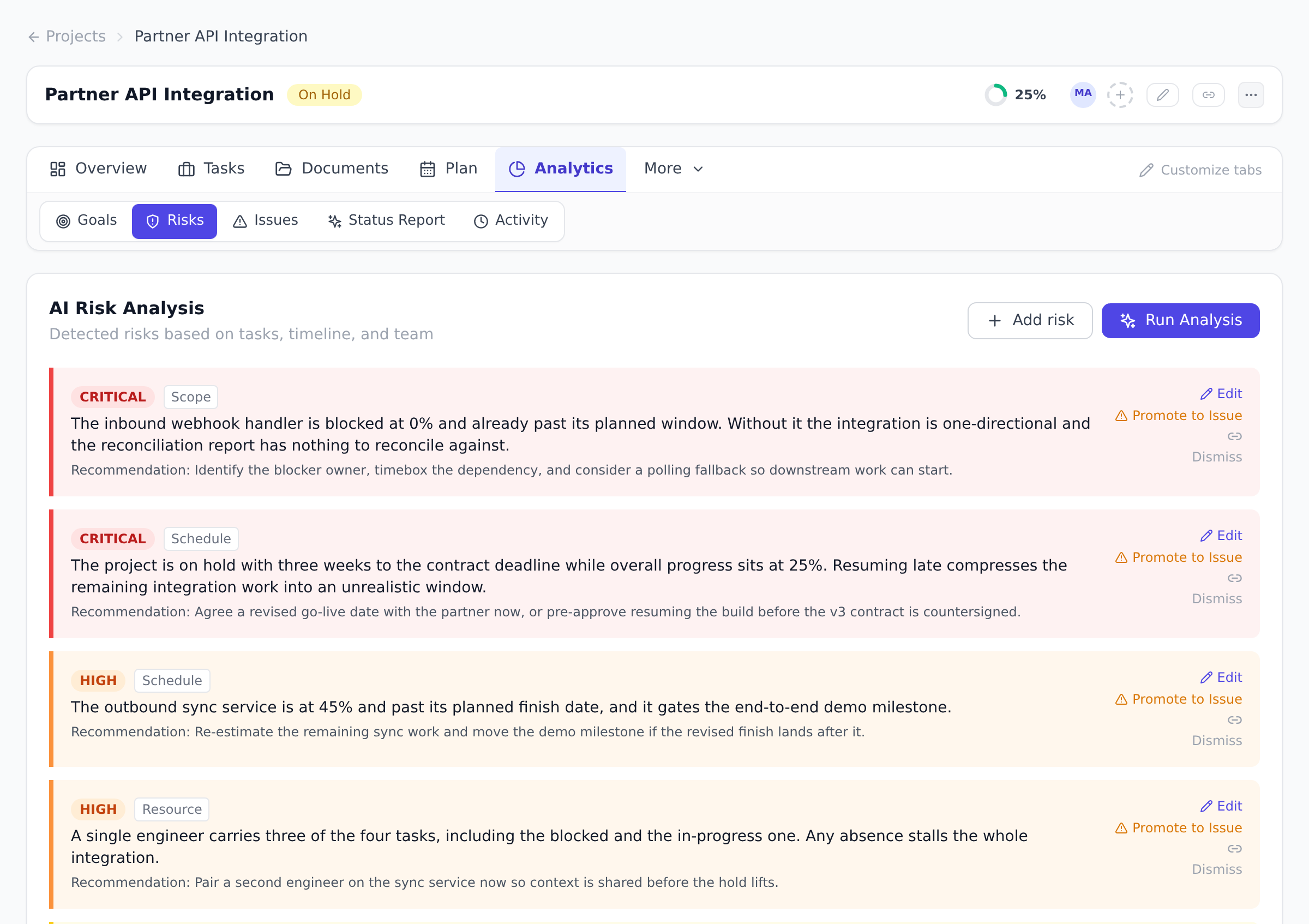
Add a risk
Section titled “Add a risk”-
Open the project, then Analytics > Risks.
-
Select Add risk.
-
Fill in the form:
- What could go wrong: one or two sentences, for example “the vendor may deliver the hardware late”.
- Category: Schedule, Resource, Budget, Scope or External.
- Severity: Low, Medium, High or Critical.
- Recommendation (optional): what would reduce the risk, or what to do if it happens.
-
On the Business plan and above, you can also fill Schedule impact (optional). See Schedule impact.
-
Select Add risk. The risk appears on the tab and in the project’s Open Risks count on the Overview.
Severity is the risk’s rating on the register. A risk has no owner field. If you need an owner, turn the recommendation into a task and assign it.
Schedule impact
Section titled “Schedule impact”On the Business, Enterprise and Enterprise+ plans, the risk form has a Schedule impact section. Fill it when the risk would delay the schedule, and a schedule risk run includes it:
- Probability (%): the chance the risk happens, from 0 to 100.
- Impact (working days): the working days it adds to each affected task when it happens. More than 0, and at most 3,650.
- Affected tasks: the tasks it would delay, up to 200. Search for a task by name. Summary tasks are not listed. Done tasks and milestones are listed but cannot be picked, because a run cannot lengthen them.
Enter both the probability and the impact, or leave both empty. With only one, the form says “Enter both the probability and the impact, or leave both empty.” and does not save. A risk needs at least one affected task as well before a run includes it.
The section is optional and separate from severity. On a lower plan the form does not show it.
Edit a risk
Section titled “Edit a risk”Select Edit on the risk’s card, change any of the fields, and select Save. Clearing the recommendation removes it. Emptying the probability and the impact removes them, and the risk leaves the next schedule risk run.
A risk that has been dismissed or accepted is closed, and Edit no longer appears on it.
When a risk happens, or stops mattering
Section titled “When a risk happens, or stops mattering”Each open risk has three actions on the Risks tab:
- Promote to Issue drafts an issue in the project’s issue log from the risk, so the problem gets tracked and owned. The risk card then shows which issue it became.
- Dismiss takes the risk off the open register. The dismissal stays on record.
- The link icon copies a link that opens the project straight at that risk.
On the Gantt chart, the risk panel above the chart also offers Accept & create task, which creates a mitigation task and closes the risk.
Who can add and edit risks
Section titled “Who can add and edit risks”Anyone whose project role includes adding content to the project, the same permission that lets them log an issue. By default that is every project role except Viewer, plus organization Owners and Admins. People without it can read the register but do not see Add risk or Edit. Your organization can change this in the permissions matrix.
Risks from AI and from agents
Section titled “Risks from AI and from agents”You do not need AI to keep a register, but it can help fill one:
- Run Analysis on the same tab reads the project’s schedule, statuses and workload and proposes risks. It needs the Business plan or above and uses AI tokens. See Detect project risks with AI.
- A connected agent can record a risk it spots while it works. Those are added to the register like yours and never replace anything.
You can edit an AI-proposed risk the same way as your own, for example to correct its severity.
Run Analysis replaces only risks Onplana added on its own (an earlier analysis, the background scan, an import, a template or an AI-drafted plan) that nobody has edited, accepted or dismissed; risks you or an agent added, and any risk a person has touched, stay on the register.
Which plans include the risk register? Every plan, including Free. Only Run Analysis needs Business or above.
Does adding a risk use AI tokens? No. Adding, editing, promoting and dismissing are ordinary edits.
Why can’t I see Add risk? Your role on this project does not include adding content. Ask a project owner or manager.
Why can’t I edit a risk? It has been dismissed or accepted, so it is closed. Add a new risk if the situation has changed.
Can I set a probability and an impact? Yes, on the Business plan and above, under Schedule impact. They are used by schedule risk runs. On lower plans, use severity for how bad it would be, and put the detail in the description or the recommendation.
Related
Section titled “Related”- Estimate how likely your finish date is, where a risk’s schedule impact is used
- Detect project risks with AI, letting AI propose risks for you
- Track issues, where a promoted risk is tracked
- Plan on the Gantt chart, the risk panel above the chart
- Understand roles and permissions, who can add content to a project
Was this helpful?
Thanks for your feedback!