
Onplana on every device
Onplana runs in your browser, and it also comes to where you already work: your desktop tray, your phone, your browser toolbar, Microsoft Teams, Google Calendar and the AI assistant you use. Every one of those apps is free on every plan, and you sign in to each with your Onplana account.
Find every app in one place
Section titled “Find every app in one place”-
Select Onplana apps at the foot of the sidebar.
-
The Apps tab of Apps and integrations opens. The app that suits the device you are on comes first, marked This device, with its install button. Onplana Tasks for your other devices follows as a row of tiles.
-
Pick any other app from the list. Select an app’s name to read how to install it, or How to install beside a section for this page. Where an app has more than one store, Other ways to get it lists them.
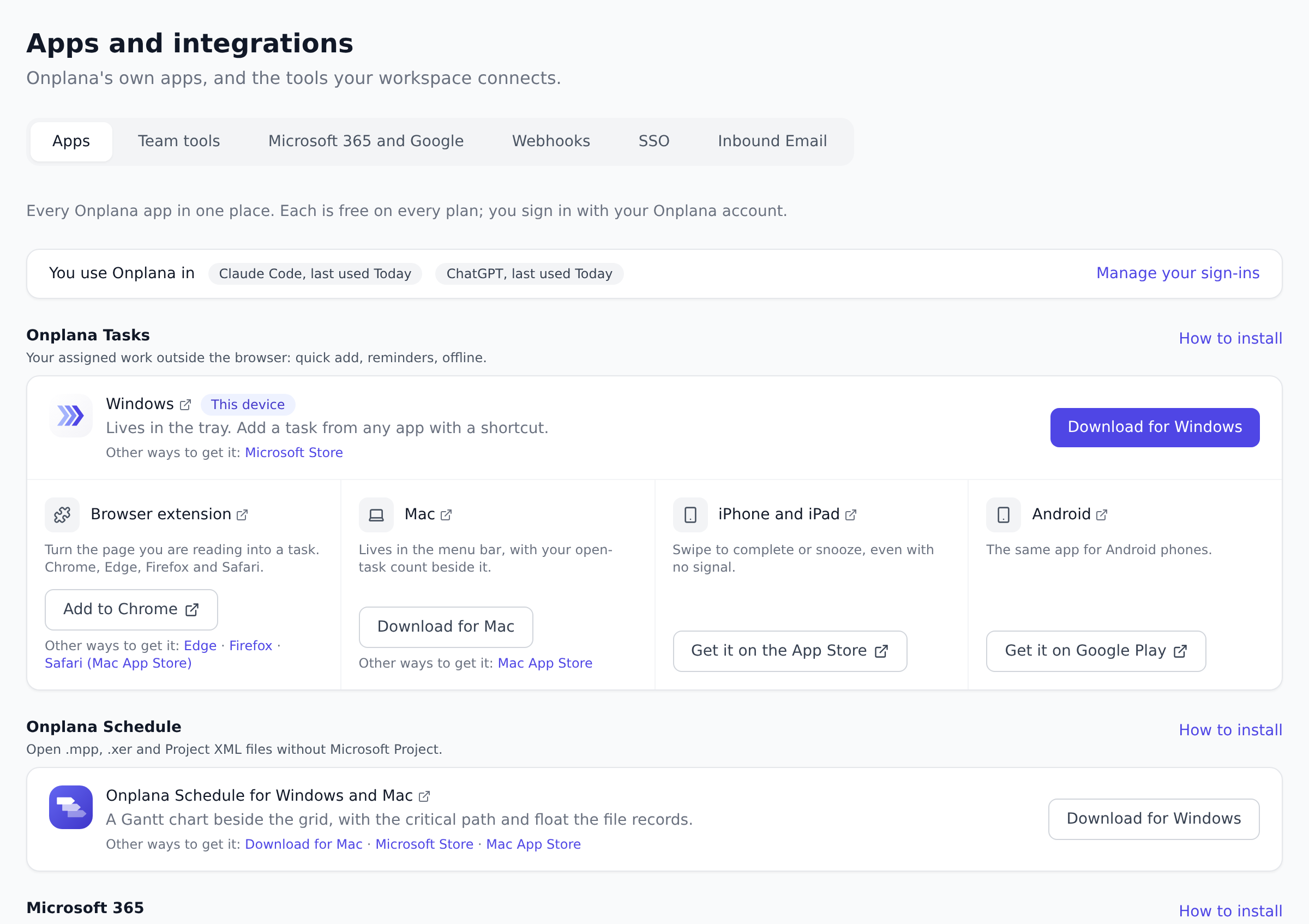
Every role can open the Apps tab on every plan. The other tabs of Apps and integrations hold the workspace’s own connections, such as Slack, webhooks and single sign-on, and only Owners and Admins see them.
When you already use an app, a line at the top, You use Onplana in, lists it: the Onplana apps you are signed in to and the AI assistants you have connected or used recently, with a link to manage your sign-ins. A Signed in chip on a row means you are signed in to that app in this workspace. A row without a chip only means Onplana cannot tell, for example for the Teams app.
Onplana Projects for SharePoint is listed as Coming soon, with no button yet; the install button appears when it reaches AppSource.
If you may open Billing (the Owner, and anyone your workspace lets manage billing), the tab also shows Pay through your cloud marketplace. Its Microsoft Marketplace row takes you to Billing with Compare in Billing, where you can buy your plan through Microsoft instead of by card. See Buy Onplana through Microsoft Marketplace.
The apps
Section titled “The apps”| App | What it does | Get it |
|---|---|---|
| Onplana Tasks for Windows, Mac, iPhone, Android and your browser | Everything assigned to you outside the browser tab: quick add, reminders, and changes that wait for you offline | Windows, Mac, iPhone, Android, browser extension |
| Onplana Schedule for Windows and Mac | Opens .mpp, .xer and Project XML files without Microsoft Project | Install Onplana Schedule |
| Onplana for Microsoft Teams | Your projects, tasks and dashboard as tabs in Teams. Microsoft 365 Copilot comes with it | Use it in Teams; an admin can deploy it for everyone |
| Onplana Tasks for Google Calendar | Your tasks in a panel beside Google Calendar | Use it in Google Calendar |
| Onplana in the Google apps menu | Opens Onplana from the launcher beside Gmail, Drive and Calendar | Connect Google and Microsoft |
| Onplana Projects for SharePoint | Project status, tasks, the timeline and approvals on SharePoint pages. Coming soon | Use it in SharePoint |
| AI assistants: Claude, Claude Code, ChatGPT, Codex, GitHub Copilot, Gemini Enterprise | Ask about your projects and update work from the assistant you already use | From Claude, from ChatGPT, any other agent, Gemini Enterprise |
See and sign out of the apps you use
Section titled “See and sign out of the apps you use”Each device you sign in on is listed in Settings → Connections → Your Onplana apps, one row per app and device, for example Onplana Tasks on Windows, with when it was last used.
-
Open Settings from your name at the foot of the sidebar, then the Connections tab.
-
Under Your Onplana apps, find the app and select Sign out, then confirm.
If you signed in on one device several times, the row says how many sign-ins it holds, and Sign out ends all of them. The app stops working with this workspace until you sign in on it again.
AI assistants are not in this list. They are in Settings → Agents, with their own connections and sessions.
Suggestions on My Work and the calendar
Section titled “Suggestions on My Work and the calendar”Two screens suggest an app where it helps most:
- My Work suggests Onplana Tasks for the device you are on, for example Keep My Work in your tray on Windows or Get My Work on your phone on a phone.
- The calendar sync panel, on My Work’s Calendar tab and a project’s calendar, suggests Onplana Tasks for Google Calendar when a Google calendar is connected.
Each suggestion hides for good once you select it or its ×. The My Work one also hides once you have signed in to an Onplana Tasks app in this workspace. Neither appears inside Microsoft Teams. The Apps tab always lists every app.
Do the apps cost extra? No. Every Onplana app is free on every plan, including Free.
I don’t see Apps and integrations in my sidebar. The sidebar item is for Owners and Admins on Business and above. Everyone reaches the Apps tab from Onplana apps at the foot of the sidebar.
Where did Settings → Accounts go? It is Settings → Connections now, with your Google, Microsoft, Box and Dropbox accounts, your calendar feed and the Onplana apps you are signed in to. Old links to the Accounts tab still open it.
Why is an app missing the Signed in chip? Some apps cannot report a sign-in to the web app, such as the Teams app and the Google Calendar add-on. The chip appears only when Onplana can prove it.
Related
Section titled “Related”Was this helpful?
Thanks for your feedback!