
Generate and email a status report
A status update is mostly reading the project back to yourself: what moved, what is stuck, what is late. Generate Report does that reading for you. Onplana AI writes the update from the project as it stands right now, and Email sends one to the people who wanted it.
This is the on-demand report, written when you press the button. A scheduled status report is built to write itself on a cadence, but scheduled sending is not switched on yet. For a digest an agent drafts and a person approves before it is shared, see Draft reports, agendas and invites with an agent.
Generate a report
Section titled “Generate a report”-
Open the project, then Analytics > Status Report.
-
Select Generate Report. It takes a few seconds; the button reads Generating… while Onplana AI writes.
-
Read the report on the tab. Copy puts its Markdown on your clipboard, ready for a document or a chat message.
-
To write a fresh one later, select Regenerate. Each press writes a new report from the project as it is at that moment.
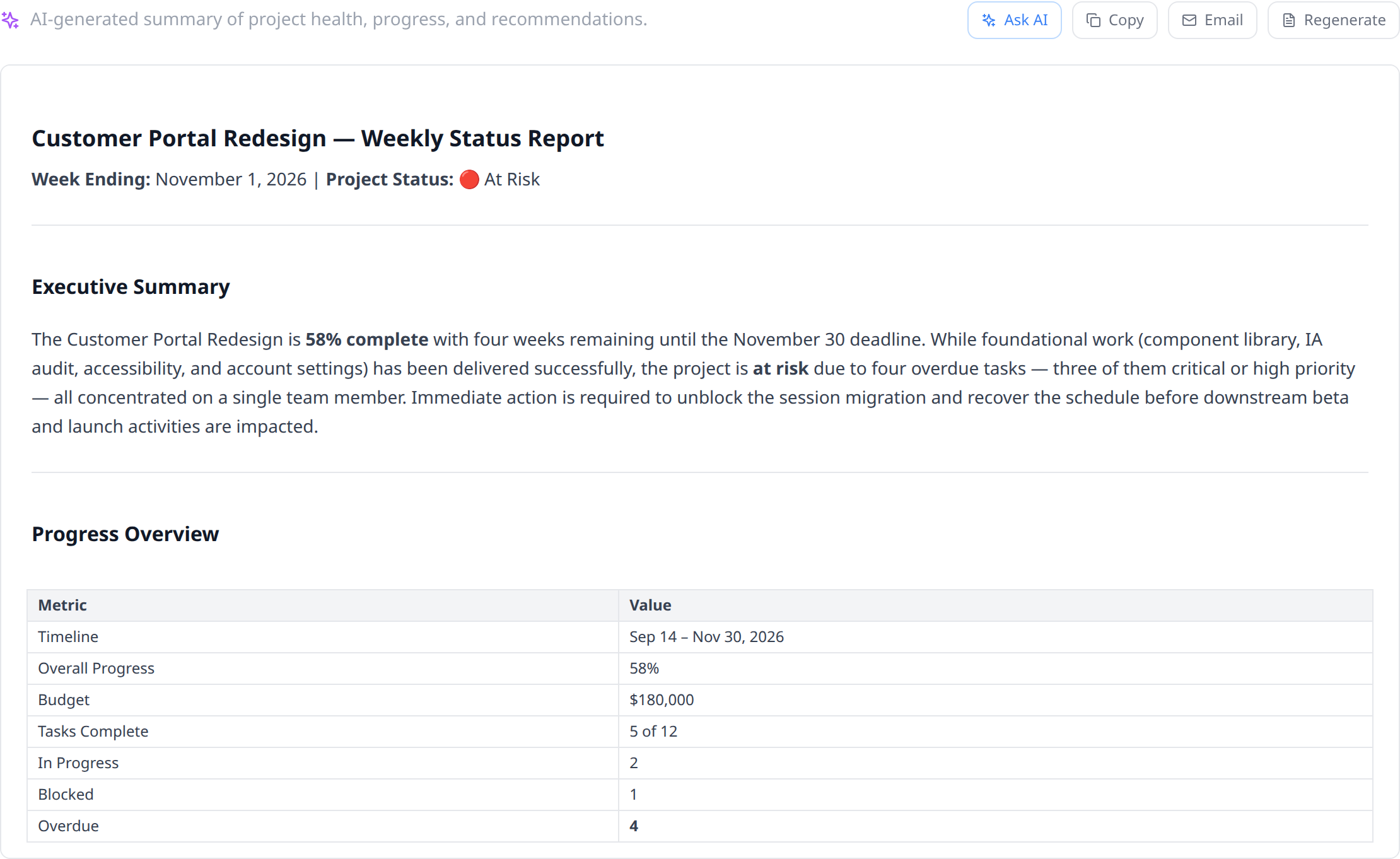
The report is written in the language you use Onplana in. See Change your display language.
What the report reads
Section titled “What the report reads”The report is written from the project’s live data, not from a template:
- The project’s name, status, dates and overall progress, and the team.
- Counts over every task: open, done, in progress, blocked, overdue, and milestones. The numbers in the report are the project’s numbers.
- A list of the tasks a status report is about, in the order a reader wants them: blocked first, then overdue, then work in progress or in review, then open milestones, then upcoming open work by due date, then what finished most recently. Each line carries the task’s status, priority, due date and assignee.
- The project’s budget and each task’s planned cost, only when you are allowed to see cost on that project. For anyone else, cost is left out of what the AI reads, so it cannot appear in their report.
On a large project the task list stops at a cap (80 tasks unless your operator set another number) and the AI is told how many it left out, so it never mistakes the list for the whole plan. The counts still cover every task.
Earlier reports and edits
Section titled “Earlier reports and edits”Where your workspace keeps generated reports, each one is saved on the Status Report tab with the date and the name of the person who generated it. The tab opens on the latest, earlier reports stay readable (the 20 most recent), and you can:
- Edit a report’s text and Save it. The report then shows who edited it and when.
- Copy link to send someone straight to that report. The link opens the project’s Status Report tab on it, for anyone who can open the project.
Where reports are not kept, the report lives on the tab until you leave the page, so Copy it or email it before you go.
Email the report
Section titled “Email the report”-
With a report on the tab, select Email.
-
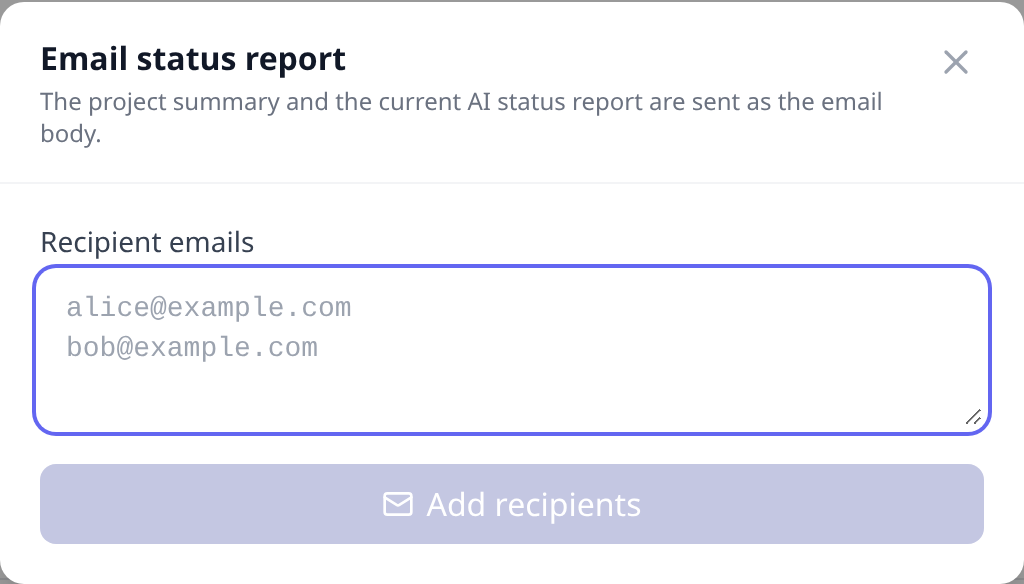
Add recipients. Type addresses, one per line or separated by commas or spaces. Where your workspace keeps reports, you can also pick from People on this project: its owner, its members and the sponsor of the proposal it came from.
-
Select Send to the recipients.
What arrives:
- A line naming you as the sender, with your email address. Replies go to you, not to an Onplana mailbox.
- A summary of the project’s numbers above the narrative: progress bars, task counts, overdue milestones and the phases.
- The report itself, written in the language you use Onplana in.
Who you can send it to
Section titled “Who you can send it to”Addresses outside your organization are allowed: sending the update to a client or a sponsor is the point. To keep it from being used to send mail at volume, there are limits:
- At most 10 recipients per send. Duplicates are removed and every address must look like an email address.
- At most 10 recipients per hour for each person. Ten one-recipient sends and one ten-recipient send cost the same. Past the limit you see a message saying so; try again later.
A demo workspace cannot email reports.
Who can use it
Section titled “Who can use it”Generating and emailing a report needs project access: a member of the project can always do both. Where your workspace keeps reports, anyone who can open the project can generate, edit and email its report, which includes an org manager who oversees projects they are not a member of.
What it costs
Section titled “What it costs”Each Generate Report and Regenerate is written by Onplana AI and spends your workspace’s AI tokens. An Email writes its own report, so it spends tokens too. When the workspace is out of tokens, the button is greyed out with the reason beside it. See Understand your AI token budget.
Which plans include it? Every plan, including Free. What bounds it is your AI token balance, not your tier.
Can I schedule it instead? Not yet. You can set up a schedule, a separate feature with its own rules for outside recipients, but scheduled sending is not switched on, so a schedule sends nothing for now. See Schedule a status report.
Can I share it in Microsoft Teams? Where the Teams app is set up for your workspace, a Share to Teams button appears beside Email. See Use Onplana in Microsoft Teams.
Can an agent write it?
Yes. An agent connected over MCP can generate the same report from the
same data with the generate_status_report tool. See
Connect an external agent.
Related
Section titled “Related”- Schedule a status report, the same report on a cadence, once scheduled sending is switched on
- Draft reports, agendas and invites with an agent, a digest reviewed before you share it
- Understand your AI token budget, what each report spends
- Run cross-project reports, when the question spans several projects
Was this helpful?
Thanks for your feedback!