
Choose columns and filter tasks
The List, the Grid, the Backlog and the Gantt show the same tasks in different shapes. They share one way of choosing columns and one way of filtering, so what you learn in one works in the others: a column has the same name everywhere, and a filter reads the same whichever view set it.
Choose and order columns
Section titled “Choose and order columns”-
Open a project and go to the List, the Grid (select Edit on the List), the Backlog (under Plan) or the Gantt.
-
Select Display, then Columns. Every column the view can show is in one list, in the order the table shows them.
-
Tick a column to show it, or untick it to hide it.
-
Drag a column by its grip to move it. The table’s columns move with it.
-
Changed your mind? Reset to defaults, at the foot of the list, puts back the view’s own columns in their first order.
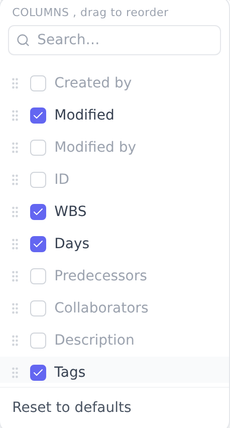
- One list, every kind of column. The task’s own fields (Status, Priority, Assignee, Start, Finish, % complete and the rest), the Gantt’s columns (ID, WBS, Days, Predecessors, Collaborators, Tags, the baseline variances and, if you can see the project’s budget, the cost columns), and the project’s custom fields all sit in the same list and move the same way.
- On the Gantt, Title always shows (it carries the outline), but you can move it. The List’s columns the Gantt did not have before (Sprint, Epic, Tags, Collaborators, Milestone flag, Description, Attachments, Comments, Created, Modified and who did each) and your custom fields are read-only there: change them on the task. Reset column widths stays under the list.
- A search box appears at the top once the list passes fifteen columns.
- Your layout is remembered on this device: per project on the List, the Grid and the Gantt, and for every project on the Backlog.
- A saved view keeps its columns on the List, the Backlog and the Gantt. Save a view from Display > Saved views and its layout comes back with its filters.
- On a phone the Backlog shows the title only, as before, so a row is readable without scrolling sideways.
Sort by a column
Section titled “Sort by a column”Select a column’s name in the header. The first click sorts ascending, the second descending, and the third returns to the plan’s own order.
To sort by more than one column, hold Shift and select another column’s name, for example Finish, then Shift and Priority. Each sorted header shows its place (1, 2, 3), and the bar above the table reads “Sorted: Finish ↑, then Priority ↑”. You can add up to two columns after the first; a click without Shift starts over with that one column.
- Empty cells go last in both directions, so a task with no finish date never hides the real dates.
- Subtasks stay under their parent on the List and the Grid: a sort orders the tasks within each parent rather than mixing levels.
- Priority and status sort by their order, not alphabetically: priority from Low to Critical, status in the workflow’s order (To Do, In Progress, Review, Blocked, Done), as the Gantt sorts it.
- On the Grid, Indent and Outdent are turned off while a sort is on, because the row above is not the row above in the plan. Return to the plan’s order to use them.
- On the Backlog, the Sprint column is the Move to picker, so it has no sort and no filter.
Filter by any column
Section titled “Filter by any column”-
Select the funnel next to a column’s name.
-
Set the filter. What it asks depends on the column:
- Text (title, assignee, WBS): the words the cell contains.
- Numbers (Days, Est. hrs, % complete, costs): at least, at most, or both.
- Dates (Start, Finish, Created): a range, or a range named from today: Before today, Today, This week, Next 7 days or This month. A named range moves with the calendar, so a saved “This week” still means this week next week.
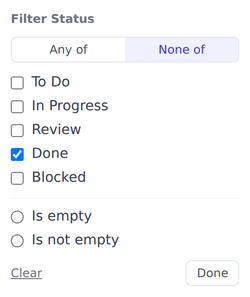
- A choice (Status, Priority, Tags, a checkbox field): tick the values to keep. A long list gets a search box. Switch Any of to None of to keep every task except the ticked values, for example Status none of Done.
- Is empty or Is not empty, on any column a task can leave empty, keeps the tasks with no value there, or only the ones with a value, such as tasks with no finish date. Title, Status and Priority always have a value, so they do not offer it.
-
Close the popover. The funnel stays coloured while its filter is on.
Filters on several columns all apply: a task stays only when it passes every one. On the List, the Grid and the Gantt, a matching subtask keeps its parent in view so you can see where it belongs.
On the Gantt, the Sprint, Epic, Tags and Milestone flag funnels are the Filter panel’s own choices, so the column and the panel always show the same filter, and hiding the column keeps it.
Quick filters and the Filter panel
Section titled “Quick filters and the Filter panel”Select Filter in the toolbar for the panel:
- Quick filters: Mine (assigned to you or one you collaborate on), Overdue, Due this week, Hide completed and Milestones. Once the project has a baseline, Late vs baseline keeps the tasks that now finish after their baseline finish.
- Status and Priority as pills.
The panel and the header funnels are one set of filters. Ticking To Do in the panel colours the Status funnel, and Due this week is the Finish column’s This week.
The bar of filter chips
Section titled “The bar of filter chips”While anything filters, a bar above the table shows:
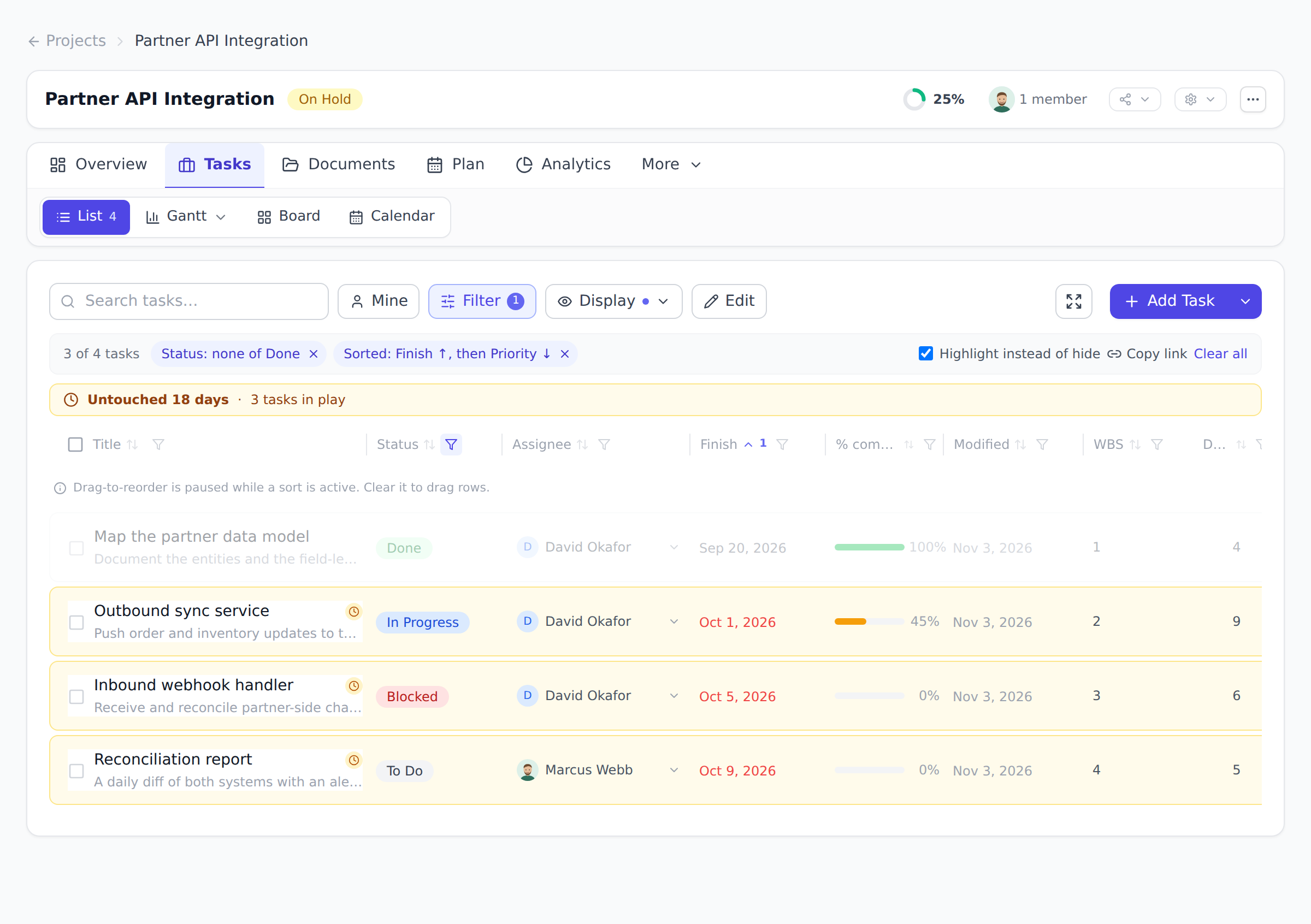
- How many tasks are left, for example “6 of 9 tasks”.
- A chip for each filter, such as “Status: To Do” or “Days: at least 100”. Select its x to remove just that one.
- Clear all, to remove every filter at once.
- Highlight instead of hide. Tick it to keep every task in view: the matching tasks are tinted and the rest fade, so you see the matches in the context of the whole plan. The count then reads how many match.
- Copy link. The page address carries the view’s filters, sort, search and highlight, so a copied link opens the same view for anyone who can see the project.
Good to know
Section titled “Good to know”-
The List and the Grid share their filters, search and sort. Edit opens the Grid on the List’s, End editing returns to the List on the Grid’s, and opening the Grid again finds them as you left them. Moving to another view, such as the Board, clears them, as the List’s search always has. Reloading the page keeps them, because they are in its address.
-
A custom field’s default counts. A task with no value of its own shows the field’s default, and filters and sorts read that default too.
-
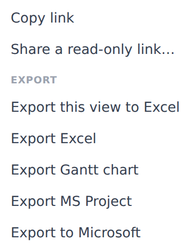
Export what you see. On the List, the Gantt or the Backlog, or while editing the table, select Export this view to Excel where the project’s exports are (the Share menu at the top of the project, or Share or export in its … menu). The file has the rows your filters leave, in your sort order (a collapsed parent or group without its rows), with the columns you chose, the Gantt’s columns and your custom fields among them. Export Excel, just below it, is still the whole-project report.
-
Filters hide rows, they do not change tasks. Clearing a filter brings every task back exactly as it was.
Related
Section titled “Related”Was this helpful?
Thanks for your feedback!